
Symbol Editor Operations
The symbol editor opens when you begin to create or modify a symbol. Like the Schematic Editor, the symbol editor is a graphical tool that keeps the placement of symbol elements uniform by snapping them to points on a grid. The window controls are the same as those in the schematic editor: press the arrow keys and Page Up and Page Down to pan, or Ctrl +D to fit the view.
With the symbol editor, add, modify, and manipulate graphical primitives, text labels, pins, and property displays. You can also adjust the resolution, color, and visibility of the editor grid. When you’re done, update the current project with any changes you’ve made to the current symbol. Options related to these operations are available on the Symbol menu and the Symbol Draw menu.
Symbol Editor Shortcut Menus
When you right-click in the symbol editor grid, this shortcut menu appears:
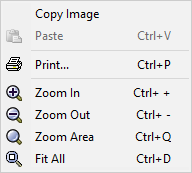
These options are a subset of those available on the View menu.
When you right-click an object in the symbol editor, this shortcut menu appears:
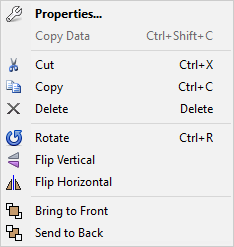
Click Properties to view the properties of the selected object. The other options are a combination of entries on the Edit, View, and Draw menus.