Set Up a Far Field Infinite Sphere
Follow these steps to set up a far field infinite sphere and plot the results.
- From the Project Manager window, expand the Project Tree and [active design folder] (i.e., EMDesign1). Then right-click Radiation and select Insert Far Field Setup > Infinite Sphere.
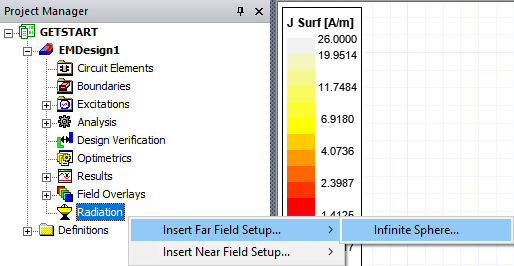
The Infinite Sphere Setup window opens.
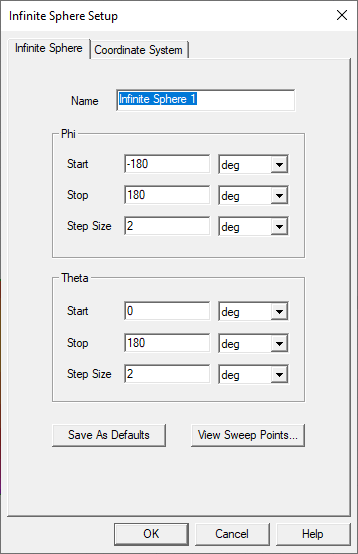
- Make any appropriate changes to the default configuration and click OK to close the Infinite Sphere window and add the far field setup to the design.
- From the Results ribbon, select a report type (i.e., Far Fields Report > 3D Polar).
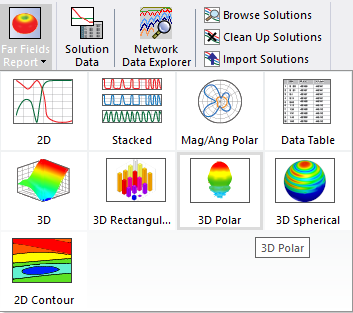
The Report window opens.
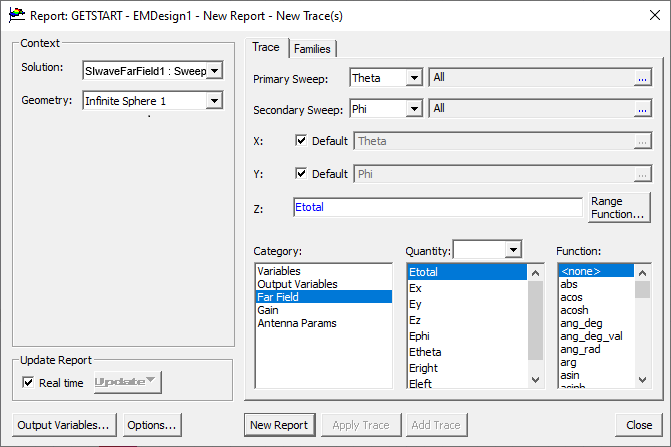
Note: Alternatively, open the Report window by doing one of the following:
From the Project Manager window, expand the Project Tree and [active design folder]. Then right-click Results and select a report type (i.e., Create Far Fields Report > 3D Polar Plot).
From HFSS 3D Layout, select Results > Create Far Fields Report > [Report Type] (i.e., 3D Polar Plot).
Note: In Step 4, the Solution and Geometry drop-down menus pre-select available choices that provide far field results (i.e., SIwaveFarFieldSetup: Sweep2 is selected in the Solution drop-down menu, and Infinite Sphere 1 is selected in the Geometry drop-down menu) and the lists in the Trace tab pre-select the selected choices (i.e., Far Field is selected in the Category list, Etotal is selected in the Quantity list, and <none> is selected in the Function list).
- Select the Families tab. From the Families tab > Freq row, click the [...] button in the Edit column.
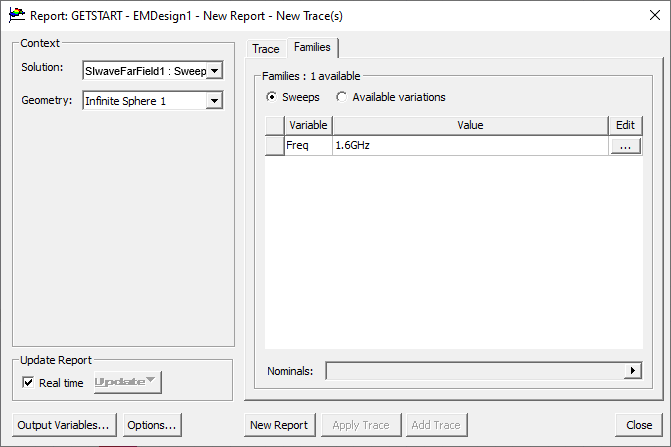
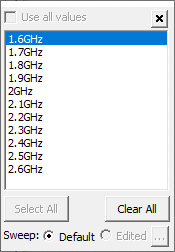
A value list opens.
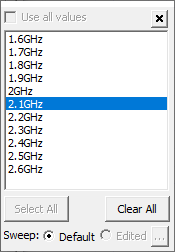
- Select an appropriate value (i.e., in this example, 2.1GHz corresponds closest to the point of minimum return loss). Then click outside of the value list to close it.
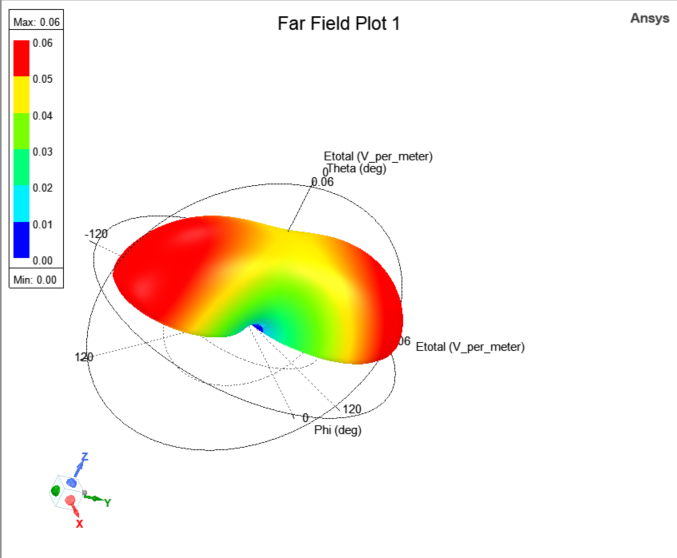
- From the Report window, click New Report and the far field plot opens under the Report window. Close the Report window to access the plot.
- Close the Report window to view the plot. Note: Alternatively, open the Report window by doing one of the following:
From the Project Manager window, expand the Project Tree and [active design folder]. Then right-click Results and select Create Far Fields Report > [Report Type] (i.e., 3D Polar Plot).
From HFSS 3D Layout, select Results > Create Far Fields Report > [Report Type] (i.e., 3D Polar Plot).
- From the Layout Editor, Zoom, Rotate, or Pan the far field plot using the standard Layout Editor controls.