Replacing or Editing Layout Components
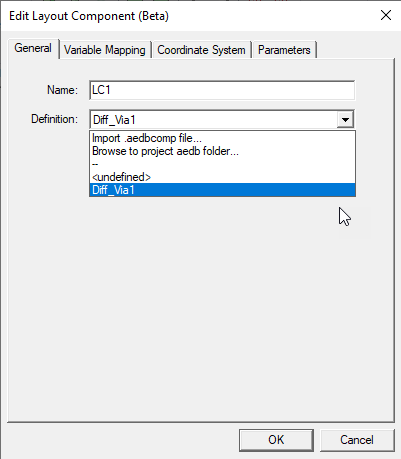
Use the command, Replace Component to edit the properties that were specified when a layout component was inserted into your design or to replace the component with a different one. This command is located in the shortcut menu that appears when you right-click a layout component entry in the Project Manager. A multi-tab dialog box appears, Edit Layout Component, which is very similar to the Insert Layout Component dialog box discussed in the topic, Adding a Layout Component.
Replace Procedure
To replace an existing layout component in your
- Under 3D Components in the Project Manager, right click the <Layout_Component_Name> and choose Replace Component.
- Select the layout component you want, and if need be, use the Variable Mapping, Coordinate System, and Parameters tabs, as you would for Inserting a Layout Component Instance, or Editing Layout Component Instance.
- Click OK when done. The new component instance appears on the 3D Component list and the Modeler window.
The Edit Layout Component dialog box appears with the General tab initially selected: