User Defined Solution for MIMO Calculations
HFSS includes the means to use python scripts for developing Toolkits for User Defined Solutions and User Defined Outputs for specific applications. The MIMO.py script in the syslib>Toolskits directory and the MIMO_Calculation.py script in the syslib>UserDefinedOutputs directory illustrate this technique as applied to an important design application. This toolkit does not work with Linux.
You will need to click HFSS>Toolkit>Update
Menu to cause the Toolkit menu
to display the MIMO selection. 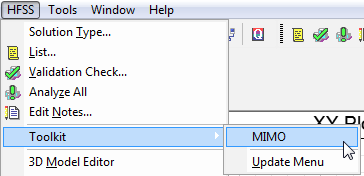
You also click Results>Create User Defined Solution>Update Menu to display the MIMO_Calculation selection.

The use of Multiple Input Multiple Output (MIMO) design in both transmitters and receivers has become an important technique applied toward improved communication. The MIMO calculations also illustrate the process that applies toward generating User Defined Reports. In this case, the Toolkit and User Defined Solutions help you obtain reports of MIMO Calculations of the Envelope Correlation Coefficient and Diversity Gain. You can also use these MIMO quantities in Optimetrics. You can use these scripts with any HFSS Modal or Terminal Network Analysis design with at least two inputs.
Once you have selected a design and have (if necessary) activated the scripts (Update Menu), the MIMO process includes the following steps.
- In the Edit Sources
dialog box, use the Source Contexts
tab to specify the sources to use as context when generating radiated
fields.
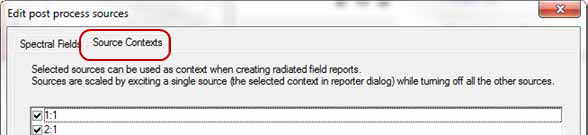
The Source Contexts tab is only available in HFSS Driven Modal and Terminal Network Analysis solution types.
It is not available in
- Composite Excitation sub-solution type
- Design with array setup
- Eigen and Transient solution type
To run the MIMO calculations example, you need a driven Modal or Terminal Network Analysis design with at least two sources. The default for all sources is unchecked (disabled).
All types of sources can be enabled as source
context.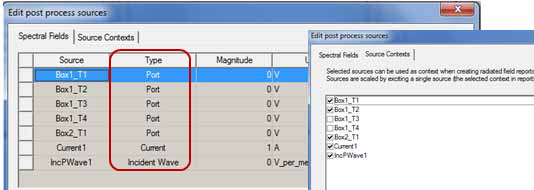
Each singly selected source is excited with factory default values. The phase will always be 0 deg and the magnitude will be 1 Watt for modal design and 1 Volt (Total voltage) for terminal design. These factory default values cannot be changed by users.
Design Edit Source settings such as "Include Port Post Processing Effects" will still be applicable for these singly excited sources. Thus changing any setups on the Spectral Fields tab of the Edit Source dialog will invalidate all traces that are defined with source context.
Enabling any source as context will not impact traces that are already defined
Disabling source as context will invalidate an existing trace that uses that source as context
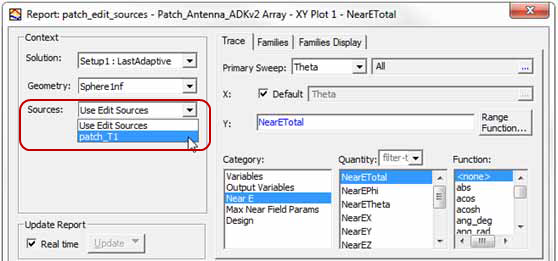
- You can scale sources by exciting a single
source while using the Reporter. A Sources combo box appears in the Reporter
when you have specified at least one source in the Edit
Sources dialog.
- Select HFSS>Toolkit>MIMO
to view the Correlation Coefficient Calculations
dialog.
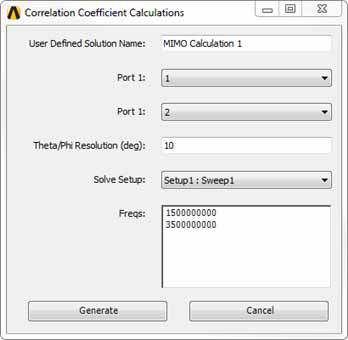
From here you can select Ports, specify the Theta/Phi resolution in degrees, and select the Solve Setup. Click Generate to apply the settings.
- Select Results>Create
User Defined Solution to select Input probes in the Editing User Defined Solution dialog
for the MIMO calculation.
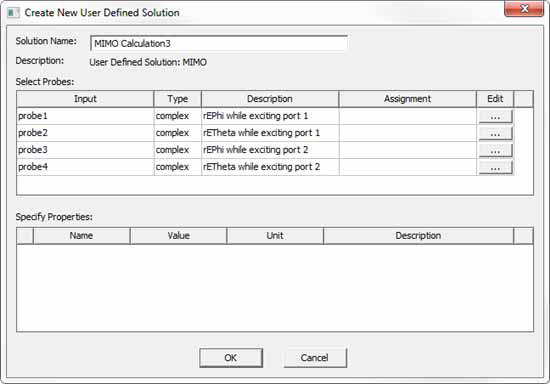
From here, you can also make assignments for
the sources. Click the ellipses [...] buttons in the Edit column to open
a Select Input dialog for the respective
probe.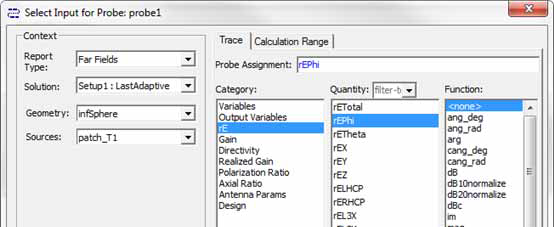
If you edit the Probe assignment
here, and OK the dialog box. You select Probe assignment category, quantity
and function based on the Description in the User Defined Solution. The
Reporter Probe Assignment field restricts the legal values to the Description
field. Red text denotes illegal assignments, and blue, legal. The assignment
value for that probe appears in the Create User
Defined Solution dialog.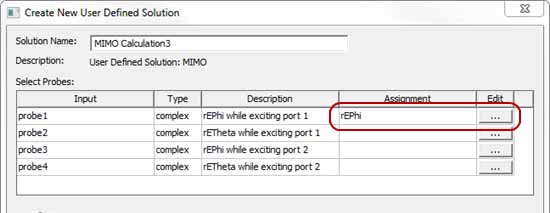
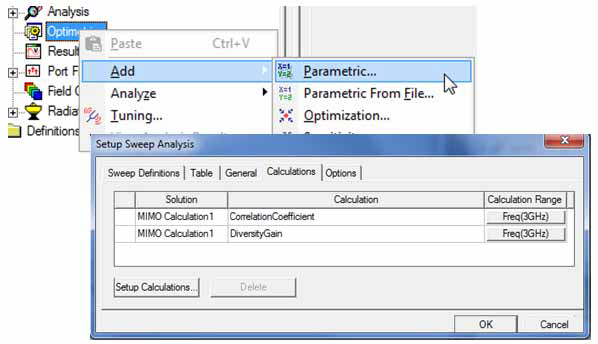
The created solution “MIMO Calculation1” has 2 output quantities, the “CorrelationCoefficient” (Envelope Correlation Coefficient) and “DiversityGain”. These quantities can be used in both reporter and Optimetrics. For the Reporter, you can select Output as the Category to select CorrelationCoefficent and Diversity Gain as Quantities.
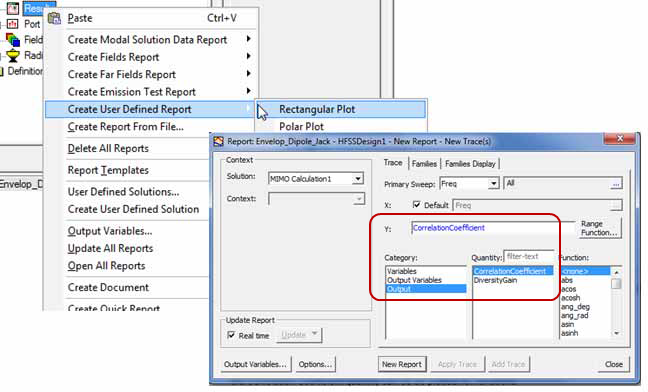
For Optimetrics, the MIMO calculations appear in
the Sweep Definitions.