Show Nets for Layout Components in HFSS 3D Geometries
For Terminal Solution types, HFSS designs that include Layout Components, you can use the Show Nets command to visualize conducting nets and terminal associations formed by 3D geometries and layout components in a HFSS design. You can also select a Layout Component, and use the Nets Tab for Viewing Nets.
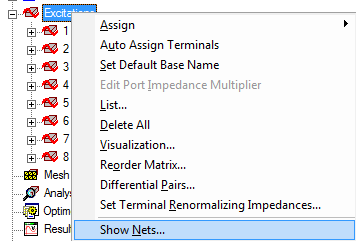
Show Nets Command
The Show Nets
command appears in the HFSS > Excitations
menu and by right-clicking on Excitations
in the Project tree.
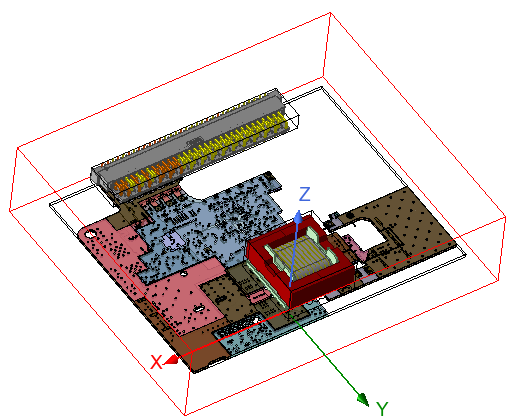
Selecting Show Nets... displays the Net Visualization dialog box that lists the nets and associated terminals and includes any included Layout Components. You can use the dialog box to select any net or terminal. You can continue to work in the Modeler window with the dialog open. Consider the following example design.
For a net to appear in the Net Visualization dialog box, the conductivity of the assigned material must be equal to or greater than 20,000 siemens/m, or the Resistance must be less than 3.142 ohms. Conductivity is set by material assignment (in the 3D Modeler window or a boundary condition), and Resistance is set by boundary conditions (e.g., Impedance or LumpedRLC).
In the Net Visualization dialog box, you can sort the nets in ascending or descending order, relative to the number of terminals. This helps you locate GND nets, which have no terminals.
Text at the top of list box provides the total number 3D conducting nets. Naming of nets is automatic and follows the convention: "Net1 (0 Terminals)", "Net2 (1 Terminals)"…"Net<N> (<T> Terminals)". Net Names are not editable.
The Net Visualization dialog box is shown below.
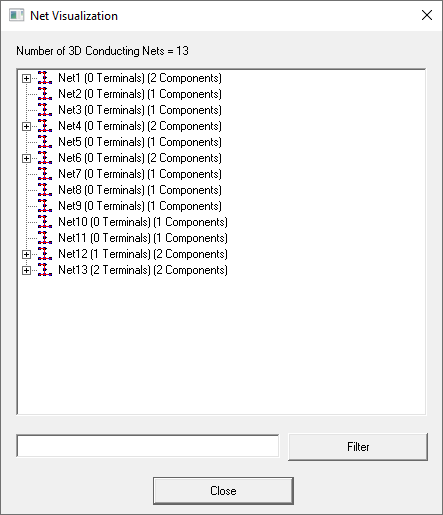
For designs with many nets, you can enter text and wild cards in the field, and click the Filter button.
Right-click in the Net Visualization dialog box to view the short-cut menu. The menu is context sensitive, depending on whether you click on a particular net object, or in the white area.
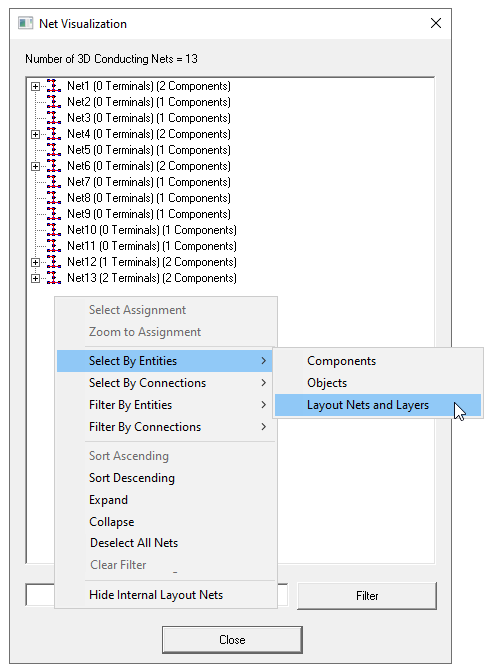
- Select Assignment: If you right-click over selection in the tree, selects entities present in the selection. If the right-click menu is invoked on the surrounding blank space, this menu item is disabled as there is no selection.
- Zoom to Assignment: If you right-click over a selection in the tree, zooms to the entities present in the selection. If you right-click on the surrounding blank space, this menu item is disabled as there is no selection.
- Select by Entities: Invokes a dialog box containing object, component, or net and layer names present in the selection if the right-click menu is invoked over some selection in the tree. If the right-click menu is invoked on the surrounding blank space, all object or component names present in the project are displayed. Selecting one or multiple of these object or component names selects all the nets that contain any of the selected entities.
- Select by Connections: If you right-click over some selection in the tree, this produces a dialog box containing object or component names present in the selection. If you right-click in the surrounding blank space, a dialog box with all object or component names present in the project displays. Selecting a pair of these objects or component names selects all the nets that contain this pair of entities, signifying a direct or indirect connection between these entities.
- Filter by Entities: A new dialog box is invoked containing object, component, or net and layer names present in the selection if the right-click menu is invoked over some selection in the tree. If the right-click menu is invoked on the surrounding blank space, all object or component names present in the project are displayed. Selecting one or multiple of these objects or component names filters all the nets that contain any of the selected entities.
- Filter by Connections: A new dialog box is invoked containing object or component names present in the selection if the right-click menu is invoked over some selection in the tree. If the right-click menu is invoked on the surrounding blank space, all object or component names present in the project are displayed. Selecting a pair of these objects or component names filters all the nets that contain this pair of entities, signifying a direct or indirect connection between these entities.
- Sort Ascending: Sorts the nets in ascending order of their names.
- Sort Descending: Sorts the nets in descending order of their names.
- Expand: Expands the selection in the tree if the right-click menu is invoked over some selection in the tree. If the right-click menu is invoked on the surrounding blank space, it expands all the nets.
- Collapse: Collapses the selection in the tree if the right-click menu is invoked over some selection in the tree. If the right-click menu is invoked on the surrounding blank space, it collapses all the nets.
- Deselect All Nets: Deselects all the entities present in the project. Clears the selection of all the previously selected entities.
- Clear Filter: Clears all the filtering applied on nets and shows all the nets.
- Hide Internal Layout Nets: Hides all the nets that are internal to layout component
Along with the “filter by entities” and the “filter by connections” menu items, you can also filter nets using text input. The text box for this functionality is shown below:

Features of this text box are
- Select Assignment: If you right-click over selection in the tree, selects entities present in the selection. If the right-click menu is invoked on the surrounding blank space, this menu item is disabled as there is no selection.
- Zoom to Assignment: If you right-click over a selection in the tree, zooms to the entities present in the selection. If you right-click on the surrounding blank space, this menu item is disabled as there is no selection.
- Select by Entities: Invokes a dialog box containing object, component, or net and layer names present in the selection if the right-click menu is invoked over some selection in the tree. If the right-click menu is invoked on the surrounding blank space, all object or component names present in the project are displayed. Selecting one or multiple of these object or component names selects all the nets that contain any of the selected entities.
- Select by Connections: If you right-click over some selection in the tree, this produces a dialog box containing object or component names present in the selection. If you right-click in the surrounding blank space, a dialog box with all object or component names present in the project displays. Selecting a pair of these objects or component names selects all the nets that contain this pair of entities, signifying a direct or indirect connection between these entities.
- Filter by Entities: A new dialog box is invoked containing object, component, or net and layer names present in the selection if the right-click menu is invoked over some selection in the tree. If the right-click menu is invoked on the surrounding blank space, all object or component names present in the project are displayed. Selecting one or multiple of these objects or component names filters all the nets that contain any of the selected entities.
- Filter by Connections: A new dialog box is invoked containing object or component names present in the selection if the right-click menu is invoked over some selection in the tree. If the right-click menu is invoked on the surrounding blank space, all object or component names present in the project are displayed. Selecting a pair of these objects or component names filters all the nets that contain this pair of entities, signifying a direct or indirect connection between these entities.
- Sort Ascending: Sorts the nets in ascending order of their names.
- Sort Descending: Sorts the nets in descending order of their names.
- Expand: Expands the selection in the tree if the right-click menu is invoked over some selection in the tree. If the right-click menu is invoked on the surrounding blank space, it expands all the nets.
- Collapse: Collapses the selection in the tree if the right-click menu is invoked over some selection in the tree. If the right-click menu is invoked on the surrounding blank space, it collapses all the nets.
- Deselect All Nets: Deselects all the entities present in the project. Clears the selection of all the previously selected entities.
- Clear Filter: Clears all the filtering applied on nets and shows all the nets.
- Hide Internal Layout Nets: Hides all the nets that are internal to layout component
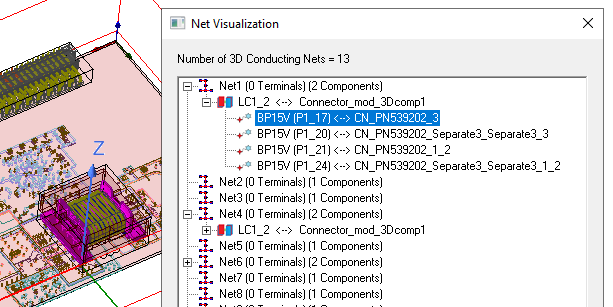
Selecting any component or net in the Net Visualization list highlights it. For example, the following figure shows a Layout Component selected in the expanded tree list and highlighted in the Modeler window.
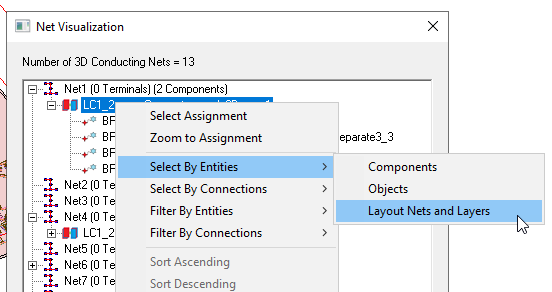
For example, right-click on the Layout Component name in the Net Visualization dialog box to display the menu and select Select by Entities > Layout Nets and Layers.
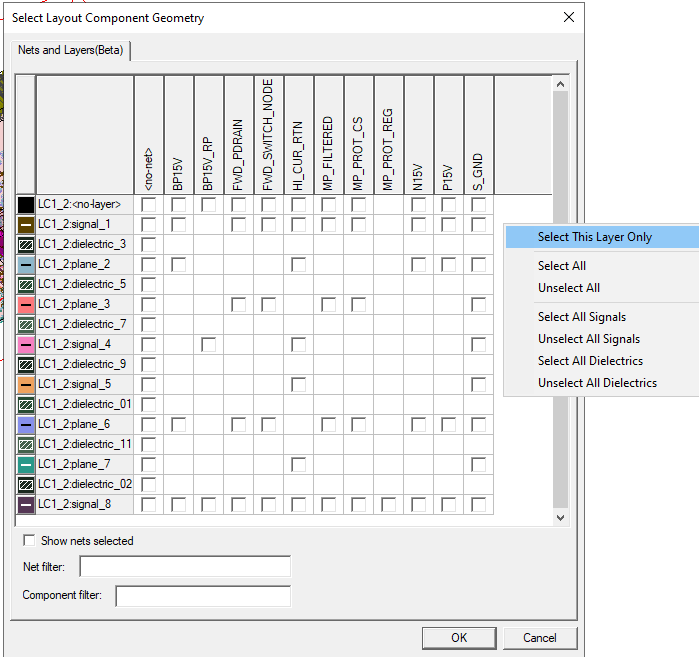
This displays the Select Layout Component Geometry dialog box.
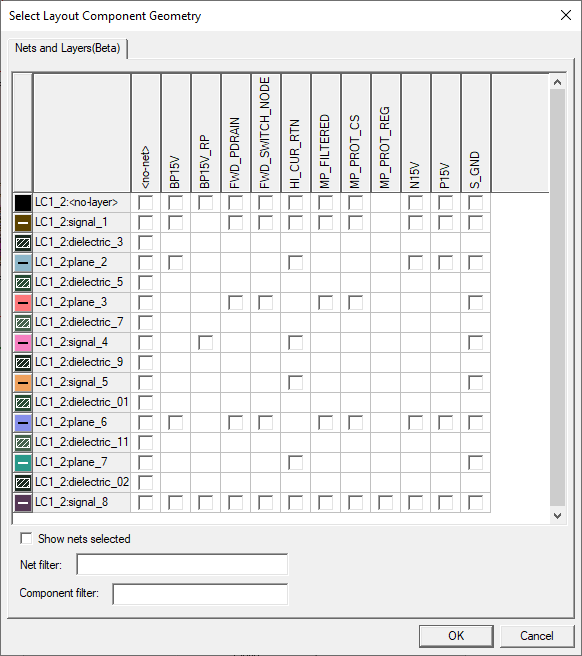
With the Select Layout Component Geometry dialog box, you can select objects from layout components’ local nets and layers and search for nets in the overall design that contain these objects. This dialog displays all the layers and local nets of every layout component in the design. If there are objects in the layout component that belong to a specific layer and net, a checkbox will become available for you to select. Once you make selections and click Apply, you can go back to the parent Net Visualization dialog box and click Select button, which selects all the nets in the Net Visualization dialog that contain these objects.
The Select Layout Component Geometry dialog is modeless, that means you can work in the 3D Modeler while keeping this dialog box open. This way, you can use the modeler window to better find the layout component objects you want to search for.
By clicking the column headers, you can select or deselect checkmboxes in the entire column. The Show nets selected check box can be toggled to move all the selected nets to the left side of the table. Use the Net filter and Component filter to filter fields to designate specific nets and components. These filters support ‘*’ and ‘?’ wildcards and can delimit multiple filters with comma. The table is refreshed each time users update the filter text.
Additionally, the Select Layout Component Geometry dialog box has a right-click menu as shown below.
You can use the dialog to select any net or terminal. You can continue to work in the Modeler window with the dialog box open.
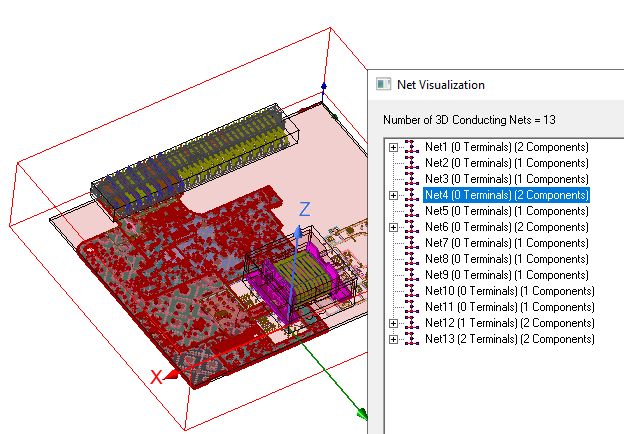
The Net Visualization dialog box identifies all nets and will include both 3D geometries and layout components with correct terminal associations. As shown in the figure below, any net you select in the Net Visualization list highlights the objects in the net in the modeler window. By default, 3D geometries are highlighted with blue texture, and objects from layout components will be highlighted with red texture. The rest of objects in the layout component not belonging to the selected net will be shown as wireframes.
The next figure shows a different selection from the list of 3D conducting nets to illustrate the changed highlighting.
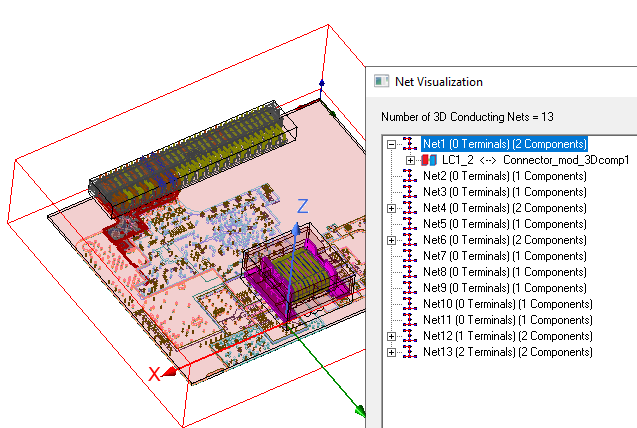
All the functionalities in the Net Visualization dialog that works for regular nets are also supported for nets containing layout component objects, such as Zoom To. Because layout components do not have any actual geometries in the modeler window, the Select Assignment will only select 3D geometries in each net.
Nets Tab for Viewing Nets
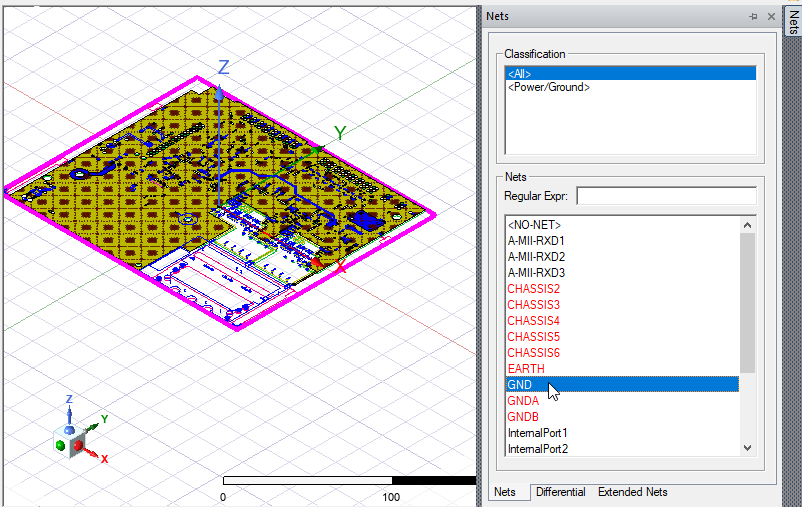
You can also view nets by selecting a Layout Component and then selecting the Nets tab on the right side of the Modeler window.
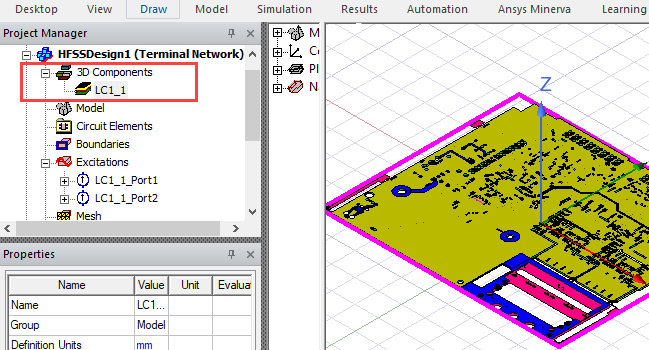
Then click the Nets tab on the right of the Modeler window to open the Nets display window.
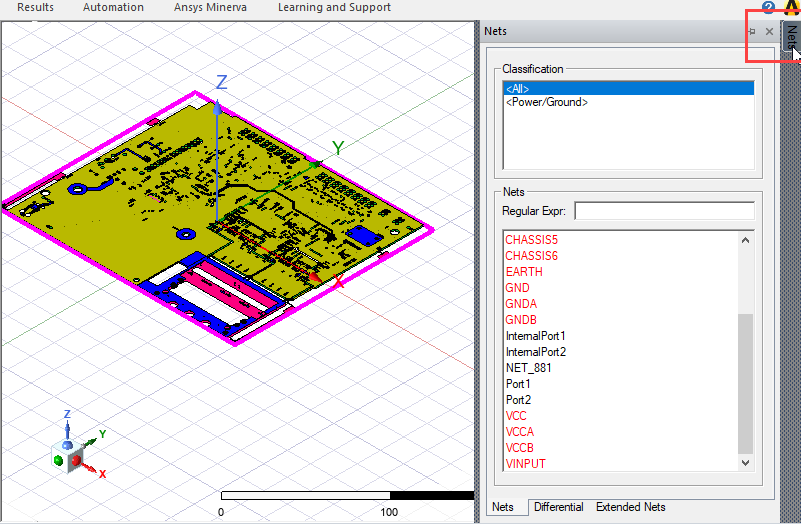
The Nets you select in the list become highlighted in the Modeler window.