
3D Modeler Window
The 3D Modeler window is the area where you create the model geometry. It appears to the right of the Project Manager window after you insert an Ansys Electronics Desktop design into a project. The 3D Modeler window consists of the modeler view area, or grid, and the History Tree. The two areas are highlighted in the following figure:
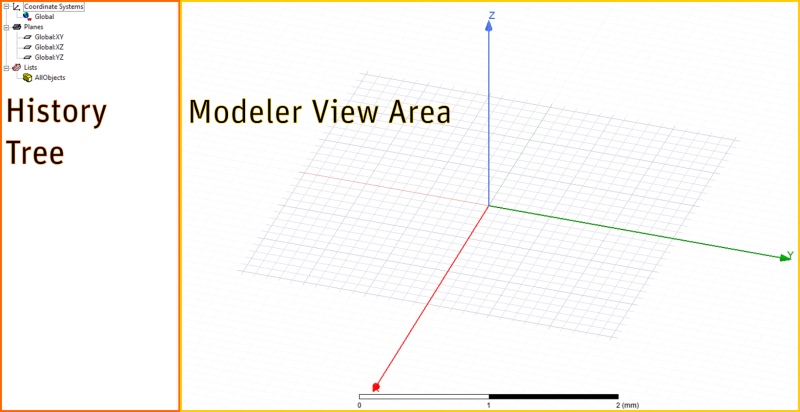
You can open a new 3D Modeler window in one of two ways:
- Insert a new Ansys Electronics Desktop design into the current project, or
- Double-click an Ansys Electronics Desktop design in the Project Tree
The model you draw is saved with the current project when you click File > Save.
Objects are drawn in the 3D Modeler window. You can create 3D objects using Ansys Electronics Desktop's Draw menu commands, or you can draw 1D and 2D objects and manipulate them to create 3D objects. See: Drawing a Model.
You can modify the view of objects in the 3D Modeler window without changing their actual dimensions or positions. Besides menu and icon commands, you can also use Alt+click, mouse buttons, and keyboard shortcuts. See: Modifying the Model View.