
Working with Editor Windows
Each editor window in the Design Area has size controls in its top bar:

Clicking the white rectangle on the left opens a pop-up:
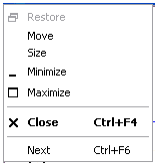
The Move and Size operations are not needed. To move an editor window, drag it by the top bar into the desired location. To resize an editor window, position the cursor at an edge or corner, and drag the border in or out.
- Click Minimize (or use the Minimize icon)
to collapse the design window into an icon:
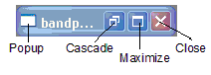
- Clicking the white rectangle on an iconized window opens the same pop-up as the one shown above. To restore an iconized window to its previous size (cascaded or maximized), click the white rectangle, then select Restore on the pop-up. Alternatively, use the Cascade or Maximize buttons on the icon to restore the window to the desired configuration. Use the Close button to close the iconized editor window. Reposition the icons anywhere in the Design area by dragging them with the left mouse button. To restore the icons to a neat row at the bottom of the Design Area, use the Arrange Icons command on the Window pulldown.
- To relocate an iconized window in the Design Area, drag it with the left mouse button.
- Click Maximize (or use the Maximize icon)
to enlarge the editor window to fill the entire Design Area. In this
configuration, Minimize, Cascade, and Close icons appear at the upper
right of the Ansys Electronics Desktop, on the same level
as the Top Menu bar:
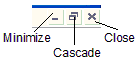
- To restore a maximized window to its initial size and top bar, use the Cascade operation.
- Click Close (or use the Close icon) to close an editor window.
- Click Next to move the active focus to another editor window.
- See Design Area for a summary of the available editor windows.