Bandpass Filter
Abstract
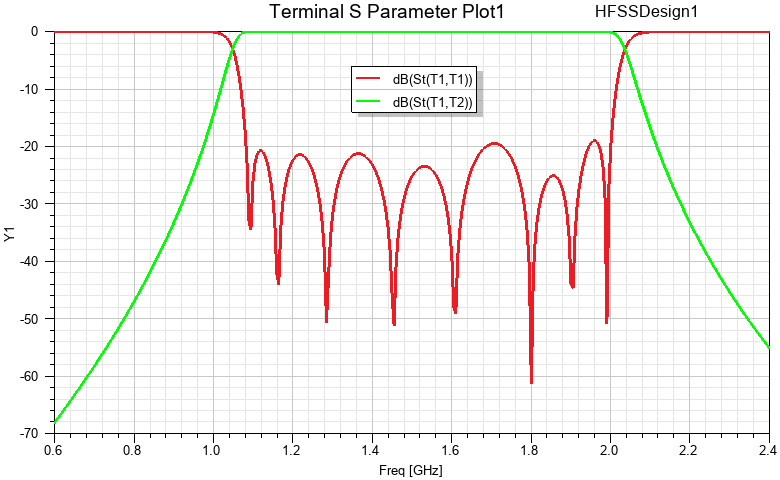
This HFSS example shows a bandpass filter operating over a frequency range of 0.6–2.4 GHz.
The example project also has an associated getting started guide:
- Getting Started with HFSS: Bandpass Filter
Whereas the example model is fully set up, complete with predefined plots and overlays, and is ready to solve, the getting started guide offers an alternative learning path. Follow it to walk through the process of drawing the waveguide geometry, assigning the excitations, setting up the analysis and frequency sweep, and evaluating the results. The geometry for the getting started guide is slightly different and is all numerically defined. Conversely, the example model includes design variables that affect the geometry.
Additionally, the getting started guide includes an HFSS Multipaction analysis, which is not included in the example model project. Refer to the getting started guide if interested in this feature.
Simulation Time/RAM: (meshing, adaptive solution, and frequency sweep; Intel i7 PC at 2.5 GHz, 16 cores, 4 variation in parallel; software version 2025 R2)
2 minute: 11 seconds, 1.74 GB total memory
The project file, Bandpass_Filter.aedt, is located in the ...Examples\HFSS\RF Microwave subfolder of the program installation path.
Description
This HFSS example model is an interdigital bandpass filter with a bandwidth of 1 GHz. The conductors are surrounded by a vacuum enclosure, and the filter is fed by a 50-ohm coaxial transmission line.
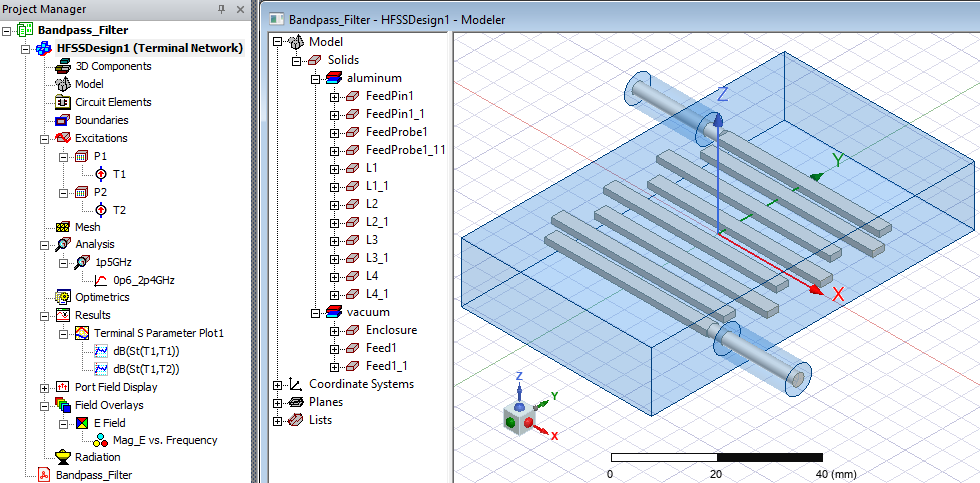
While radio frequencies behave nearly identically between air and vacuum regions, the multipactor effect only occurs in a vacuum. For this reason, vacuum is needed for the getting started guide's multipaction analysis, and the example model's materials have been kept consistent with it.
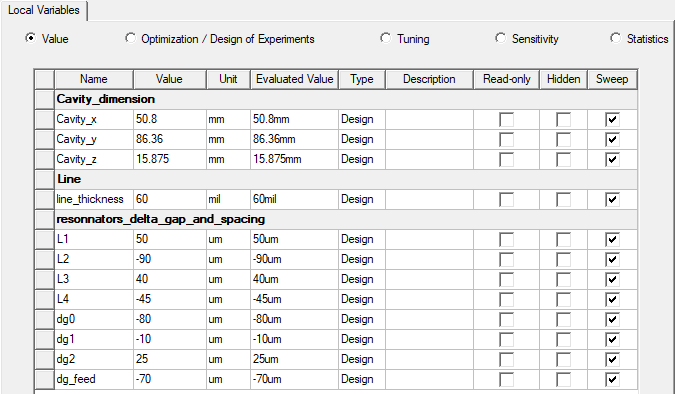
The geometry of this example model is partially parametric, driven by the following design variables:
Analysis Setup:
The analysis setup and frequency sweep are predefined, as follows:
- Analysis Setup: Name = 1p5GHz ("p" is used because decimal points are not permitted in setup names); Adaptive solution frequency = 1.5 GHz; Automatic selection of Direct or Iterative solver is selected.
- Sweep: Name = 0p6_2p4GHz; Type = Fast; Distribution = Linear Step; Start = 0.6 GHz; Stop = 2.4 GHz; Step Size = 0.005 GHz
HPC Settings:
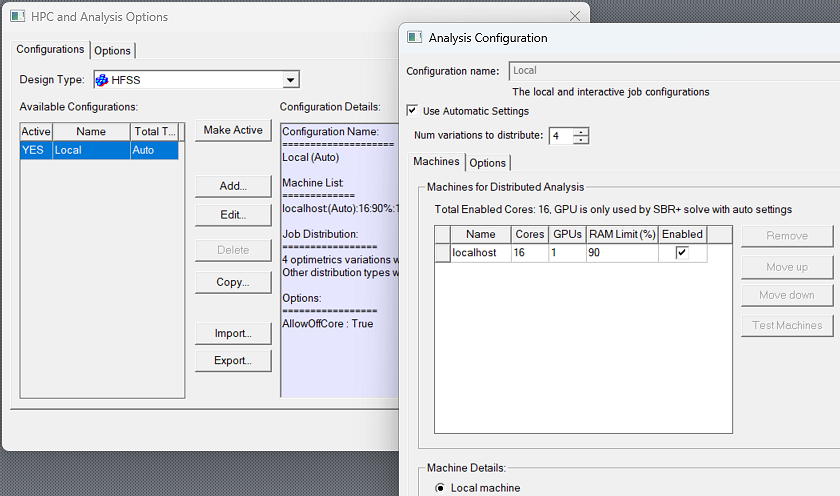
You can set up a High-Performance Computing (HPC) analysis to distribute the sweep frequencies (that is, to solve multiple frequencies in parallel) resulting in a faster simulation. The number of cores used to solve each frequency point is determined by Total Cores/Number of Tasks configured in the Analysis Configuration. Additionally, adaptive mesh refinement uses the Total Cores you specify in the HPC setup. You can access these settings from Tools > Options > HPC and Analysis Options and then by clicking the Edit button on the HPC and Analysis Options window to see the configuration for this design.
To view a port definition, select the desired excitation in the Project Manager. It is then highlighted in the Modeler window, and the settings are displayed in the docked Properties window. Selecting an object in the History tree also displays its properties.
To solve the simulation, right-click on 1p5GHz, under Analysis in the Project Manager and choose Analyze from the shortcut menu.
Postprocessing
After solving, you can view the solution data by right-clicking 1p5GHz (under Analysis in the Project Manager) and selecting Profile to display the Solutions dialog box. In addition to the Profile tab, you also view the Convergence, Matrix Data, and Mesh Statistics tabs.
To view an S parameter plot, expand the Results branch of the Project Manager and double-click Terminal S Parameter Plot 1. You can add markers to the XY plot by right-clicking in the plot window and choosing Marker > Add Marker.
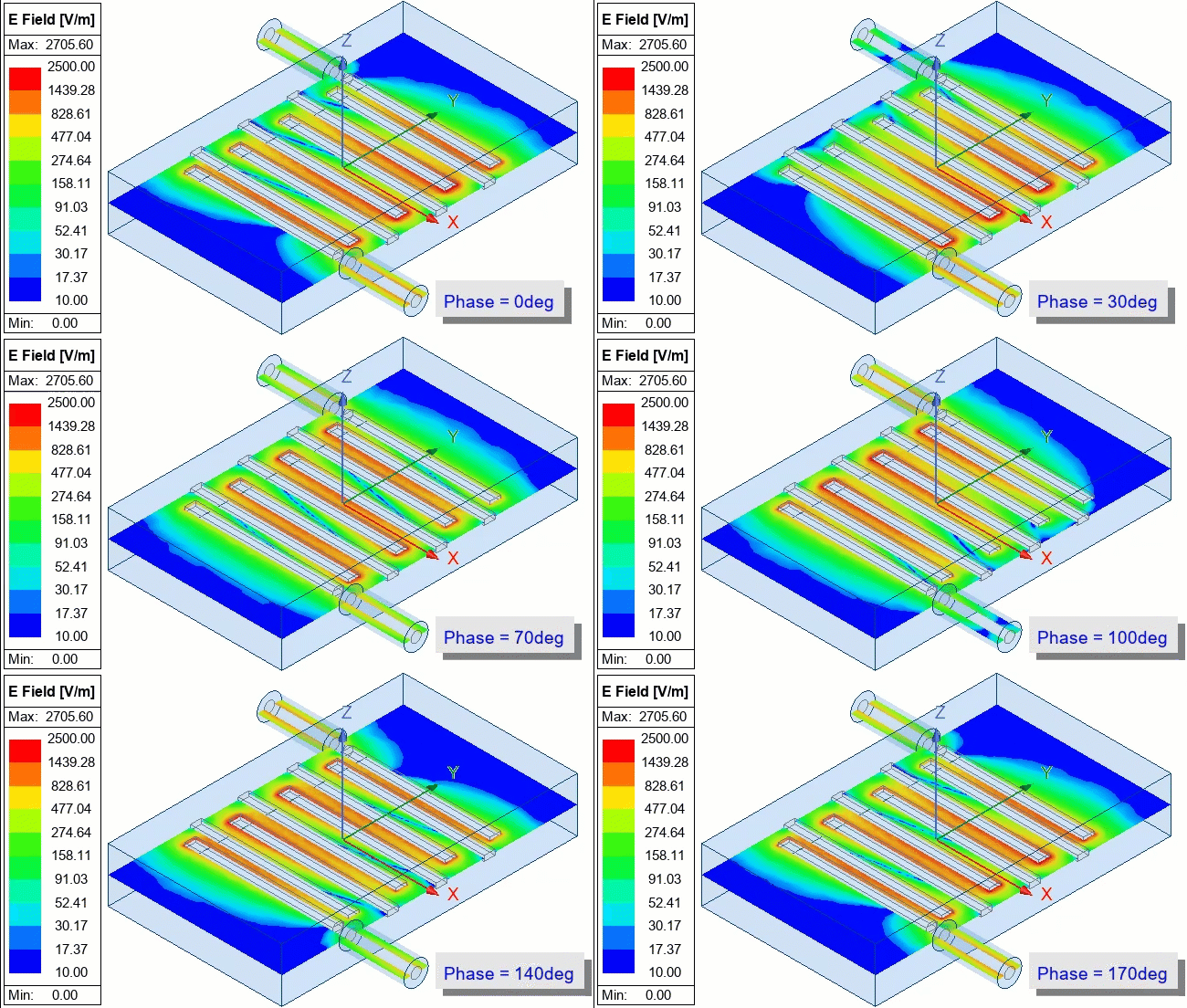
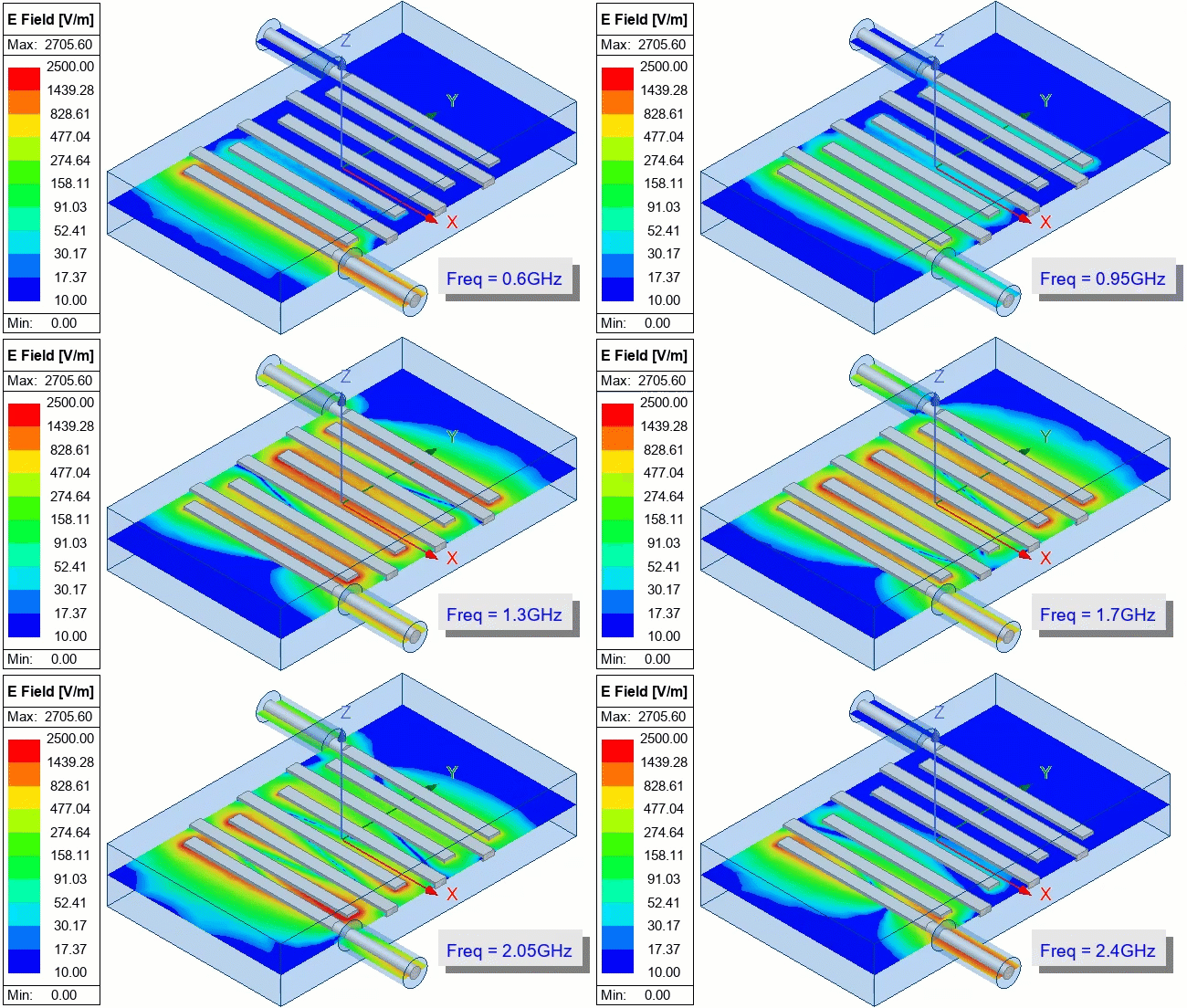
A single electromagnetic field overlay (Mag_E) has been predefined for this filter and is listed under Field Overlays in the Project Manager. The scale is logarithmic, and range limits have been defined to produce a good range of color contours for all frequencies and phases when the overlay is animated.
Two animation setups are predefined:
- Frequency Animation (at Phase = 0 deg) shows how the field varies over the swept frequency range based on a constant phase angle. The field is shown along the global XY plane, which is the horizontal midplane of the model. The initial frequency is 600 MHz, which is outside of the pass-through bandwidth of the filter. Therefore, the signal is blocked from reaching the output port. Beyond the bandpass range, the signal is once again blocked from reaching the output port. It may take a few minutes for the frames to be created before the controls appear and the animation starts playing.
- Phase Animation (at Frequency160;= 1.5 GHz) shows how the field varies with phase angle at the adaptive solution frequency, well within the bandpass frequency range of the filter. Frame creation for this phase animation is quicker than for the frequency animation.
E-Field Magnitude versus Frequency Animation (60° Phase):
E-Field Magnitude versus Phase Animation (1.5 GHz):