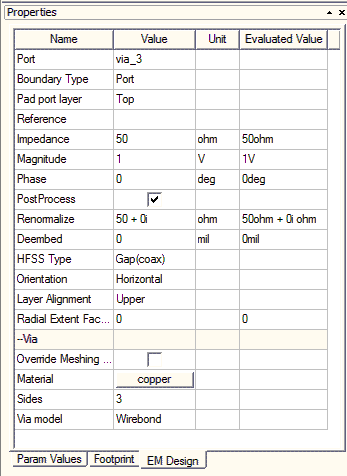
Creating Pin-Based Ports
To create a new pin:
- Click Draw > Pin and place the pin at the selected location in the Layout Editor.
- From the Footprint tab of the Properties window, set the Padstack Definition or Padstack Usage.
- Click Padstack Definition to open the Padstack definition library in the Select Definition window, where select a pre-defined padstack.
- Click Padstack Usage to open the Padstack Usage and Definition editor where you can modify the padstack used by this pin.
- Select the terminal Location by setting the Pad port layer. The Pad port layer selection is not displayed if the padstack has no pads. Click Padstack Usage to adjust the padstack if selected.
Configuring Pin-Based Ports
The following settings on the EM Design tab in the Properties window are HFSS 3D Layout properties. They apply to pin-based ports.
- Pad port layer: Sets the terminal location and pad-geometry used for derivation of the HFSS port.
- Reference: If applicable, select the geometry or layer for vertical constraint.
- HFSS Type: Either Gap or Gap(coax).
- Orientation (read only)
- Layer Alignment: If applicable, select layer surface for port-geometry.
- Radial Extent Factor: Sizing parameter for port-geometry radius. Only appears if HFSS Type is Gap(coax).