
Optimizing in FilterSolutions and HFSS
Optimizing in FilterSolutions
FilterSolutions produces a highly accurate circuits simulation with limited optimization through its optional Quick Optimize, capability. Quick Optimize rapidly optimizes the filter frequency response to approach the ideal filter response to the extent needed to make the design suitable for direct EM optimizations. Invoke Quick Optimize during synthesis time by checking the Quick Optimize check box. The Quick Optimize check box is located at the top of the FilterQuick design panel, and at the lower right of the Advanced design panel, as shown in Figure 1 and 2 respectively.
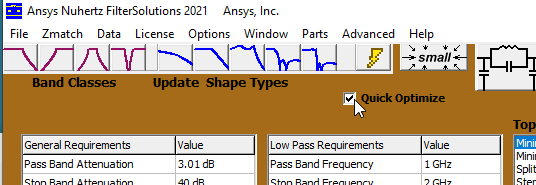
Figure 1: FilterQuick Quick Optimize Selection
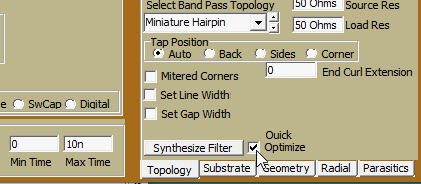
Figure 2: Advanced Panel Quick Optimize Selection
Optimizing in HFSS
FilterSolutions Quick Optimization gets the design simulation response close, but final EM optimization is performed in HFSS. HFSS optimization export selections are located in the upper right of the export control panel, as shown in Figure 3 below. The detailed optimization check box functions are listed in table 1 below. Exported optimizations include all items necessary to perform an optimization, including goals, parameters, and equations. If needed, the exported optimization setup may be manually edited in Ansys Electronic Desktop (AEDT) to make refinements needed to meet specific design requirements.
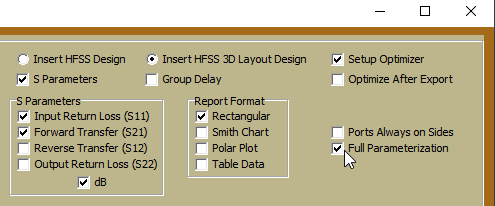
Figure 3: AEDT Export Panel Optimization Selections.
|
Check Box Name |
Check Box Description |
|
Setup Optimizer |
Check to set up the optimizer in the export to AEDT. |
|
Optimize After Export |
Check to initiate an optimization process in AEDT immediately following the export |
|
Full Geometric Parameterization |
Check to define optimizable layout geometry with equations. This MUST BE checked for AEDT optimizations to work. |
Table 1: Optimization Check Box Descriptions