
Creating Sine Space Plots
Sine Space plots provide an alternate way to view radiated field quantities. The transformation from theta, phi space to u, v sine space is defined as follows:
u = sin(theta)*cos(phi)
v = sin(theta)*sin(phi)
Note that this is similar to a polar coordinate system, where the radius is given by sin(theta) and the angle is given by phi. Another way to think about this: Given theta and phi that define a unit sphere, then these u,v coordinates are like viewing the unit sphere from above or below the XY plane. So, a sine space plot is a 2D plot that lies on a unit circle in the u,v space, that shows the values of radiated field quantities projected onto the upper or lower half of a full 3D sphere.
Sine Space Plots
Sine Space plots are implemented as a new Context in Reporter. They will leverage the existing radiated field setups and calculations.
To create a Sine Space plot, after you have specified radiated field Setups.
- Click Results> Create Far Fields Report> Rectangular Contour Plot
or Data Table
Results> Create Near Fields Report> Rectangular Contour Plot or Data Table.
The Report dialog box displays and shows choices for Domain in the Context field.
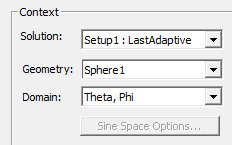
"Theta, Phi" is selected by default and gives the existing functionality.
Notice that the Context shown above already includes selection of a Geometry, which corresponds to a Radiation setup.

This radiation setup is used to calculate the fields for the Sine Space plot. Internally, this computes the values of the complex E vector based on the theta, phi sampling in the radiation setup. When data is requested for a sine space plot, it will correspond to some arbitrary theta, phi, and the fields will be interpolated to this location on the sphere. Note that this interpolation will occur on the complex E vector, and can be more detailed than a simple linear interpolation between sample points.
In order to support sine space plots, the radiation setup must have appropriate sampling in theta and phi. By default, a sphere is defined with phi from 0 to 360 (angle of rotation about Z), and theta from 0 to 180 (angle of rotation away from Z). These settings support a full unit circle representing the upper (theta from 0 to 90) or lower (theta from 90 to 180) half space. If the range of theta is reduced to 0 to 90, it would be possible to support upper half space only. Other ranges of theta and phi will likely create odd sine space plots, such as a partial circle, and these are not allowed.
- Select Sine Space as the Domain. This also enables the
Sine Space options button.
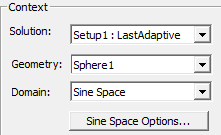
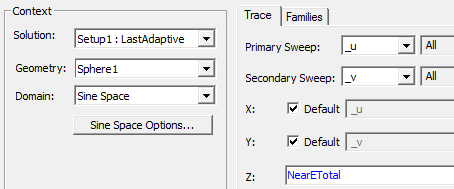
Selecting "Sine Space" changes the Primary Sweep to U, and the Secondary Sweep to V.
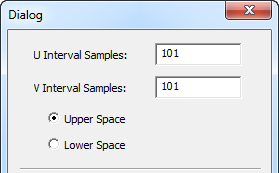
The Sine Space Options provide additional settings, including the sampling interval for the u,v coordinates (default of .05 would provide 40 samples over each axis, -1 to 1) and selection of upper or lower half space (default to upper).
Once you have set up the domain, you define the Sine Space plot, selecting Category, Quantity and Function settings as appropriate. The Report Category you select provides the default report name, for example, S Parameter Plot n or Output Variables Plot n. Given that the u,v sampling is set in the Sine Space Options, it should not be necessary to modify the sweeps in the Trace area of the dialog box.
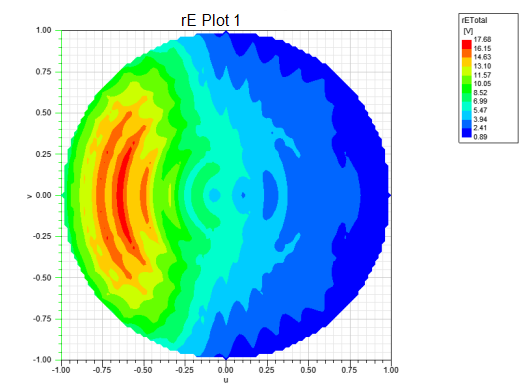
Here is an example Sine Space plot of Far Field rETotal.
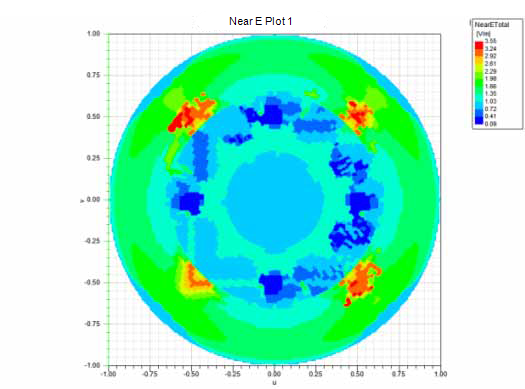
And here is an example Sine Space plot of Near field E Total.
You can use the Contour tab of the Properties dialog box to modify the appearance of the plot. See Creating Rectangular Contour Plots for discussion and examples.