
Set Up the AMI Analysis
From the Schematic Editor, perform the following steps to set up, run, and view the results of an AMI analysis using the Circuit solver.
- From the Project Manager window, expand the Project Tree and [active design folder]. Then right-click Analysis and select Add Nexxim Solution Setup ... > AMI Analysis to open the AMI Analysis window.
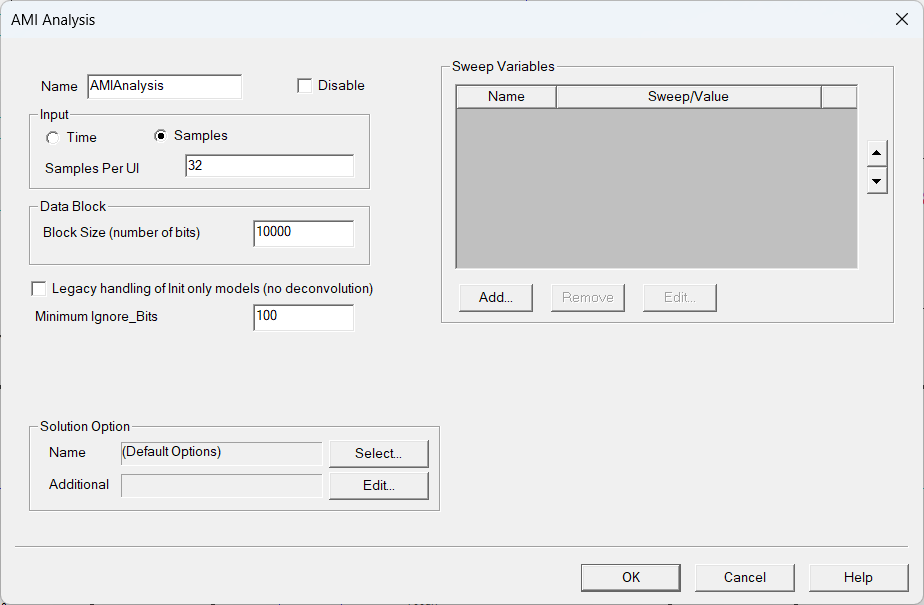
- Type an Analysis Name (or accept the default name, “AMIAnalysis”).
- For most simulations, leave the Disable group box unselected (the default setting). Selecting this box lets you store multiple solution setups for later use.
- AMI simulation uses a fixed timestep for sampling the impulse response and any processed waveforms. Click Time or Samples to define the interval at which the impulse response and waveforms are sampled.
- Samples allows you to specify the number of samples per bit (UI). The default is 32 samples per bit. Most AMI models and simulations are set up using Samples per bit rather than the absolute Time step.
- Time allows you to set the timestep in seconds. The timestep must be greater than 0, and must be a fraction of the unit interval (UI). The default timestep is 5e-10 seconds.
- Minimum Ignore_Bits defines a minimum value for the AMI Reserved parameter Ignore_Bits for all AMI devices. Ignore_Bits specifies the number of symbols that will be ignored before data accumulates in the eye diagram(s) associated with any AMI device. This global option is helpful for certain AMI models that return invalid data for the first few symbols but do not specify an Ignore_Bits value.
- The Block Size field sets the number of bits per AMI data block. Default is 10,000 bits per block.
- Optionally, use the fields in the Solution Options group box to add AMI options.
- Click Select on the Name field to open the Select Solution Options window.
- Click New to create a new option set and open the Solution Options window.
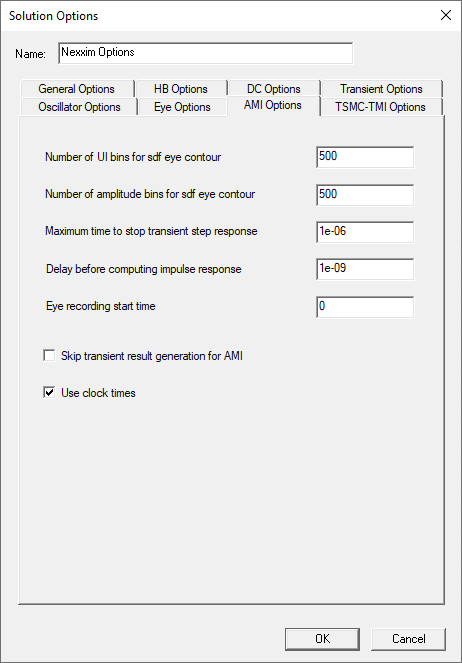
- Click the Name field to name the new option set.
- Click the AMI Options tab fields and check boxes to set any appropriate options.
- Click OK to return to the AMIAnalysis window.
For more information, see AMI Analysis Options