
Running an HSPICE Transient Analysis
From the Schematic Editor, perform the following steps to set up an HSPICE transient analysis, run the analysis, and view the results.
- From the Project Manager window, expand the Project Tree and [active design folder]. Then right-click Analysis and select Add HSPICE Solution Setup > Transient Analysis to open the HSPICE Transient Analysis window.
- Enter an AnalysisName or accept the default (e.g., "HSPICE Transient1").
- For most simulations, leave the Disable box unselected. (Selecting this box lets you store multiple solution setups for later use. Note that if a solution setup is deactivated before the analysis is run, any changes made to the design invalidates the simulation results.)
- Under Analysis Control, specify Step time and Stop time using the drop-down menus. Optionally, Click the RunLevel slider to set the Accuracy level.
- To add a sweep, locate the Sweep Variable area in the Transient Analysis window.
- From the Sweep Variable area, select Add to open the Add/Edit Sweep window.
- In the Variable group box, select Temp (or the name of a variable, if one has been defined for the design). Next, select one of the following: Single value, Linear step, Linear count, Decade count, or Octave count.
- Enter the sweep values into the Value field (for Single value), or into the Start, Stop, and Step text fields (for Linear, Decade, or Octave count), and ensure that the appropriate units are selected for each.
- For more information, see Variable Sweep.
- Click Add, then OK to close the Add /EditSweep window and reopen the Transient Analysis window.
- Optionally, use the fields in the Solution Options group box to select or add Transient Analysis options and other HSPICE options to the design.
- Click Select on the Name field to open the Select Solution Options window.
- If any options sets have been defined, their names appear in the Select Solution Options group box. To select a named option set that you have previously defined, click the name of the option set, then click OK to return to the HSPICE Transient Analysis window. The named option set appears in the Name field in the Solution Options group box.
- To create a new option set, click New to open the Solution Options window. Click the Name field to name the new option set. Make the appropriate changes to option values, then click OK to return to the SelectSolutions window. From the Select Solutions window, click the name of the new option settings, then click OK to return to the HSPICE Transient Analysis window. The name of the new option settings appears in the Name field in the Solution Options group box.
- The HSPICE Transient Options tab contains
basic options for controlling the convergence for transient analysis
using HSPICE. See Transient Analysis Options for details on most
of these options.
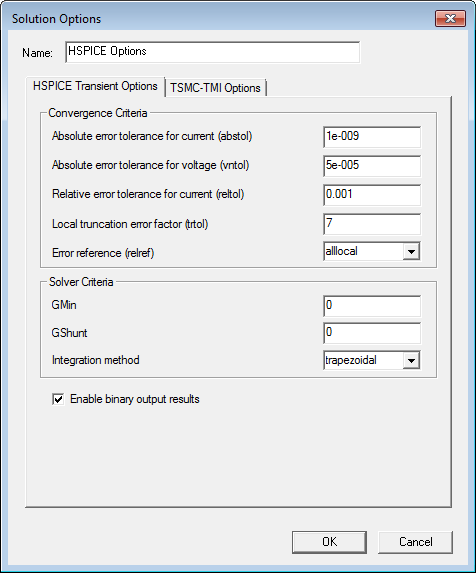
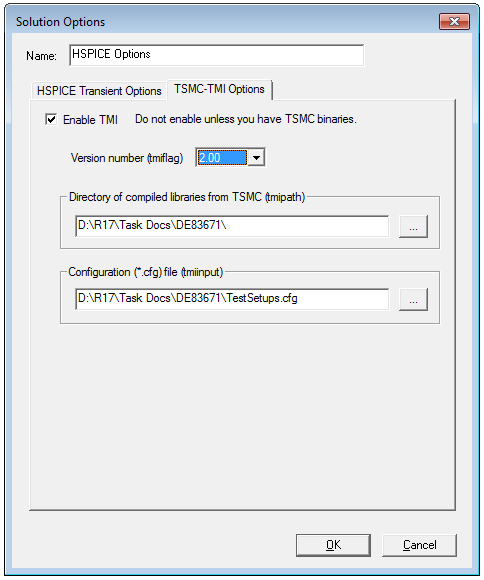
- The HSPICE TSMC-TMI Options tab
contains settings that apply only to HSPICE simulation using TMI models.
Your installation must include DLLs from TSMC to use these options. Click
the Enable check box to enable the HSPICE solver to access the
TSMC-TMI DLLs and activate the fields in the TMI Options tab.
See TSMC-TMI
Options for details on the TSMC-TMI analysis options.
- Optionally, click Edit in the Additional field on the HSPICE Analysis Setup window to open the Edit Additional Options text-entry window.
- Click the field to enter any HSPICE options exactly as they are to appear in the netlist. Do not include the keyword “.OPTIONS”. The .OPTIONS keyword is automatically inserted at the beginning of the line in the netlist statement. The line can contain multiple options settings. Use spaces to separate the options settings. To modify or delete an option once it has been added, edit or delete its entry in the list. To clear all options, delete the entire line.
- Click OK to return to the HSPICE Transient Analysis window. Options in the Additional field are automatically added to the netlist when the solution is performed. For more information, see the HSPICE user manuals.
- To run the simulation, click Circuit > Analyze.
- If the circuit is set up correctly, the analysis begins and a progress bar appears. (Note, however, that the progress bar does not move during HSPICE simulations as it does with Circuit simulations.)
- If the analysis does not begin or does not complete successfully, check the Message Manager window.
- To display results, click Circuit > Create Report (Alternatively, select Create Report on the Results icon in the Project Manager window window) to open the Create Report window.
- Select a Report Type and a Display Type, then click OK. When the Report window appears, make the appropriate selections for context, solution, and plotting range. Next click Add Trace, then click Done to open a Report window to display a graph of the analysis results.
- For more information, see Generating Reports and Post-processing.