
Running Periodic Transfer Function Analysis from the Schematic Editor
Periodic transfer function (PXF) analysis computes the small-signal transfer function from selected voltage and current sources in the circuit to a specified single output at a frequency that can be swept. A steady-state HB or OSC analysis first computes the periodic or quasi-periodic operating point, on which the small-signal PXF analysis is calculated. In Nexxim, PXF analysis is an extension of the time-varying noise analysis.
To run a periodic transfer function analysis on a Nexxim schematic design, perform the following steps:
- In Project Manager window, expand the Project Tree and [active design folder]. Then right-click Analysis and select Add Nexxim Solution Setup ... > Periodic
Transfer Function (PXF).
The Periodic Transfer Function
solution setup window opens:
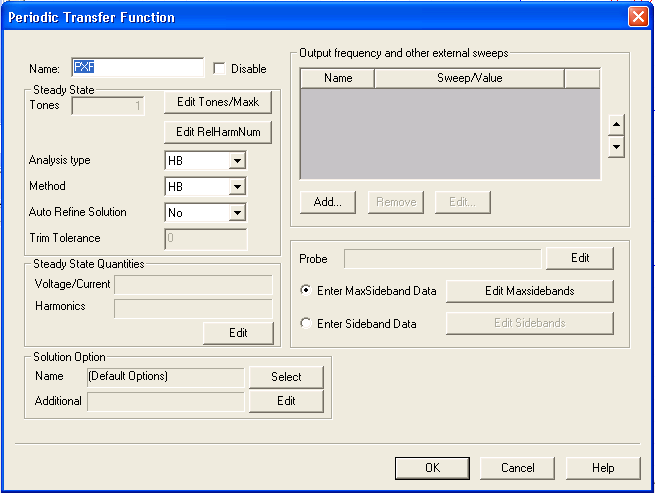
- Type an Analysis Name (or accept the default name, for example “PXF”).
- For most simulations, leave the Disable group box unselected (the default setting). Selecting this box lets you store multiple solution setups for later use. (Note that if a solution setup is deactivated before the analysis is run, any changes made to the design invalidates the simulation results.)
- In the Steady State group box, click Edit Tones/MaxK to open the Edit Tones/Max Harmonic Number window.
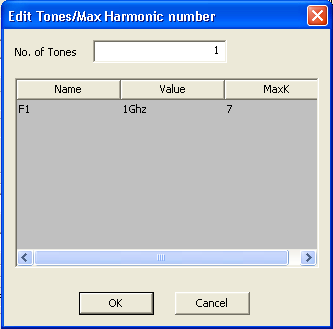
- Enter the number of tones to be used in the steady-state phase of the analysis. The tones are listed with names F1... Fn. These names cannot be changed.
- Click a Value field in the row for one of the tones to enter the frequency for the steady-state analysis for that tone.
- Click a MaxK field in the row for one of the tones to enter the Max. Harmonic Number for the steady-state analysis for that tone.
- Click OK to close the Edit Tones/Maxk window and return to the Periodic Transfer Function window. The Number of tones field now shows the number of tones you specified in the window.
- Optionally, click Edit RelHarmNum
to open the corresponding window.
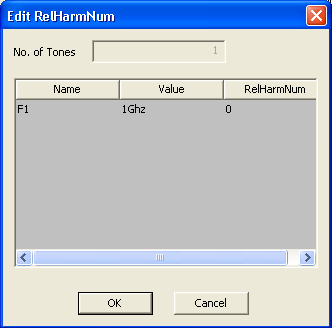
- The No. of tones, Name, and Value fields reflect the settings on the Edit Tones/Maxk window. The number, name, and value of tones cannot be changed in the Edit RelHarmNum window.
Click OK to return to the Periodic Transfer Function window.
- Click in the RelHarmNum field for a frequency to set the relative harmonic number offset for that tone. See the TV Noise Technical Notes topic for information on the use of the RelHarmNum offsets.
Click OK to return to the Periodic Transfer Function window.
- Select the Analysis type on the drop-down. The default is harmonic balance (HB). Choose oscillator analysis (OSC) instead.
- When HB is the Analysis type and one-tone analysis has been specified in the Edit Tones/Maxk window, the Method field is activated. Use this field to select HB or shooting (HB is the default). See Handling Strongly Nonlinear Circuits in the HB topic for details on the Method entry.
- When HB is the Analysis type, the Auto Refine Solution field is activated. Use this field to select Yes or No (No is the default). See Increasing Accuracy or Speed in the HB topic for details on the Auto Refine Solution entry.
- When HB is the Analysis type and more than two tones have been specified in the Edit Tones/Maxk window, the Trim Tolerance field is activated. Use this field to set a tolerance value. See Increasing Accuracy or Speed in the HB topic for details on the Trim Tolerance entry.
- Optionally, click Edit at the lower-right of the Steady State Quantities group box to add voltages, currents, and harmonic outputs on the underlying analysis (HB or OSC). These additional output quantities are available in the Report window after simulation has been performed.
Expand the Nets and devices icons to display lists of the available quantities. To have Nexxim calculate outputs on the steady state analysis step, click the check boxes to select the outputs.
Expand the Harmonics icon to display a list of the available harmonics. To specify particular harmonics for Nexxim to use when calculating outputs on the steady state analysis step, click the check boxes to select the harmonics. If you do not select any harmonics, harmonics DC, F1, 2F1, 3F, and 4F1 are automatically selected. In the Report window, only selected harmonics are available for plotting.
Click OK to return to the Periodic Transfer Function window.
- The underlying TV Noise analysis requires a sweep of output frequencies. Click Add in the Output frequency and other sweeps field to open the Add/Edit Sweep window.
- Ensure F (frequency) is the entry in the Variable field.
- Use the radio buttons to select one of the following: Single value, Linear step, Linear count, Decade count, or Octave count.
- Type the sweep values into the Value text box (for Single value), or into the Start, Stop, and Step text fields (for Linear, Decade, or Octave count), and ensure that the appropriate units are selected for each.
- Click Add, then click OK to close the window and reopen the Periodic Transfer Function window.
- The sweep definition appears in the Output frequency and other sweeps field. (The Output frequency and other sweeps display includes fields labeled Offset of F1 and Sync. These fields are not used by Nexxim PXF analysis.)
- Click Edit next
to the Probe field to open the Noise Device Output window.
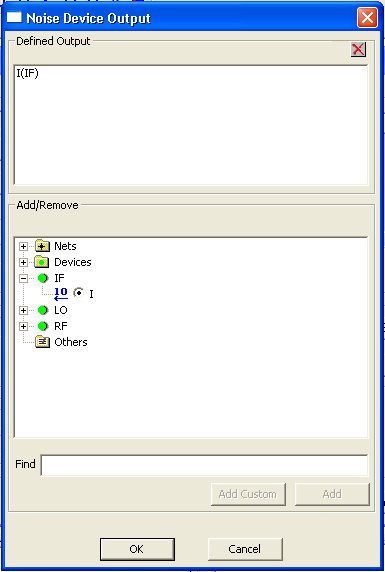
Expand the Nets and Devices icons to display lists of the available quantities. Click in the check box for the single output to be used in the PXF analysis.
Click OK to return to the Periodic Transfer Function window.
- If you have specified a single frequency in the Steady State Tones field, use the radio buttons to select Enter MaxSideband Data or Enter Sideband Data. See the TV Noise Technical Notes topic for details.
- To enter a maximum sideband to use in calculating the input frequencies, select Enter MaxSideband Data and click Edit Maxsidebands. Click in the MaxSidebands field at the right and enter the number of sidebands to use. (The Name and Value fields reflect your selection in the Steady State Tones field, and cannot be changed in the Edit MaxSidebands window). Click OK to return to the Periodic Transfer Function window.
- To enter specific sidebands to use, select Enter Sideband Data and click Edit Sidebands. Enter the first sideband value, then click Add Row to open another line in the window. To delete a row, select it and click Delete Row. When you have finished entering sidebands, click OK to return to the Periodic Transfer Function window.
- If you have specified multiple frequencies in the Steady State Tones field, only the radio Enter Sideband Data button is active. See the TV Noise Technical Notes topic for more information on the use of the Sideband Data entries.
- To enter specific sidebands to use, click Edit Sidebands. Enter the first set of sideband values (one value per frequency), then Click Return or Tab to open another line in the window. When you have finished entering sidebands, click OK to return to the Periodic Transfer Function window.
- Optionally, use the fields in the Solution Options group box to add analysis options and other Nexxim options to the design.
- Click Select on the Name field to open the Select Solutions window. From the Select Solutions window, click New to open the Solution Options window.
Click the Name field to name the new option settings. Select the HB Options or OSC Options tabs, depending on the selection for the Underlying analysis type made earlier (Step 8). Make the appropriate changes to option values, then click OK to return to the Select Solutions window.
From the Select Solutions window, click the name of the new option settings, then click OK to return to the Periodic Transfer Function window. The name of the new option settings appears in the Name field of the Solution Option group box.
- Click Edit on the Additional field to open a text-entry window, Edit additional options. Use the field to enter any Nexxim options exactly as they are to appear in the netlist. Click OK to return to the Periodic Transfer Function window.
- Click Finish to close the Periodic Transfer Function window. The solution setup is added to the Project tree under the Analysis icon.
- Run the simulation:
- Expand the Analysis icon on the Project tree, click the appropriate solution setup, and select Analyze from the menu. If the circuit is set up correctly, the analysis begins immediately and a progress bar appears.
- The Message Manager window signals success or failure.
- For details on creating and modifying reports, see Generating Reports and Post-processing.