
Pushing Excitations to an HFSS, SIwave, or Q3D Dynamic Link Model
The procedures for pushing excitations to dynamically linked models are all similar. You must first set up the field solver element so the fields and currents are saved during simulations (See the HFSS, SIwave, or Q3D documentation). After simulating the circuit/field-solver combination, right-click the field solver element in the Schematic Editor, select Push Excitations to launch the Push Excitation Information dialog, and choose which solution to use to populate the field solver excitation values.
Push excitation dialog for HFSS and Q3D:
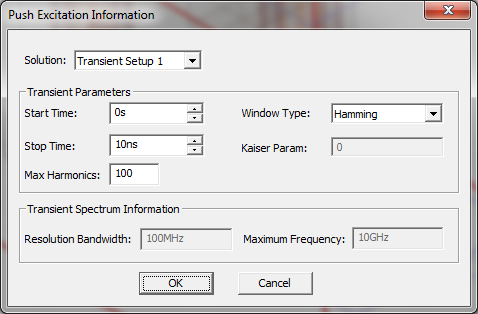
- The ResolutionBandwidth and MaximumFrequency of the data (that is sent or “pushed” to the dynamically linked project) are calculated based on the transient parameter settings: StartTime, StopTime, and Max Harmonics. The start and stop times must lie in the transient simulation time limits.
- Select the appropriate Window Type. When non-rectangular windows are used, the window automatically changes the power level of the signal. This is known as the “coherent gain” or “processing loss” of the window. The coherent gain is always adjusted to account for the processing loss of the window when pushing excitations to dynamically linked projects.
Push excitation dialog for SIwave:
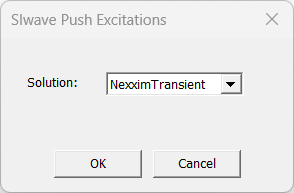
- Current quantities, rather than voltage quantities, are pushed to SIwave or Q3D.
- For SIwave or Q3D, push excitations is available for Transient solution only.
- When pushing excitations to SIwave, Transient Parameters are disabled as FFT is not available from this dialog.
- The most common reason Push Excitations fails is that one or more terminals of the dynamically linked model are left unconnected. Nexxim does not compute voltages on unconnected terminals so no excitations can be determined. Adding short unconnected wires to the unconnected terminals of the model causes Ansys Electronics Desktop to assign unique net names to the terminals and allow Nexxim to compute voltages. Once Nexxim has computed voltages excitations can normally be pushed to the dynamically linked design.
- If there is no voltage source in the design, an error appears. You can either cancel the push or add a 1V voltage source, resimulate the design, and push the excitations.
- Excitations cannot be pushed to HFSS or SIwave if parameter values are swept in the Ansys Electronics Desktop setup.
- For SIwave simulations, when Enforce Causality is selected, if the frequency step is too big it can result in an inconclusive test for causality enforcement. In this case, the causality checker automatically retries the simulation using rational interpolation and analytical integration.
- For HFSS dynamic links, Push Excitations also pushes available-power to the HFSS Design. The amount of the power pushed is the sum of the available powers calculated at each Circuit Design port connected to the dynamic link — directly or indirectly — with the following caveats:
- The port has either an associated voltage or power source (current sources are not supported).
- The solution data being pushed is for a Linear Frequency Network simulation (no restrictions on port impedance values).
- The solution data is for an HB or Transient simulation AND the port impedance is a constant value (e.g., 50 ohms).
The pushed available-power shows up in the linked HFSS Design in its Edit post-process sources window that is accessible on the Field Overlays or Excitations icon shortcut menu. In HFSS, this power is called System Power and is used only for calculating 'System Gain' in the reporter and 'Total Realized System Gain' in antenna calculations.