
Printing a Schematic
To print the schematic that is in the active window:
- Right-click in the schematic window and
select Print on the menu (or select Print on the File
menu) to open the Print window:
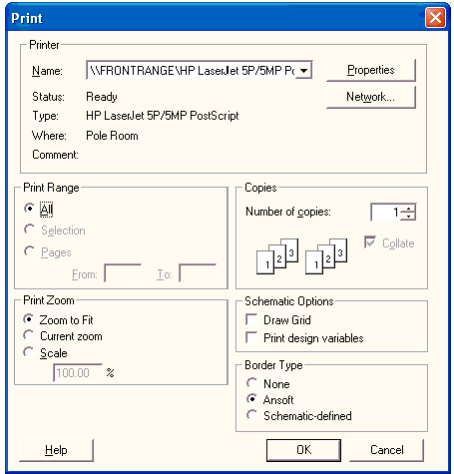
- Use the controls to specify how you wish the print to appear.
- In the Schematic Options group box, specify whether or not to draw the grid and print the design variables.
- In the Border type group box, select
the type of border to print around the schematic.
Selecting the Ansys border type places a single line box around the schematic and adds the current date and page number to the print.
Selecting the Schematic-defined border type prints the border as defined through the Schematic->Page Borders menu option at the size specified. Typically, select this option when printing out at a specific scale (e.g., 100%) to ensure that the border is visible. Use File>Print Preview to preview the effect of your choices. - Make any appropriate selections in the Print Range, Copies, and Print Zoom group boxes.
- Click OK to print the schematic, or click Cancel to cancel the operation.
To set up the page layout before printing:
- Select Page Setup on the File
drop-down menu to open the Page Setup window.
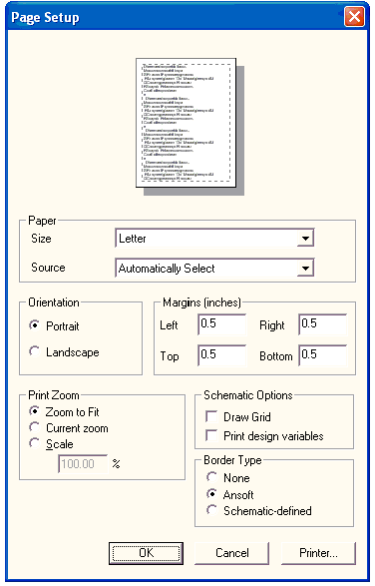
- Use the Paper, Orientation, Margins, and Print Zoom controls to specify how you wish the print to appear. In the Schematic Options group box, specify whether or not to draw the grid and print the design variables.
- In the Border type group box, select
the type of border to print around the schematic.
— Selecting the Ansys border type places a single line box around the schematic and adds the current date and page number to the print.
— Selecting the Schematic-defined border type prints the border as defined through the Schematic->Page Borders menu option at the size specified. Typically, select this option when printing out at a specific scale (e.g., 100%) to ensure that the border is visible. Use File>Print Preview to preview the effect of your choices.
- Click OK to close the Page Setup window with your settings.
- Select Print Preview on the File menu to see a preview of the print.