
Creating or Copying Zones
Follow the instructions in the subsections below to create or copy zones.
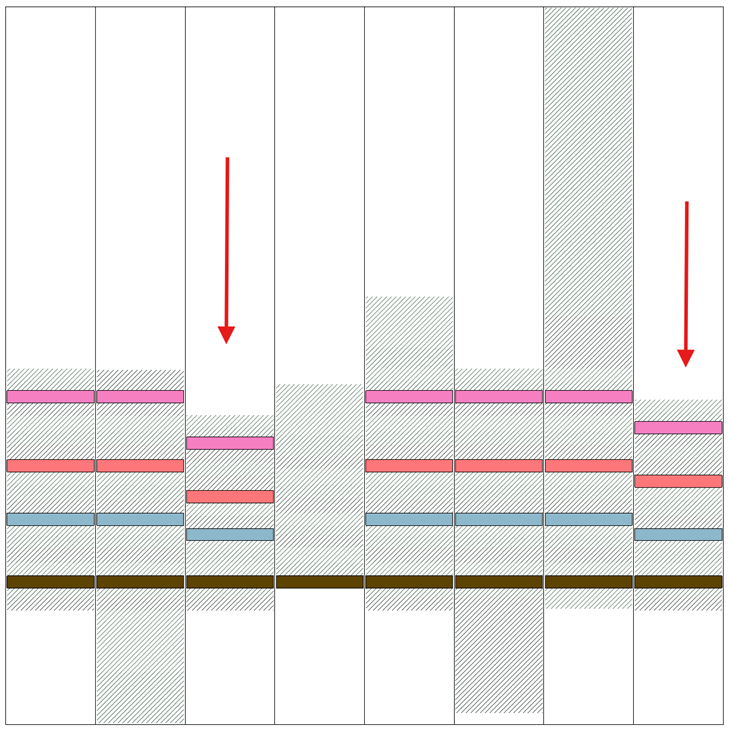
When creating a multizone stackup, it is important to ensure that signal layers align consistently between zones. Each zone has its own local stackup, which is a subset of the full board layer structure. If a signal layer in one zone does not align vertically with the corresponding signal layer in another zone, a discontinuity is introduced at the boundary between the zones.
For example, if "Signal Layer 1" exists at different vertical positions in Zone 1 and Zone 2, or is absent in one of them, the transition between zones may result in unintended electrical behavior (e.g., an open circuit). There is no automatic correction in pre-processing or meshing to resolve misaligned or discontinuous stackups across zone boundaries. These discontinuities are preserved in the mesh and can impact simulation results.
The following image shows a discontinuous signal layer transition between zones, indicated by red arrows.
Adding a New Zone
From the Edit Layers window, click + adjacent to the right-most column header to add a new zone with the same layers. Repeat as selected.
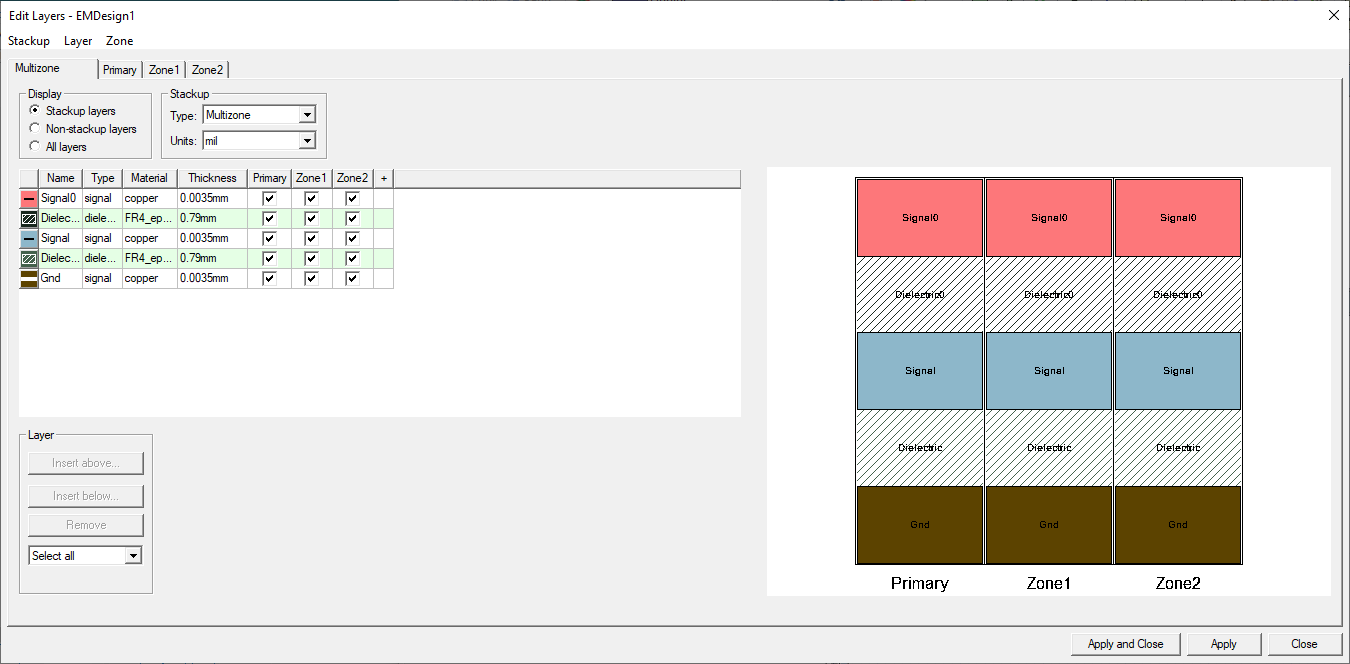
Zones will be added in sequence (i.e., to Primary, which appears by default, will be added Zone 1, Zone 2, et cetera). A new tab appears for each zone:
- Multizone – lists all layers and allows users to allocate layers to zones.
- Primary – controls layers in the Primary zone. The Primary zone may contain a subset of layers, but all components not contained in a Zone are treated as if they are in the Primary zone.
- ZoneN – control layers in their respective zone. Each zone is labeled with the corresponding zone's designation.
Adding a New Zone With Specific Layers
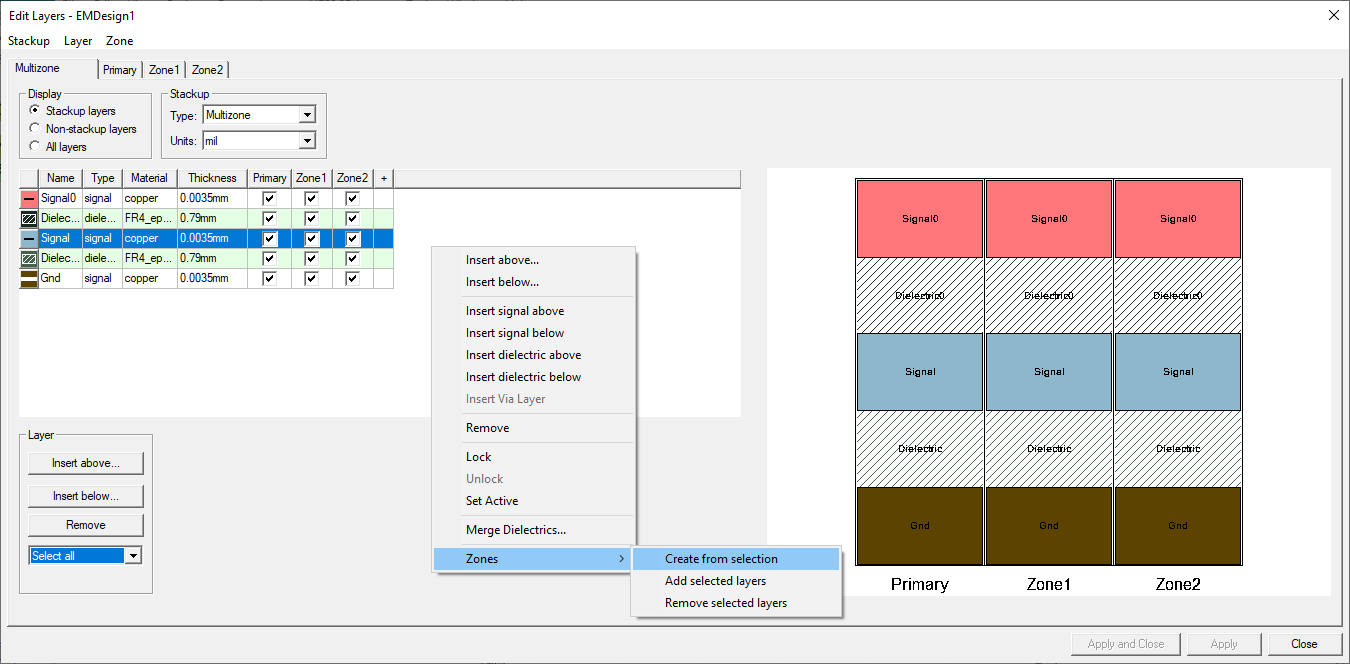
From the Edit Layers window, Ctrl+click anywhere within the selected layer(s). Then either right-click and select Zones > Create from selection or navigate to Zones > Create from selection.
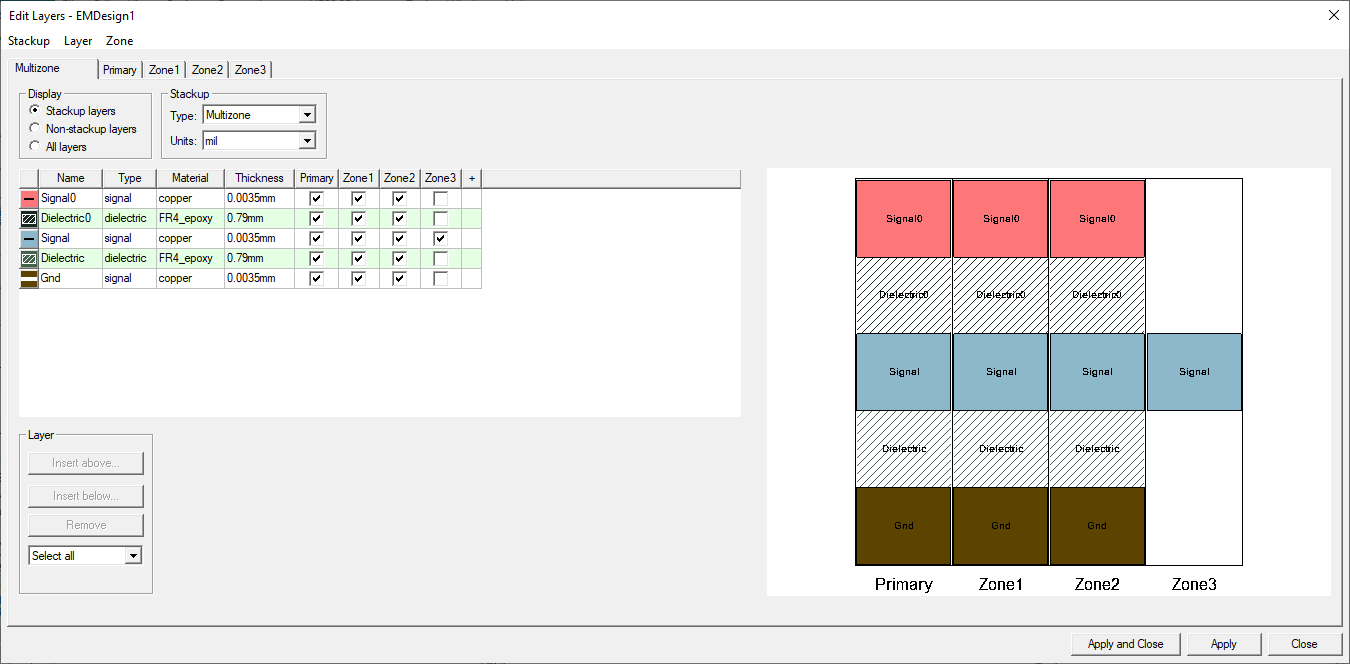
The new zone has only the highlighted layer(s).
Copying a Zone
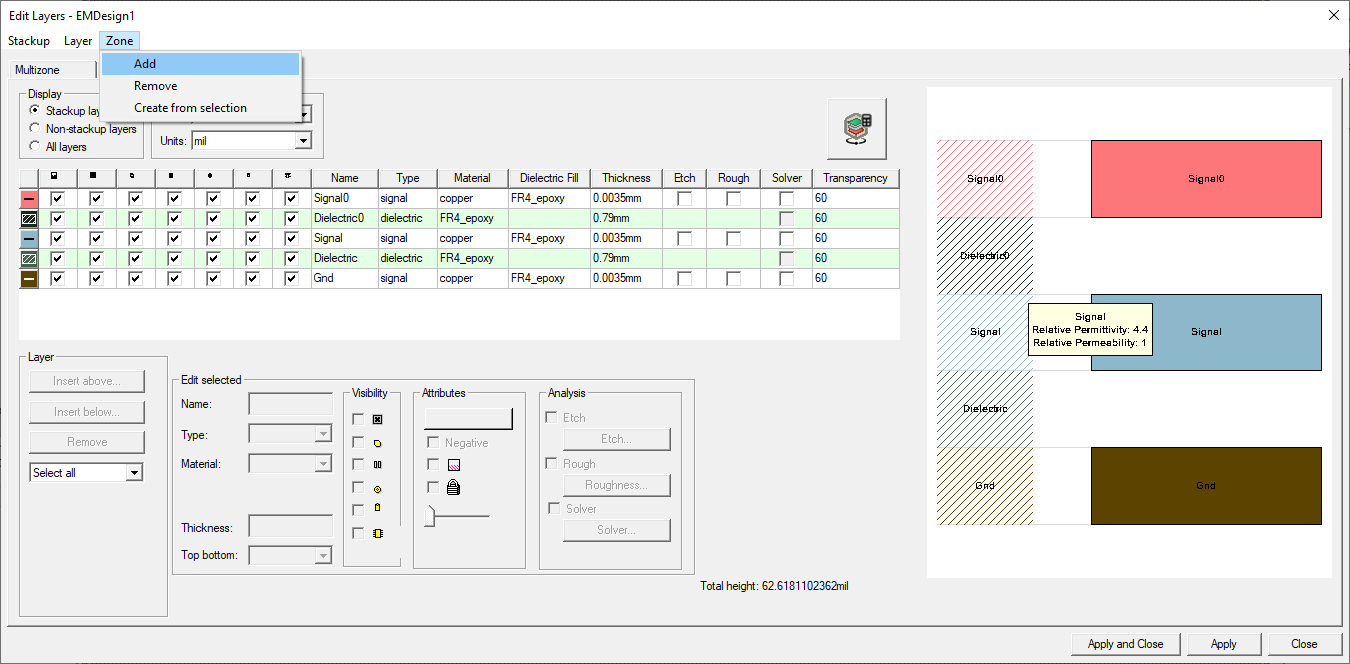
From the Edit Layers window, navigate to the selected zone's tab and make any appropriate changes. Then navigate to Zone > Add to copy the selected zone to the next sequential number (e.g., copying Zone 2, when Zone 3 has already been added, will designate the copy as Zone 4).
Continue to Editing Zones.