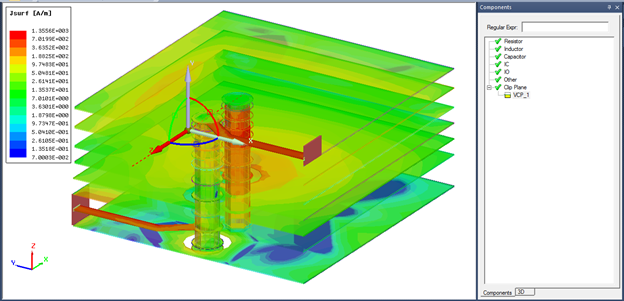
Clip Planes
Clip planes can be used to truncate graphics in the Layout view, including mesh and fields plots.
To define a clip plane for the Layout View, click View > Clip Plane. This places a 3D coordinate-system manipulator into the Layout View. When the clip plane is enabled, graphics are truncated at the XY-plane in the +Z direction.
- To move the clip plane graphically, grab the manipulator’s origin and drag/snap to the applicable, position.
- To rotate the clip plane, grab one of the manipulator’s origin handles and rotate to the applicable, plane. The incremental angle of rotation can be set in the Toolbars or the shortcut menu’s 3D Components > Rotation Step command.
- Position and rotation can also be set explicitly by editing the clip plane's properties directly.
More than one clip plane can be created and, when present, can be applicable, under the Clip Plane tree item in the Components Tab, are shown in the following diagram.