
Using the Fast Calculation-Update Algorithm
A fast calculation-update algorithm is available to speed up Optimetrics and report updates during Optimetrics analyses. The fast calculation-update algorithm generates the same Optimetrics results, only faster, and is available for all Optimetrics analyses except Tuning analysis. You can enable the fast calculation-update option using the Options tab of the Optimetrics Setup dialog box. To enable the fast calculation-update algorithm:
- Select Twin Builder > Optimetrics Analysis > Add <OptimetricsType>.
A typical SetupSweep Analysis dialog box is shown below with the Options tab selected.
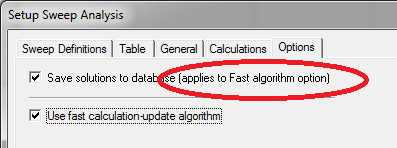
The Options tab is the same for all optimization setups.
- Select the Use fast calculation-update algorithm check box to enable the algorithm. (See also Fast Calculation-Update Algorithm Limitations below.)
When the fast calculation-update algorithm is enabled:
- You can enable some reports to be updated during the optimetrics analysis if you Set
All Variables To Nominal in the Report/Trace setup dialog box:
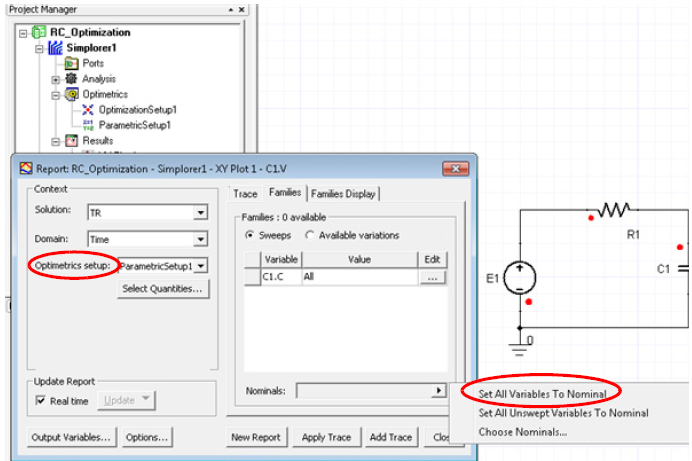
- You can see each trace (overwriting the previous) by setting the Optimetrics setup in the Report dialog box to None in addition to having all variables set to Nominal. At the end of the analysis, you will see the last calculated value.
- If you have enabled Use
fast calculation-update algorithm and want to save the solution
data for every solved design variation in the Optimetrics analysis, select
Save solutions to database as
shown below.
Note:
Do not select this option when requesting a large number of iterations as the data generated will be very large and the system may become slow due to the large I/O requirements.
- When the Save solutions to database option is selected, a plot with traces based on the Optimetrics Setup just run can be updated through a menu command (right-click the desired report in the Project Manager Results folder and select Update Report) and will show results as appropriate (family, if chosen).
- Without the Save solutions to database option selected, you can examine analysis data in the Post Analysis Display dialog box. Right-click the Optimetrics Setup and choose View Analysis Result.
Fast Calculation-Update Algorithm Limitations
The fast calculation-update algorithm cannot be used if any optimetrics calculation uses:
- Project/Design variables – If the project/design variable is not swept in the Optimetrics analysis, and you would like to use it in the expression, you can create an output variable for the Project/Design variable, assign the value of the Project/Design variable to the output variable, and use the output variable in the expression instead.
- More than one range function – For example, when range function is not the outermost function or when range function takes arguments.
- More than one calculation range – Also applies if the calculation range is not for primary sweep.
Similarly, when the fast calculation-update algorithm is enabled, a trace cannot be updated during an analysis if the trace expression uses:
- Project/Design variables. However, you can use the same workaround described above.
- Any range function.