
Using Show Component Dialog
The Show Component Dialog utility generates a preview of the component dialog box as it would appear when opened from a schematic.
- Select Layout > Show Component Dialog on the
Component Dialog Wizard menu bar.
You can also click Show Component Dialog on the Wizard's Layout toolbar.
The Component Dialog Preview dialog box opens, displaying a preview of the component dialog box.
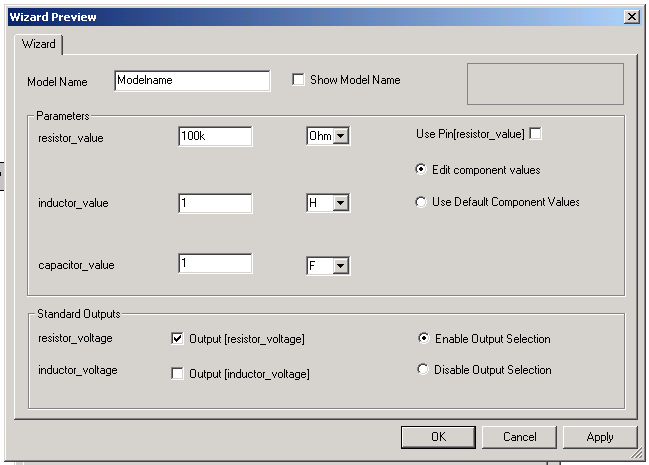
Use the preview to test the functionality of the component dialog box. For example, values in text edits may be retyped, radio buttons and check boxes may be selected and cleared, and values in combo boxes may be changed. You can also test the dialog box resize behavior by resizing the preview window.
- When finished testing, click OK to save your work and close the Component Dialog Preview dialog box, click Apply to save your work and continue to work within the dialog box, or click Cancel to close the dialog box without saving your changes.