
Setting the Tab Order of a Component Dialog Box
The tab order of a component dialog box is the order in which the control elements are selected when you press Tab. The Component Dialog Wizard provides a utility for changing the tab order of a component dialog box created with the Wizard.
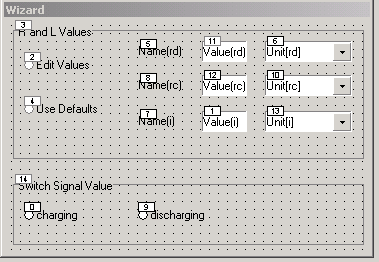
The illustration below shows the tab order of a component dialog box. The radio button charging is first in the order, and the group Switch Signal Value is last.
To set the tab order of a component dialog box:
- Start the Component Dialog Wizard.
- Select Layout > SetTabOrder.
- Alternately, click Set Tab Order on the Layout toolbar (for more information on the Component Dialog Wizard menu bar and toolbars, see Section XII: Reference).
The current tab order of the component dialog box is shown. The first element in the tab order is 0, and the elements selected with each subsequent pressing of Tab are numbered in ascending numerical order.
- Click the component element that is to be first in the new tab order.
The number of the element should change to 0.
- Click the component that is to be second in the new tab order.
The number of the element should change to 1.
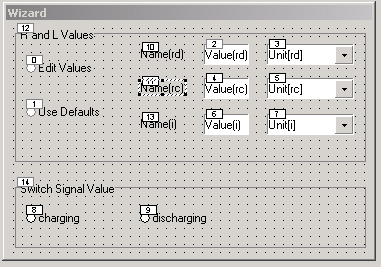
- Continue selecting elements until all
elements are in the correct order. The illustration below shows the same
component dialog box shown above with a newly set tab order:
- Click an empty portion of the component dialog to exit the tab order utility.