
Schematic Editor Window
The Schematic Editor window lets you place components and wire them together.
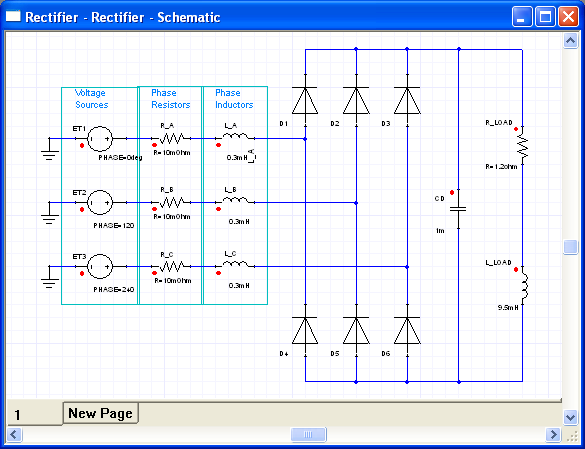
Click and drag components to move them, or copy and paste components and their wires within the schematic editor. You can also copy and paste to other schematics.
As you place the cursor near a pin of a component, it changes from an arrow to an X, indicating that the schematic editor is in the wiring mode. In wiring mode, left-click to start drawing a wire. Left-click again to end the wire.
Click the toolbar icons of commonly used items such as ports, grounds, and page connectors to place them in the schematic. You can also select and place them using the Draw menu.
View controls to zoom in, zoom out, and fit the drawing to the editor window are available on the View menu, and on the shortcut menu that opens when you right-click a schematic.