
Link to DesignXplorer
You can export an XML file containing information on a Twin Builder setup, optimization variables, and output variables that enable Ansys DesignXplorer to manage Twin Builder simulations, for example, for design of experiments and optimization. DesignXplorer will launch Twin Builder simulations of design variations and evaluate the Twin Builder outputs.
To do so:
- Click Twin Builder > Optimetrics
Analysis > Add DesignXplorer Setup or right-click Optimetrics
in the Project window, and select Add DesignXplorer Setup.
The DesignXplorer dialog box appears. It lists the setups available in the current project, and the input variables it contains.
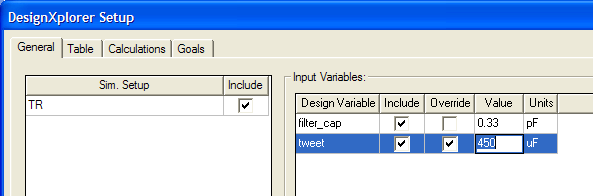
- On the General tab, select the Include check box for the simulation setups you want to use.
- In the Input Variables panel, select the Include check box for the Design Variables to use. You can also override the value of a design variable. Edit the Value and Units fields to enable Override. Clear the Override check box to return the value and unit to their original states.
- To setup output calculations, select the Calculation tab and click Setup Calculations.
The Add/Edit Calculation dialog box appears. Here you can define the simulation results of interest. The dialog box contains distinct panes and tabs to set the Context, the Calculation Expression, and the Calculation Range. See Setup Calculations for Optimetrics for details.
Click Add Calculation to add expressions to the Calculations table of the DesignXplorer Setup dialog box, Calculations tab.
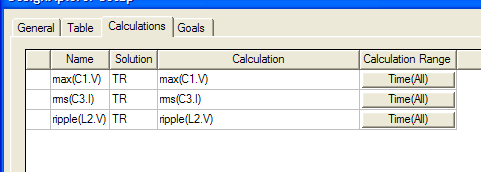
- After adding the calculations of interest, click OK to save the setup.
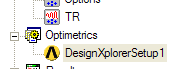
An icon for the DesignXplorer setup appears under Optimetrics in the Project Manager pane.
- To create an XML file with the setup information for DesignXplorer, first Save your project.
- Right-click the setup and select Export External Connector Addin Configuration.
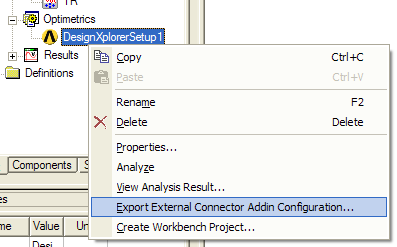
This displays a browser dialog box that you can use to navigate through your file system, and name and save the XML file. The XML file contains information regarding the Twin Builder path along with the setup, variables, and simulation results that you specified.
- If you have an Ansys Workbench installation you can perform additional steps. A path to the Workbench installation must be specified in Tools > Options > General Options on the Miscellaneous panel.
- Click Create Workbench Project.
This lets you name a Workbench project containing the information in the setup. The Ansys Workbench launches with the connection to the Twin Builder project established. To this connection, you can add a DesignXplorer Setup. See the documentation of Ansys Workbench for details on DesignXplorer.