
Finding Elements in the Schematic Editor
To find one or more elements in the Schematic Editor, you can use the Find Elements dialog box. The Find Elements dialog box provides a QuickFind view and an advanced view. Click the appropriate button to switch views.
To use QuickFind to find one or more elements in the Schematic Editor:
- On the Edit menu, click Find Elements, or press F3. This opens the QuickFind view of the Find Elements dialog box. If you want to access the advanced view, click Advanced.
- Click the Property Name drop-down list, and select the element properties for your search. If you want to search all types, select <any>. If you want to search for a specific property that is not in the drop-down list, type the property name.
- Enter a search string for the property in the Value field. Wildcards “*” and “?” can be used in searches.
- Click Find to initiate a search.
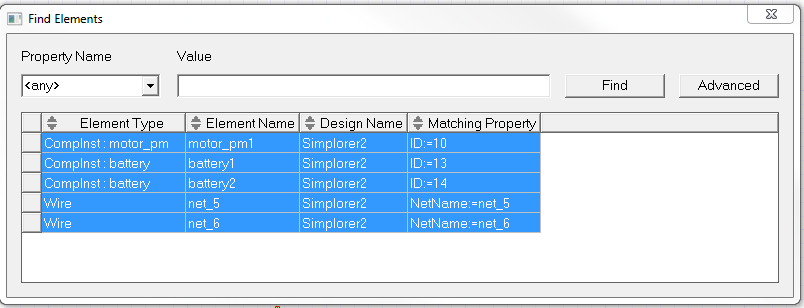
Search results are displayed in the Results window of the Find Elements dialog and highlighted on the schematic circuit or subcircuit. Click an individual search result item to highlight that particular circuit or subcircuit element in the Schematic Editor.
If you click Advanced, the selections and results are displayed in the advanced view of the dialog.
To use the advanced option to find one or more elements in the Schematic Editor:
- On the Edit menu, click Find Elements, or press F3. This opens the QuickFind view of the Find Elements dialog box.
- Click Advanced. This opens the advanced view of the Find Elements dialog box.
- Click the Property field, and select the element properties you want to search for from the drop-down list. If you want to search all types, select <any>. If you want to search for a specific property that is not in the drop-down list, type the property name.
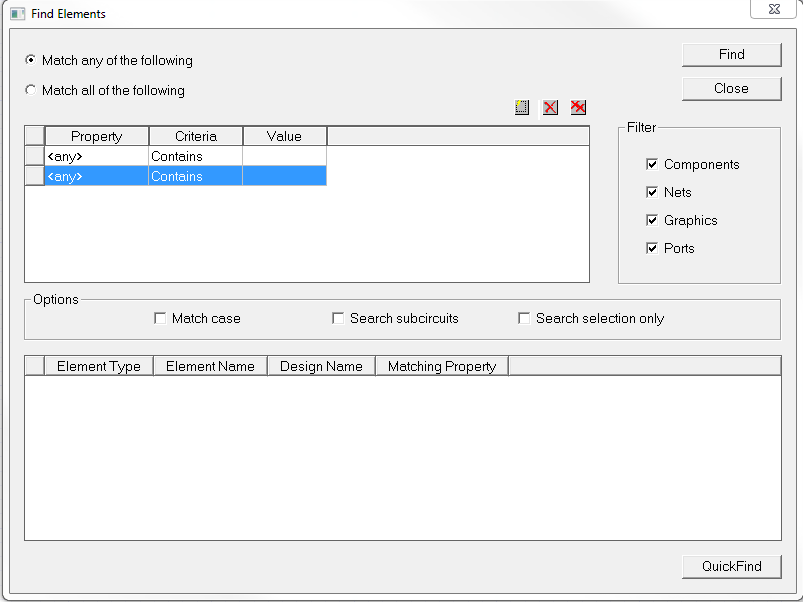
Use the buttons to add  , remove
  , or remove all
  search
properties in the table.
search
properties in the table.
- Click the Criteria field to select Contains, Does not contain, or Exact as the search criteria.
- Enter a search string for the property in the Value field. Wildcards “*” and “?” can be used in searches. For example, searching the Refdes property for “R?” with Match any of the following and Contains criterion would find R1 and R2, but not C1.
- You can further control a search using the following controls:
- Select a Filter check box to include element types (Components, Nets, Graphics, or Ports) in the search.
- Select an Option check box to vary the scope of the search.
- Choose Match all of the following to restrict the results to elements that meet all of the specified search requirements. Choose Match any of the following to match elements that meet any of the search requirements.
- Click Find to initiate a search.
Search results are displayed in the Results window of the Find Elements dialog and highlighted on the schematic circuit or subcircuit. Click an individual search result entry to highlight that particular circuit or subcircuit element in the Schematic Editor.
If you click QuickFind, the selections and results are displayed in the QuickFind view of the dialog box.