
Exporting a Model as an FMU
To export a model as an FMU:
-
Open the Project Manager pane.
-
Open the project Definitons > Models tree.
-
Select the model to export as an FMU.
-
Right-click and select Export as FMU to open the Export as FMU dialog box.
Note:If Export as FMU is not available in the menu, then the selected model doesn’t support export as FMU.
-
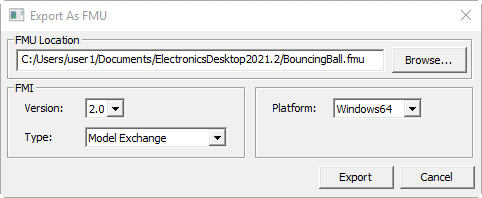
In the Export as FMU dialog box:
-
Navigate to the FMU Location where you want to save the exported file.
-
Select the Version of the FMI interface to use.
-
Select the FMI Type.
-
Select the OS Platform for which the FMU model is compiled.
- Click Export.
-
Exporting FMUs to a Windows 32-bit platform is useful if you want to use the model in applications other than Twin Builder. However, those models cannot be reimported and used in Twin Builder. A twin deployment from a subsheet containing an encrypted TBROM is not allowed.
To export an SML format LTI model as an FMU, follow the procedure above. During exporting, the LTI model is converted to an equivalent model in Modelica and compiled to an FMU. When the number of states in the LTI model is greater than 100, the Modelica model is written in sparse matrix format for faster compilation time; when the number of states is less than or equal to 100, the Modelica model is written in full matrix format.
Export as a Modelica Package
To export an SML-formatted LTI model as a Modelica package, select Exporting a model as Modelica Package. This creates a Modelica package which can be consumed by a Modelica environment in Twin Builder.
More information on the FMI standard can be found at: http://fmi-standard.org/