
Event Callbacks
Operations you perform in Twin Builder are called “events” and can include operations such as placing a component or running a simulation. Use Event Callbacks to define custom JavaScript and VBScript routines that will run after a triggering event in Twin Builder is detected. After configuring callback scripts, you can save the script settings to the registry and:
- Load callback script settings into any project.
- Set an option to load settings into all new projects that you create.
To define an event-callback script, or to access a previously-defined callback script:
- Select Project > Event Callbacks. The Event
Callbacks dialog box appears.
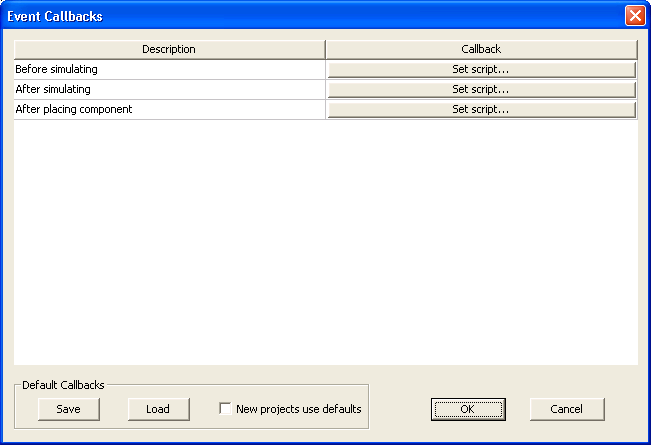
The Description column lists the type of event that will trigger the invocation of the corresponding scripts listed in the Callback column. When you define an Event Callback script, you specify one or more scripts that will be run after a particular Twin Builder event is detected.
- If no script name appears in the Callback column, click the appropriate
Set script button to define a
new script. The Choose Scripts
dialog box appears.
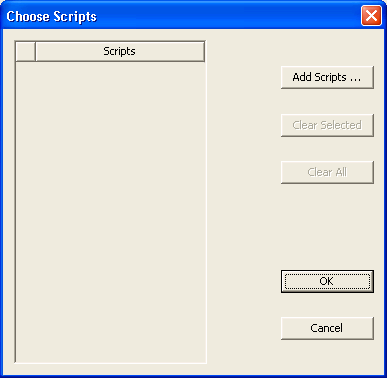
Use the Choose Scripts dialog box options to control the following:
- Add Scripts opens the Select Definition dialog box in which you can select scripts you want to add to the list of available callback scripts.
- Clear Selected clears the selected scripts from the control grid at left.
- Clear All clears all scripts from the control grid at left.
- OK closes the dialog box and implements your changes. The names of the callback scripts in the list become the button name in the Callback column in the Callback Events dialog box.
- Cancel closes the dialog box and cancels your changes.
- When the Scripts column is populated, you can reorder the listed scripts by dragging them up and down in the grid. You may also select multiple scripts in the grid and Add Scripts or Clear Selected.
- To modify the list of scripts to be applied to a Callback Event, click the desired Callback button to open the Choose Scripts dialog box in which you can make the desired changes.
- After defining callback scripts, the
Default Callbacks section at the
bottom left of the Event Callbacks
dialog box lets you control the following:

- Save saves all of the current Event Callback script settings.
- Load loads the saved settings. Note that any current settings will be lost. As each script name is loaded, a check is done to see if that script is accessible. If it is not accessible, the script setting for that event is cleared and a warning message is displayed in the Message Manager pane.
- New projects use defaults ensures that each time you select File > New, and each time you launch Twin Builder and a new project is created, the default Event Callback script settings are loaded and applied to the new project. Each script name setting is used to load the corresponding script into the project. If a particular script is not found, a warning message appears in the Message Manager pane. If this occurs, ensure that the library containing the script is configured before creating a new project.
- When you have finished defining one or more callback scripts, click OK to close the window and implement your changes, or click Cancel to cancel your changes.
- The callback scripts you have defined are invoked whenever Twin Builder detects the occurrence of the associated events. For more information, see Event Callback Scripting in the Twin Builder Scripting help.