
Displaying and Hiding Pins
When an instance of a component has been placed on a Schematic sheet, you can show or hide its conservative or non-conservative pins through the right-click context menu, its Properties Dialog, or its Special Component Dialog.
- If a non-conservative pin does not exist on the default symbol for the component, or if a conservative pin's visibility is changed (conservative pins always exist on the symbol), a copy of the symbol will be made and used for this component instance.
- New pins are added on the left and right periphery of the graphics bounding box, alternately. There are a limited number of available pin locations for a symbol unless it has a rectangle enclosing the symbol graphics. If all the available spaces are full, the context menu shows only pins that can be hidden or made visible without adding a new pin. If the symbol has a rectangle enclosing its graphics, however, the rectangle can be extended downward to accommodate any number of pins, and all possible pins are shown in the context menu. Once extended, the rectangle will not be reduced if pins are hidden.
- When a conservative pin is hidden, a property Net(pinname) is added to the component instance's parameters so the pin can be connected to an existing net, by name. The value is checked for correct net name syntax. If the name corresponds to a current net in the schematic, the pin is connected. If the name does not correspond to a current net, a global port with that name is created. Multiple hidden pins can be connected by using the same name for the value of their Net(pinname) property.
- When a non-conservative pin is displayed, its property value is determined by its connection. All Inputs take the value of a single Output property on the net. Output property values are determined by the simulator and generally are set to 0 in the schematic, regardless of pin visibility - with the exception that during simulation, Output values may be set to evaluate symbol animation conditions. For an InOut pin, the property value is set to an InOut design parameter. This is necessary for all InOut pins to be connected in the simulator, which will ensure input/output validity for the net.
- When a non-conservative Input or InOut pin is hidden, the property value becomes editable. An Input value may be set to an expression involving variables, functions, and any number of output parameters from components in the schematic. An InOut value must be an InOut design parameter, and all InOut pins sharing this value are connected.
Context Menu
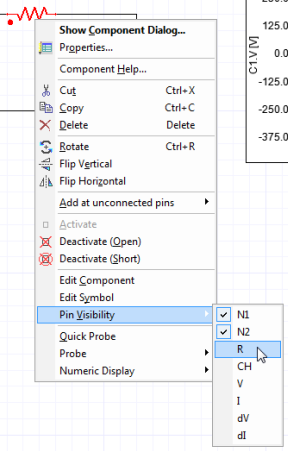
On the right-click context menu for a component, the Pin Visibility menu lists pins with checkmarks to show visibility. Select a pin to toggle it’s visibility.
Properties Dialog (Show Pins)
- To open the Properties dialog box of an instance of a component, right-click it and choose Properties from the context menu.
- Once the Properties dialog is open, select the Parameters, Quantities or Signals tab. These tabs contain a list of all of the component's properties, most of which can be pins.
- To show a pin, select the Show Pin check box for the desired pin.
To hide a pin, clear the check box.
Note:
The Show Pin check boxes are disabled for properties that cannot be displayed as pins. Connections to hidden pins can be defined via a name reference.
- Click OK. All selected parameters and nodes receive a pin on the sheet.
Special Component Dialog (Show Pins)
- To open the Special Component Dialog of an instance of a component, double-click the component or right-click and choose Show Component Dialog from the context menu.
- Once the dialog box is open, select the Output / Display tab. This tab contains a list of all of the component's properties, and a Show Pin check box column.
- As above, to show a pin, select the
Show Pin check box for the desired
pin. To hide a pin, clear the check box.
Note:
The Show Pin check boxes are disabled for properties that cannot be displayed as pins. Connections to hidden pins can be defined via a name reference.
- Click OK. All selected properties receive a pin on the sheet.