
Design Settings
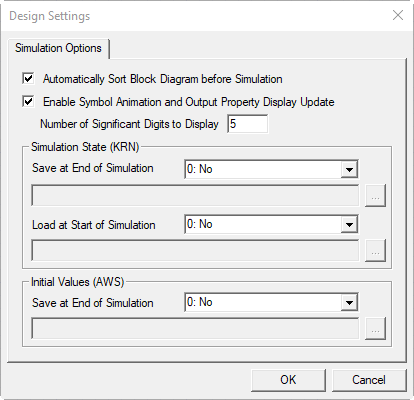
Use the Twin Builder Design Settings dialog box to control various simulation options.
- To make design settings, right-click the desired design icon in the Project
tree and select Design Settings or select Twin Builder > Design Settings. The Design Settings
dialog box opens.
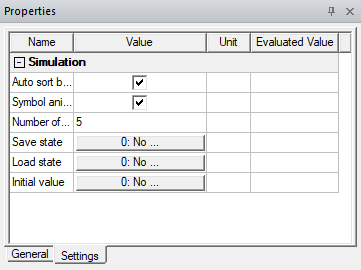
Selecting a current design in the Project tree also displays the Design Settings in Properties window under the solver tab.
- The controls in the Design Settings dialog box save state and initial
values of a simulation model in separate files at the end of the simulation.
- Automatically Sort Block Diagram Before Simulation – Select this check box to sort block diagrams before running a simulation.
- Enable Symbol Animation and Output Property Display Update – Select this check box to enable symbol animation and enable the Number of Significant Digits to Display field. Animations embedded in a symbol change the symbol appearance during the simulation process in response to a change in value of a system quantity. See Using the Symbol Editor for more details.
- Number of Significant Digits to Display – Enter a value in this field to set the number of significant digits displayed for evaluated properties on schematics. The number set in this field must be between 1 and 14. The default value is 5.
- Simulation State (KRN): Save at End of Simulation – Use this drop-down list to determine whether to save the simulation state to a .krn file at the conclusion of a simulation. The default location\file name of the state file is \<projectname>.aedtresults\<projectname>_<designname>.krn. The file is overwritten an the end of each simulation. You can continue a simulation later with this state file.
Select 2: Ask for filename before simulation if you want to specify a path and name for the state file at the start of simulation. When you start a simulation, the State and Initial Value Files dialog box appears in which you can specify this information. Click Cancel in this dialog box to allow the simulation to proceed without saving a file.
- Simulation State (KRN): Load at Start of Simulation – Use this drop-down list to determine whether an existing simulation state file loads at the start of simulation and is then used for that simulation. The default location\file name of the state file is \<projectname>.aedtresults\<projectname>_<designname>.krn.
Select 2: Ask for filename before simulation if you want to be prompted to choose a state file manually at the start of simulation. When you start a simulation, the State and Initial Value Files dialog box appears in which you can specify this information. Click Cancel in this dialog box to continue the simulation without loading a file.
- Initial Values (AWS): Save at End of Simulation – Use this drop-down list to determine whether to save the simulation model values (inductances and capacitances) to an .aws file at the conclusion of a simulation. The default location\file name of this initial values file is \<projectname>.aedtresults\<projectname>_<designname>.aws. Saved values can be used as initial values for a subsequent simulation.
Select 2: Ask for filename before simulation if you want to specify a path and name for the initial values file at the start of simulation. When you start a simulation, the State and Initial Value Files dialog box appears in which you can specify this information. Click Cancel in this dialog box to continue the simulation without saving a file.
- When finished, click OK
to save your choices and close the dialog box.
Note:
When performing simulation by enabling Simulation State (KRN): Load at Start of Simulation, the simulation results only correspond to the Twin Builder design for which the KRN was previously saved. Any changes to the design such as replacing components with different input waveforms after the KRN was saved are not reflected in the simulation.
The only exception is that the values of existing input properties can be changed when the Load at Start of Simulation is performed through Optimetrics analysis given that the specific input property value is expressed as a project/design variable, or when the property is enabled with the Sweep check box.