
Adding Statics to a Component Dialog Box
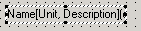
Statics are static information elements that display text. They can display simple labels that accompany control elements such as text edits and combo boxes, or node information. The following is an example of a static as it appears in the Component Dialog Wizard:
To create a static for displaying a simple label:
- Select Controls > Static from the Component Dialog Wizard menu bar.
- Click the component dialog box to place the static.
- Drag the static to its desired location in the component dialog box.
- Right-click the static. The Properties dialog box opens.
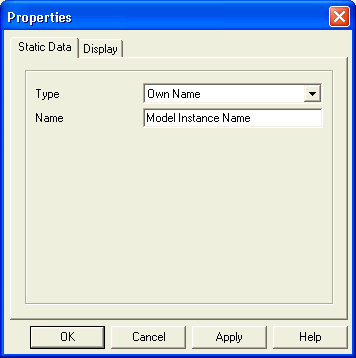
- Select Own Name from the Type list on the Static Data tab.
- Type the text to be displayed by the static in the Name field.
- Click OK.
To create a static for displaying node information:
- Select Controls > Static from the Component Dialog Wizard menu bar.
- Click in the component dialog box to place the static.
- Drag the static to its desired location in the component dialog box.
- Right-click the static. The Properties dialog box opens.
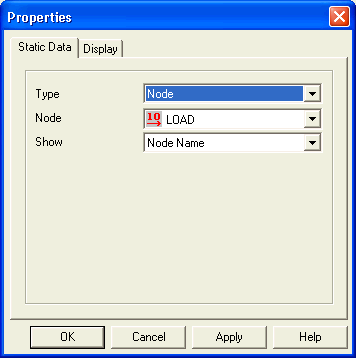
- Select Type > Node on the Static Data tab.
- Select the name of the node for which information is to be displayed from the Node list.
- Select the type of node information to be displayed from the Show list.
- Description - The node's description is shown on the component dialog box as [Description].
- Description(Node Name+Unit) - The node's name and unit are shown on the component dialog box as [Node Name, Unit].
- Node Name - The node's name is shown on the component dialog box as Node Name.
- Node Name+Unit - The node's name and unit are shown on the component dialog box as Node Name [Unit].
- Node Name+Unit+Description - The node's name, unit, and description are shown on the component dialog box as [Node Name, Unit, Description].
- Click OK.