
Adding List Boxes to a Component Dialog Box
A list box is a control element that provides a table of component parameter information and controls. In the Component Dialog Wizard, list boxes can display, edit, and control model information such as:
- Values of non-conservative input nodes.
- Units of non-conservative input and output nodes.
- Descriptions of conservative and non-conservative pins.
The following is an example of a list box as it appears in the Component Dialog Wizard:
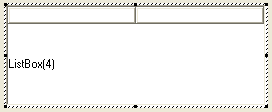
To create a ListBox for displaying and/or changing the values of parameters:
- Select Controls > ListBox from the Component Dialog Wizard menu bar.
- Click the component dialog box to place the list box.
- Drag the list box to its desired location on the component dialog box.
- Resize the list box to its desired height and width.
- Right-click the list box and select Properties. The Properties dialog box appears, displaying two lists on the ListBox Data tab.
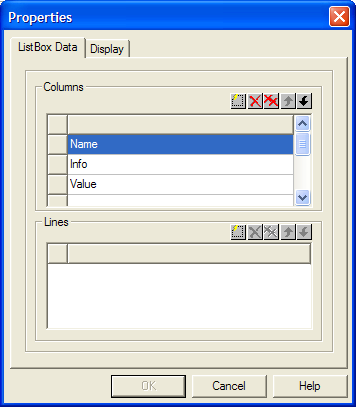
- In the Columns
list, click
 and choose which columns will appear in the actual dialog box from the menu that appears.
-
 deletes the currently selected
list item.
deletes the currently selected
list item.
-
 deletes all entries in the
list.
deletes all entries in the
list.
-
 moves the currently selected
list item up or down in the list. You can also drag and drop list items.
moves the currently selected
list item up or down in the list. You can also drag and drop list items.
- Similarly, in the Lines
list, click and choose the parameters
that will appear in the actual dialog box from the menu that appears.
-
deletes the currently selected
list item.
-
deletes all entries in the
list.
-
moves the currently selected
list item up or down in the list. You can also drag and drop list items.
- Repeat steps 6 and 7 for the remaining entries of the ListBox.
- Click OK.