
W-element Analysis
W-elements are a distributed model for transmission lines used in certain HSPICE-compatible circuit simulators. For designs containing traces and planes, SI Xplorer can export the W-element in either single frequency or tabular format.
After you have used SI Xplorer's Impedance Wizard to calculate impedance, differential impedance, or trace width/pitch, the Cross-section Visualizer area allows you to set up aggressor traces around a victim trace and export the corresponding w-element.
To analyze and export the W-element:
- Click an element in the Cross-section visualizer or select it from the list in the W-Element Settings area.
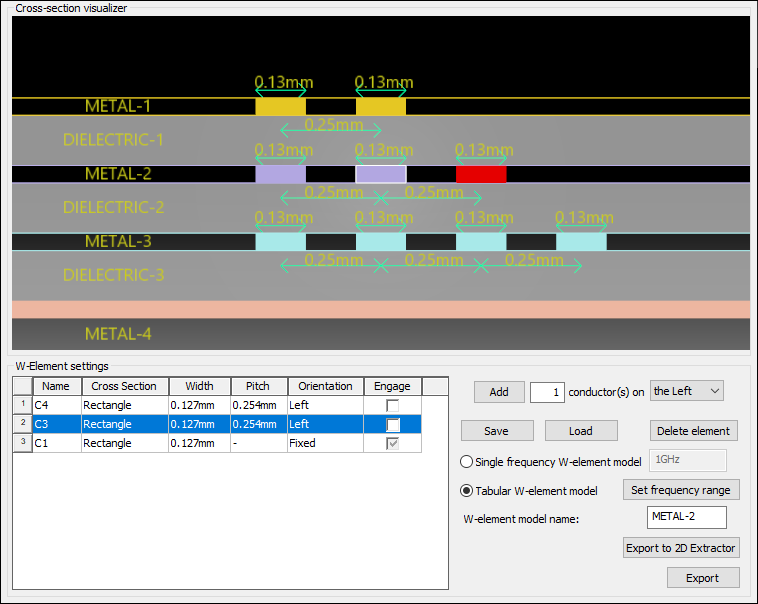
The following options are available:
- Add – Enter the number of aggressors to add, and use the drop-down menu to select whether to add them on the right, left, or on both sides. Then click Add.
Note:
If you previously enabled CPW settings during trace width, impedance, or differential impedance calculation, your options will be limited.
- If you selected Left plane spacing, aggressors may only be added to the right of a victim trace.
- If you selected Right plane spacing, aggressors may only be added to the left of a victim trace.
- Delete Element – Click to remove an element.
- Single Frequency / Tabular Model – Select Single frequency and enter the frequency in Hz, or select Tabular and click Set frequency range to set up a range of frequencies.
- W-Element Model Name – If appropriate, enter a new model name for the w-element.
- Export to 2D Extractor – generates a VB script to export the selected layer’s cross-section to 2D Extractor. Microstrips, stripline and conformal coats are supported. Generating this script launches a prompt asking if you want to run the script in Electronics Desktop. Consult the Q3D Extractor/2D Extractor help for instructions on running an analysis in 2D Extractor.
You can also double-click a value within the W-Element Settings list to change width and pitch.
- Add – Enter the number of aggressors to add, and use the drop-down menu to select whether to add them on the right, left, or on both sides. Then click Add.
- Make your appropriate selections, then click Export.
The Select Spice File to Export window appears.
Note:If you selected Tabular W-element model but did not specify the frequency range, the Frequency Sweep Dialog appears. You must specify the frequency range before you can save.
- Browse to a save location, name your file, and click Save.
The file is saved in Spice (*.sp) format.