
Setting Project Variables
A variable is a numerical value, mathematical expression, or mathematical function that can be assigned to a design parameter. You can assign a variable to any dimension, material property, or output value in SI Xplorer. Variables are useful if you expect to change a parameter often, or expect to use the same parameter value often.
Access project variables in SI Xplorer by clicking Project > Project Variables.
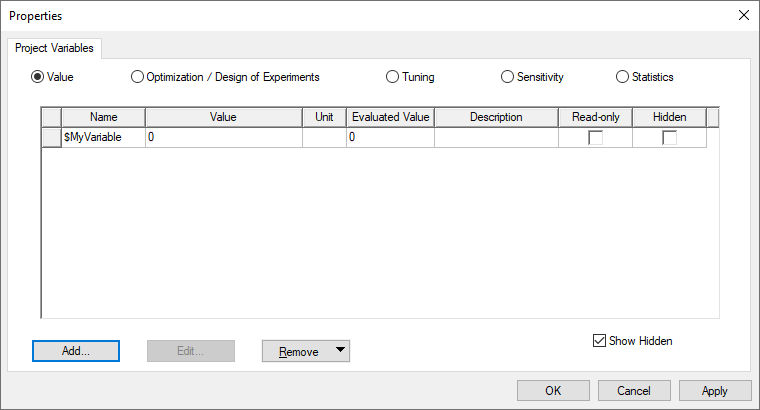
The Properties window appears, on the Project Variables tab:
Adding Project Variables
- From the Project Variables tab, click Add.
The Add Property dialog box appears.
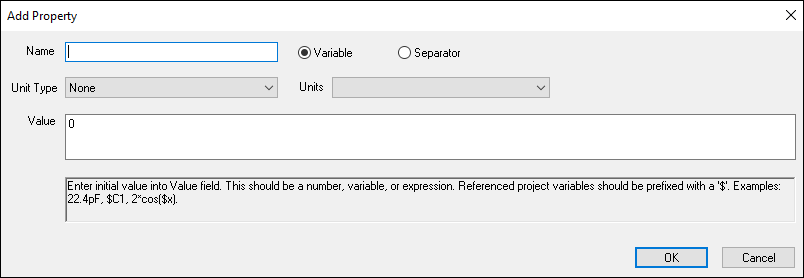
- Enter information for the variable, as applicable:
- Name – project variable names must start with the dollar sign symbol ($), followed by a letter. The name can contain alphanumeric characters and underscores (_).
- Variable Type – use the Variable and Separatorradio buttons to select the variable type.
Your selection impacts which properties you can edit:
Variable Type
Editable Properties
Variable
Unit Type, Units, Value.
Separator
Name only. A separator variable provides a bolded name for a blank line to facilitate grouping variables in variable lists.
Unit Type – for Variables, use the drop-down menu to select a type from the list (e.g., Charge, Density, Energy, et cetera). “None” is the default.
When you select a Unit Type, the choices in drop-down menu for the Units text box adapt to that unit type. For example, selecting Length as the Unit Type causes the Unit menu to show a range of metric and english units for length. Similarly, if you select the Unit Type as Resistance, the Units drop down lists a range of standard Ohm units.
- Units – for Variables, use the drop-down menu to select a unit of measure.
- Value – for Variables, enter a number, variable, or mathematical expression. The quantity entered will be the current
(or default) value for the variable.
If the mathematical expression includes a reference to an existing variable,
this variable is treated as a dependent variable. The units for a dependent
variable will automatically change to those of the independent variable
on which the value depends. Warning:
If you include the variable's units in its definition (in the Value text box), do not include the variable's units when you enter the variable name for a parameter value.
- Click OK.
The new variable appears in the list. You can sort project variables by clicking the Name column header. Clicking once sorts them in ascending order, noted by a triangle pointing up. Clicking against sorts in descending order, noted by a triangle pointing down. Clicking a third time sorts in original order, with no triangle.
- If appropriate, use the check boxes to designate a variable as Read-only or Hidden.
- Read-only – when selected, the variable's name, value, unit, and description cannot be modified.
- Hidden – hidden variables do not appear in the Properties window unless Show Hidden is selected.
- Click Apply to apply changes.
- Click OK to exit the window.
Editing Project Variables
To edit a project variable:
- Access Project Variables.
- Select the variable you want to edit and click Edit.
- Change the properties as appropriate and click OK.
Removing Project Variables
To remove a project variable:
- Access Project Variables.
- Click Remove.
A drop-down menu appears.
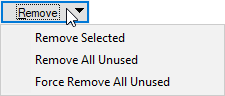
- Remove one or more variables:
- To remove a specific variable, ensure it is selected and click Remove Selected.
- To remove all unused variables, click Remove All Unused.
- To force the removal of all unused variables, including those in the project's undo/redo history, click Force Remove All Unused.