
Modifying the Layer Stackup
The Stackup Layers area of SI Xplorer allows you to add and remove layers, edit layer properties, edit HFSS etch factor, and change surface roughness.
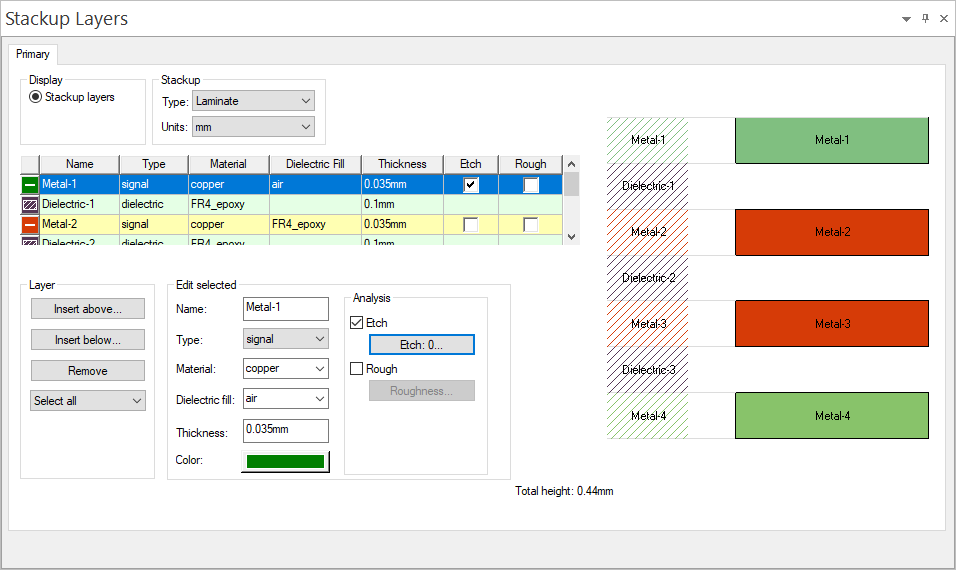
The right side displays an image of the layer stack. The left side displays options for altering it:
- Stackup – use the drop-down menus to change the stackup Type or Units. See: Multizone Stackup below.
- Layers List – allows you to select rows, highlighting them in the stack and selecting them for impedance or w-element analysis. Each cell in the table can be edited, allowing you to quickly change a layer's name, type, material, fill, and thickness. You can also use the check boxes to enable HFSS etch factor or surface roughness for a layer.
- Layer – contains options for inserting new layers and removing existing layers. The drop-down menu allows you to select all layers, select dielectric layers, or select signal layers. You can then bulk edit these layers' properties in the Edit Selected area.
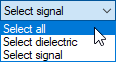
- Edit Selected – allows you to edit a single layer's properties, or the properties of multiple layers selected using the layer selection drop-down menu.
- Etch – when Etch is selected for a layer, click the Etch button to open the HFSS Etch Factor window:
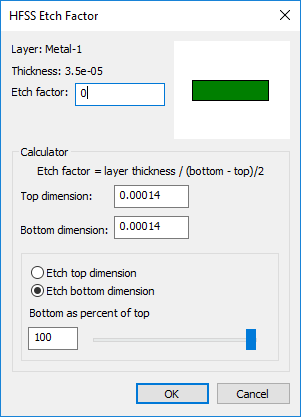
See: Setting HFSS Etch Factor.
- Rough – when Rough is selected for a layer, click the Roughness button to open the Surface Roughness Model window:
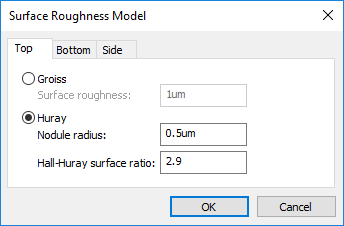
For the layer's Top, Bottom, and Side, select the roughness model and enter an appropriate parameters.
The Groiss model used within Ansys Electronics products is a modified version of the original Groiss model. It is causal.
The Huray model is also a causal model. See: Huray Surface Roughness Model.
- Etch – when Etch is selected for a layer, click the Etch button to open the HFSS Etch Factor window:
HFSS Etch Factor and Surface Roughness can be edited when one or more signal layers is selected. Selecting dielectric layers disables these options.
Multizone Stackup (Beta)
By default, the Stackup Layers area displays one tab: the Primary tab. SI Xplorer can also divide the layer stack into multiple zones.
To use this feature:
- Use the Type drop-down menu to select Multizone.
The Stackup Layers area updates to show the Multizone tab:
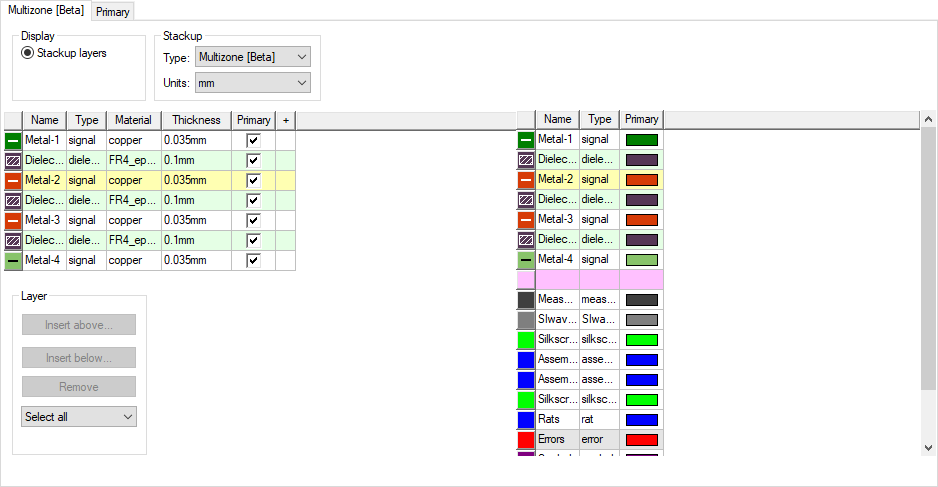
- Add or remove zones using the Multizone menu on the menu bar.
A Zone# tab appears for each new zone:

The Multizone tab updates to include the new zones:
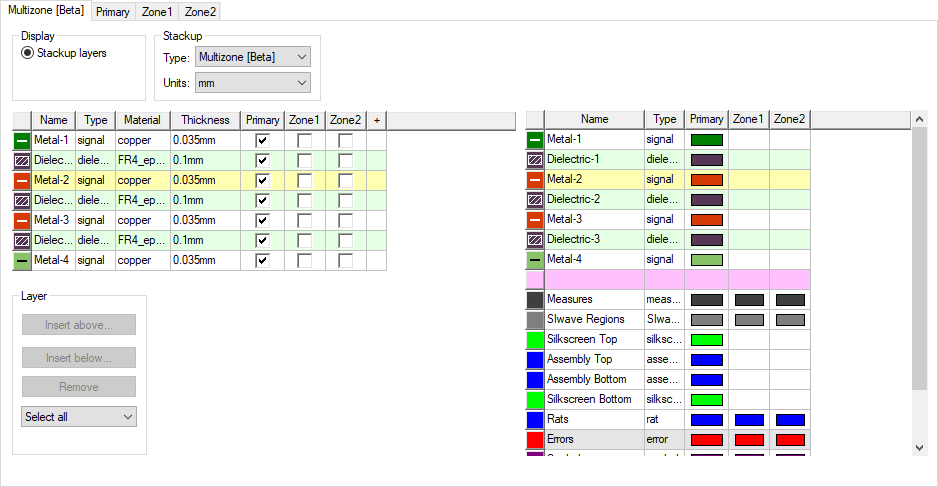
The left side allows you to assign layers to zones. The right side contains a color key.
- Use the Zone# check boxes to assign layers to zones.
One assigned, layers appear in their zone tab(s). Each Zone# tab looks and functions like the Primary tab.
By default, Enable Dynamic Update is selected in the Impedance Wizard.
When any change is made in the Layer Stackup window:
- The design updates.
- Impedance and differential impedance are recalculated.
- W-element plots are recalculated and replotted.
To disable these recalculations, deselect Enable Dynamic Update.