
Importing Files to Q3D Extractor
You can import the following types of files to Q3D Extractor:
Healing Options on Import
When you click Modeler > Import, the Import File window appears.
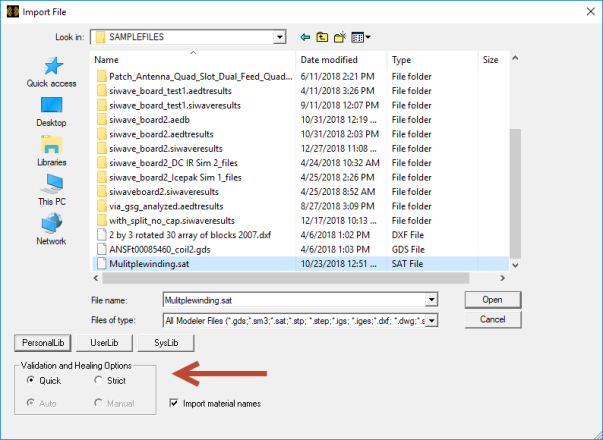
By default, Validation and Healing options are selected for certain types of files. These types are:
- ACIS SAB files (*.sab)
- ACIS SAT files (*.sat)
- Ansys 3D Modeler files (*.sm3)
- Autodesk Inventor files (*.ipt, *.iam)
- CATIA V4/V5 files (*.exp, *.model, *.CATpart, *.CATproduct)
- Creo Parametric files (*.prt, *.asm)
- IGES files (*.iges, *.igs)
- NX files (*.prt)
- Parasolid files (*.x_t, and *.x_b)
- SOLIDWORKS Files (*.SLDPRT, *.SLDASM)
- STEP files (*.step, *.stp)
Selecting Quick validation disables the healing options. Selecting Strict validation allows you to choose between Auto and Manual healing. Imported objects with only one operation on the history tree can be healed.
If you select Manual healing:
- Click Open.
The Healing Options window appears, on the Healing Options tab.
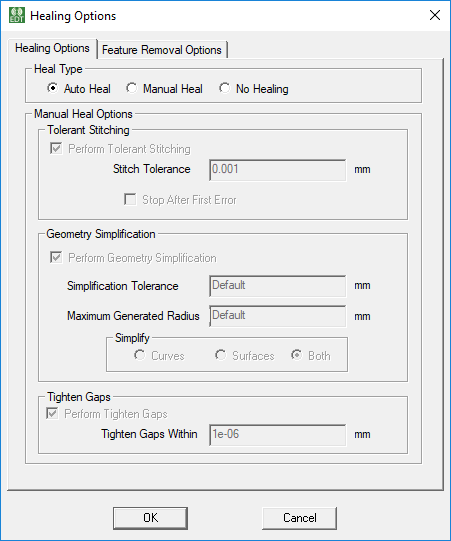
- Set parameters for Tolerant Stitching, Geometry Simplification, and Tighten Gaps.
- Click the Feature Removal Options tab.
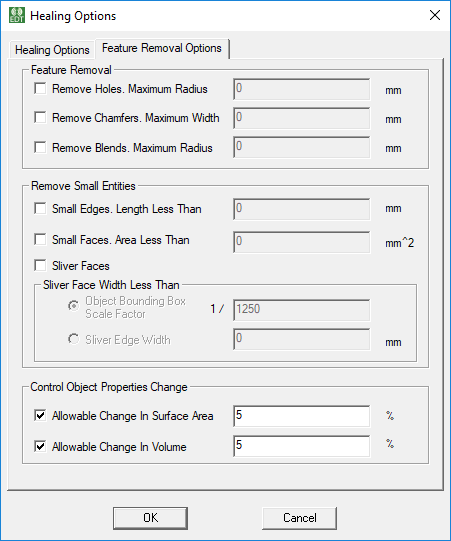
You can set parameters to remove:
- Holes smaller than a maximum radius
- Chamfers smaller than a maximum width
- Blends smaller than a maximum radius
- Small Edges less than a specified value
- Small Faces less than a specified value
- Sliver Faces less than either:
- Bounding box, less than a specified scale factor
- Sliver Edge width, less than a specified value
You can also set an allowable change in Surface Area and Volume.
- Click OK to apply the specified healing options and to analyze the model.
You can reopen the Healing Options window at any time by selecting 3D Model > Model Analysis > Heal.