
Using Reduce Matrix > Return Path
The Return Path reduction lets you select a net to serve as a return path for current, enabling you to approximate the loop inductance of a closed conduction path.
If you identify a net as a current return path, the total current exiting from the sink terminals on the remaining conductors returns inside the selected conductor. This total current is forced into the sink terminal of the return path conductor and re-emerges from the source terminal. It is as if the return conductor was connected via an ideal wire to the source conductors, creating a closed current loop—only part of which is explicitly modeled. Current flow in the conductor specified as the return path is automatically reversed.
Specifying a return path does not simulate the effect of the full current loop. The effect of returning current on the partial inductance and resistance matrices is confined to the region being modeled and does not include the rest of the loop.
This matrix reduction operation is used to model the inductance and resistance of a closed loop in Q3D Extractor. The software directly solves for partial inductance and resistance matrices, which only include the effects of currents in the section of the loop that is being modeled.
To define a source terminal as a current return path:
- Click Q3D Extractor > Reduce Matrix > Return Path.
The Reduce Matrix - Return Path window appears, with a list of terminals in the left pane.
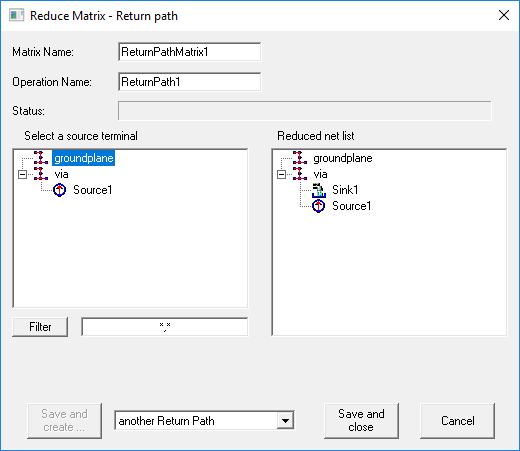
- Select the source terminal you want to specify as a return path. As soon as you click a terminal, it is removed from the terminal list and added to the Reduced Net List.
Important:
You can only select one source terminal.
- If you have a long list of terminals, you can filter the list by entering search criteria and clicking Filter. Use multiple search criteria with a comma separator (for example, "Redsource*, BlueSource*").
- Click one of the following:
- Save and Create to save and leave the Reduce Operation window open to add an additional operation. You must select the next operation from the drop-down menu before clicking this button.
- Save and Close to save the current operation and close the window.
- Cancel to close the window without making changes.
Operations that have been performed appear in the Project Manager:
