Pressure
A Pressure excitation applies a uniform surface pressure (force per unit area), which acts normal to element faces by default. Positive pressures act into the face (compressive); negative pressures act away from the face (tensile). Alternatively, you can specify X, Y, and Z components to define a pressure that acts in any desired vector direction. Global and user-defined coordinate systems are supported.
You can assign Pressure excitations to only the following entity type:
- Faces of solid objects
The faces to which you assign a Pressure may be of any shape or orientation, flat or curved.
How to Assign a Pressure Excitation:
- Using the Face selection mode, select one or more solid object faces.
- Use one of the following three methods of accessing the Pressure dialog box:
- Right-click in the Modeler window and choose Assign Excitation > Pressure from the shortcut menu.
- Right-click Excitations in the Project Manager and choose Assign > Pressure.
- From the menu bar, click Mechanical > Excitations > Assign > Pressure.
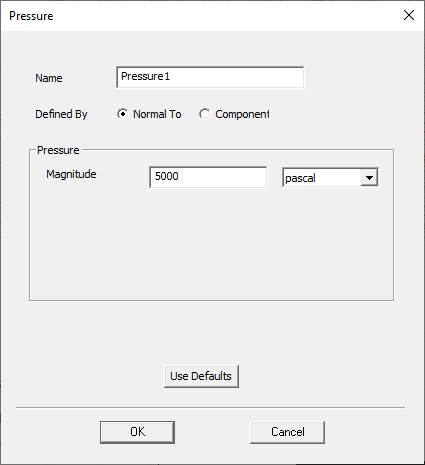
- Optionally, change the Name of the excitation. (The default name is Pressurex, where x is a number incremented for each pressure you add.)
- Choose one of the following two options from the Define By drop-down menu:
- Normal To: Pressure magnitude acts normal to element faces
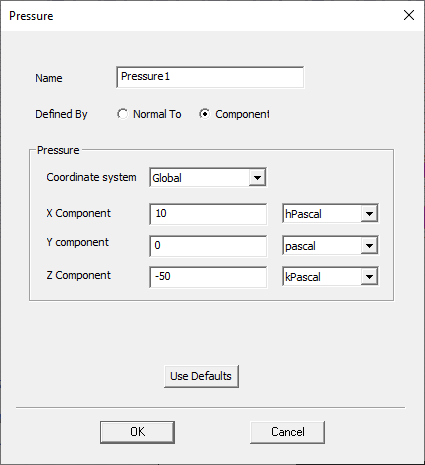
- Component: Specify X, Y, and Z components of pressure (global and user-defined coordinate systems are supported)
- Specify the pressure as follows, depending on your selection in the previous step:
- If you selected the Normal To option, type in the normal pressure Magnitude.
- If you selected the Component option:
- From the Coordinate System drop-down menu, choose the CS on which the force components will be based.
- Type the pressure component magnitudes in the X Component, Y Component, and Z Component text boxes.
- Choose the desired pressure units from the drop down menu(s) to the right of the Magnitude or X, Y, and Z Component text boxes. The following units are supported:
- Click OK.
The menu will list the Global CS and any user-defined CSs that exist in the design.
n_per_meter_sq, n_per_meter_sq, kn_per_meter_sq, megn_per_meter_sq, gn_per_meter_sq, lbf_per_ft2, psi, kpli, megpsi, gpsi, mbar, bar, mmHg, mmh2o, uPascal, mPascal, cPascal, dPascal, pascal, hPascal, kPascal, megPascal, gPascal, stAtm, techAtm, torr, and in_water
For zero-components, the units choice doesn't matter.
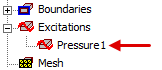
The pressure appears under Excitations in the Project Manager: