
Assigning Initial Temperatures
For Transient Thermal solutions, you can assign initial temperatures to selected objects. This capability is in addition to the global Initial Temperature property, which is defined in the Initial Conditions tab of the Thermal Solve Setup dialog box. Unlike the object-based assignment discussed in this topic, the global setting is applicable to both steady-state and transient thermal solutions. Object-based Initial Temperature assignments override the global setting.
You can assign an Initial Temperature to the following items:
- Solid Objects
- Shell Objects (sheet objects with the Shell Element option selected)
Applicable Solution Type: Transient Thermal only
Examples of when you might assign Initial Temperatures:
- To determine how long it takes for an assembly to cool down from a heated condition, such as post-soldering cool down of a circuit board.
- To reduce simulation times and storage requirements, by starting a transient solution at or near the expected operating temperatures of the components.
To Assign an Initial Temperature:
- Select one or more solid or shell objects.
- Access the Initial Temperature dialog box using one of the following three methods:
- Right-click in the Modeler window and choose Assign Initial Temperature from the shortcut menu.
- In the Project Manager, right-click Initial Temperature and choose Assign.
- From the menu bar, click Mechanical > Initial Temperature > Assign.
- Optionally, change the Patch Name from the default name (InitTempx).
- Type the desired Initial Temperature value, which can be numeric, a variable, or an expression (consisting of constants, variables, and mathematic operators). Also, choose the temperature units from the adjacent drop-down menu.
- Click OK.

The default value is the AmbientTemp variable specified in the Design Properties, which is also the default global initial temperature defined in the Thermal Solve Setup dialog box. Therefore, unless you've specified a user-defined global initial temperature, there's no point assigning an object-based initial temperature using the AmbientTemp variable. For the most efficient setup, choose a global initial temperatue that suits the majority of objects, minimizing the number of object-based initial temperature assignments that are needed.
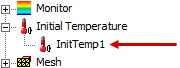
The assignment appears under Initial Temperature in the Project Manager:
Additional Initial Temperature Commands:
Aside from Assign, the following additional commands are available in the shortcut menu that appears when you right-click Initial Temperature in the Project Manager:
- List: Open the Design List dialog box with the Initial Temperature tab selected. This tab lists all initial temperature assignments in the active design, and you can access and edit their properties or delete them from this dialog box.
- Delete All: Delete all existing initial temperature assignments in the active design.
- Visualization: Access the Visualization Options dialog box, which lists all initial temperature assignments and allows you to toggle the View Geometry and View Name options. These options affect the visualization overlays that appear on the model when an initial temperature assignment is selected in the Project Manager. The options do not affect the model geometry visibility.
- Set Default Base Name: Access the Initial Temperature Base Name dialog box, where you can redefine the default name for this type assignment. A serial number (starting at 1) is appended to the end of the specified name and is incremented for each subsequent assignment.
The contents of this dialog box are shared by Contacts, Boundaries, Excitations, Monitor, and Initial Temperature. For initial temperature assignments, the View Vectors option is not applicable and, therefore, toggling this option has no effect on visualization.