
Specifying Initial Mesh Settings
You can specify the initial mesh settings, including the surface approximation and the
meshing approach
When you have defined mesh linking between a source and target design, all parameters within the Initial Mesh Settings dialog box are ignored for the target design. The mesh is copied from the source design without modification.
For most
In most cases,
In a few cases, you may decide to override the automatic choice and designate the mesher to use. To do so:
- Access the Initial Mesh Settings one of two ways:
- Select
- In the Project Manager, right-click Mesh, and select Initial Mesh Settings from the shortcut menu.
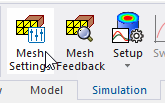
- On the Simulation tab of the ribbon, select Mesh Settings.
-
- Auto – the solver automatically selects the mesher. This is the
default setting.
- TAU – only specific curve faces will be remeshed (for example,
equation-based axisymmetric faces). If a curve face connects to non-remeshed curve faces, the
curve face will not be remeshed. If a curve face cannot be remeshed, faceting triangles will be
used as the surface mesh. Mesh quality depends on how the faceting triangles are made. If the
surface mesh is generated by TAU, it shows in the profile as Mesh TAU (Surface).
- Classic – Classic mesh uses a Bowyer algorithm to create compact meshes for the model with very large length scales. It represents the model very accurately. Depending on the model, Classic mesh may converge using fewer resources whereas TAU or Phi Plus may converge faster.
- For
- Under Curved Surface Meshing, you can choose to Use dynamic surface resolution, select Use Slider or specify Manual Settings.
- If you choose Manual Settings, the window changes to show text fields. See: Modifying Surface Approximation Settings.
- Surface Deviation – the distance between the true surfaces of the selected faces and the meshed faces.
- Normal Deviation – the angular distance between the normal of the
true surface and the corresponding mesh surface.
- Aspect Ratio – determines the shape of the triangles. The higher
the value, the thinner the triangles. Values close to 1 will result in well-formed, wide
triangles.
- Clicking Convert to Slider Value converts the manually entered values to an equivalent slider setting, and returns the panel to the slider view.
- To make your choices the default, use the Save as default check box.
- The Advanced tab lets you optionally specify a Set Length for Model Resolution. This is for experienced users who have a good understanding of how particular values will affect their models. In general, the Auto setting provides good results.
- Use Flex meshing for TAU volume mesh enables a version of the TAU mesher
that will rarely fail to generate a mesh
- Use legacy faceter for TAU volume mesh
- For Maxwell 3D models only, selecting Use
alternative mesh methods as fall back enables the TAU and
Classic mesh methods (chosen on the General tab) to fall back to
alternative mesh methods if the solver fails to generate the initial mesh.
You can also select Allow Phi for layered geometry (Classic only), which enables the Classic mesh method (chosen on the General tab) to use the Phi mesher for layered geometry.

For example, the the sequence of mesher methods might go like this: When the mesh method is TAU: TAU(>Phi)>Classic. When mesh method is Classic: Classic(>Phi)>TAU. Note: the options do not affect the Auto mesh setups.
- Click OK to apply your choices.
The Initial Mesh Settings window appears, with the General tab selected.
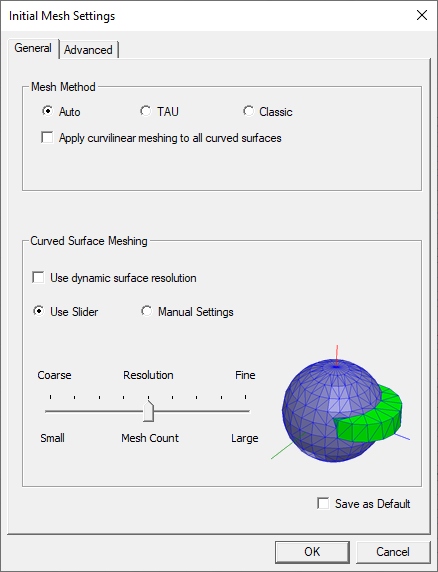
For Maxwell 2D, the TAU mesher is used; there are no selection options.
If you select Use dynamic surface resolution, the Manual Settings option is disabled.
The slider includes a visual representation of your choice, ranging from a Coarse Resolution (with a Small Mesh Count) through a nine position scale to a Fine Resolution (with a Large Mesh Count. Here, "Mesh Count" refers to the number of elements comprising the mesh.
Selecting Use dynamic surface resolution in the Curved Surface Meshing section specifies the best-practice mesh operations over the geometric models. This mesh operation will support 3D volume mesh and surface mesh in all products. The default mesh operations or user-defined mesh operations may or may not be replaced by the optimized mesh operations with model analysis. In general, large curve faces, curve faces with small gaps, or skewed cables get more smooth curvature representation while small curve faces, such as fillets, small curve objects, and so forth, get relatively coarse triangulations so that the overall mesh count will be reduced.
If you select dynamic surface resolution, you can optionally use the slider bar to adjust surface representation levels as: coarse (1-3), normal (4-6), and fine (7-9). You can also adjust the surface representation level for a specific group of faces by specifying slider bar, as described in Modifying Surface Approximation Settings.
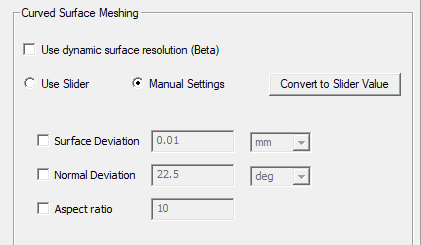
Use the check boxes to enable the fields and specify values:
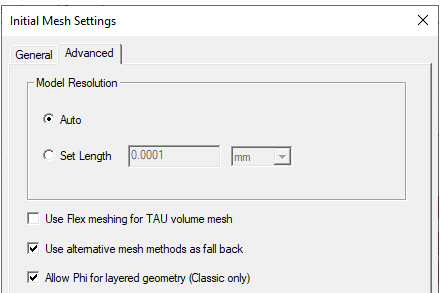
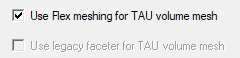
TAU Flex meshing does not support RMxprt models.
The settings will be applied to the initial mesh generated.