
Checking the Element Volume
For a mesh to be valid for the solver, there should be no negative or zero volume elements in the mesh. It is therefore recommended to check the minimum element volumes in your mesh.
To check element volume for the currently loaded mesh:
- From the Icepak>Fields menu, select Mesh Viewer.
-
Click on the Quality tab to show the mesh diagnostic tools.
- Select the Volume option. Icepak displays a histogram of the element volume, as shown in Figure 1.Note:
By default, All is selected, which displays values for mesh within the entire global mesh region. Select Geometry selection to display values for geometry selected in the 3D Modeler window or history tree, including non-model boxes representing mesh regions.
-
To modify the range of element volumes viewed, enter a new value in the Min or Max field and then press the Enter key on your keyboard or click Apply to update the histogram. To modify the number of bars in the histogram, enter a new value in the Bar field and click Apply.Click Reset to rest to the range.
-
To view the elements of the mesh within a particular range of element volumes, click on a bar in the histogram or a range in the Curve Info legend. Icepak displays the elements in the selected range in the 3D Modeler window. Select the Shaded option if you want to view these elements with solid shading. Click Color and select a desired color if needed.
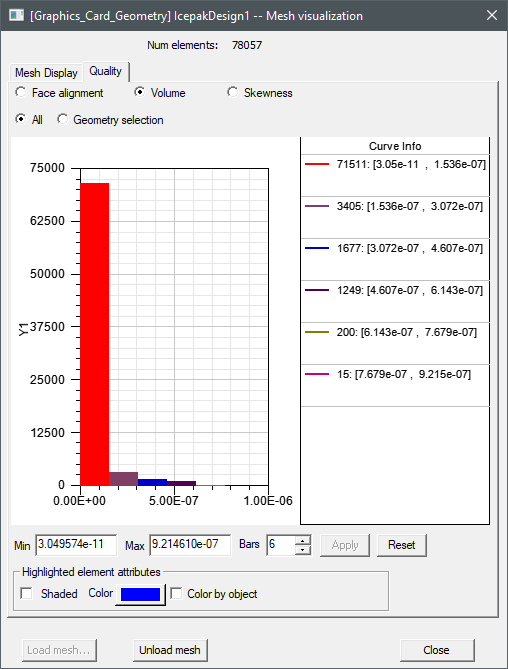
Fig. 1 Element Volume Histogram