
Assign a Face Monitor
Face monitors can be assigned to two-dimensional geometry or individual faces of three-dimensional geometry. To assign a face monitor and specify its data:
- Press F to enable face-selection mode.
- In the 3D Modeler window, select and right-click a two-dimensional geometry component or face of a three-dimensional geometry component.
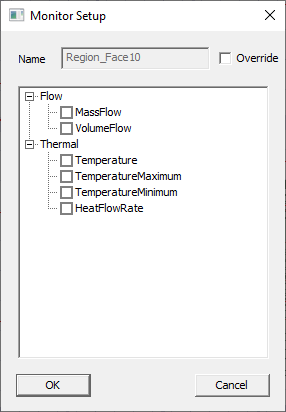
- From the right-click menu, select Assign Monitor > Face to open the Monitor Setup dialog box.
 Note:
Note:Alternatively, access the Monitor Setup dialog box from the Icepak>Monitor menu or by right-clicking Monitor in the Project Manager.
- If needed, select Override and enter a Name for the face monitor.
Note:
By default, the monitor name is based on the selected object. To create a custom base name, see Setting Monitor Base Names for more information.
- Select the data to display during the calculation:
- Expand Flow and select the flow data. The following flow data types are available:
- Mass Flow
- Volume Flow
- Expand Thermal, select the thermal data. The following thermal data types are available:
- Temperature
- TemperatureMaximum
- TemperatureMinimum
- Heat Flux
- Click OK to save the face monitor. It is displayed under Monitor in the Project Manager.