
Overlaying DC Temperature Fields (General Mode Only)
Projects with two-way coupling between Icepak and HFSS 3D Layout can have a field overlay that displays the DC temperatures. The 3D Layout project must have an Icepak DC IR analysis. To create such an overlay:
- In the Project Manager, open the 3D Layout design and right click Field Overlays > Plot DC Thermal Fields > TemperatureDC.

The Create Field Plot window opens.
- Select the TemperatureDC quantity. It is selected automatically.
- Click Done. The Create Field Plot window closes, while the Select Geometry window opens to its Nets and Layers tab.
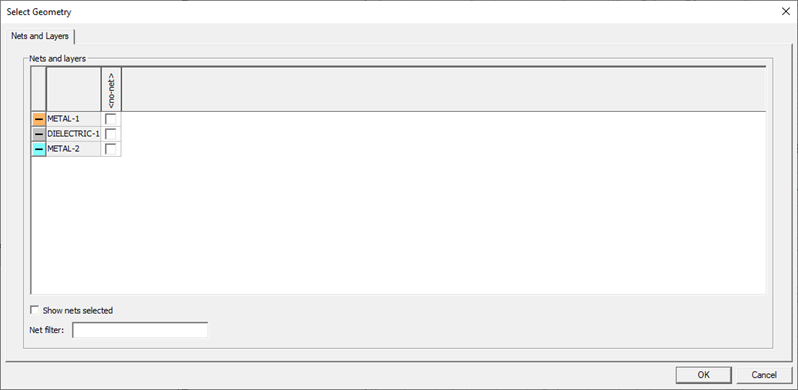
- Select the layer whose temperature field should display.
- Click OK.
The overlay appears.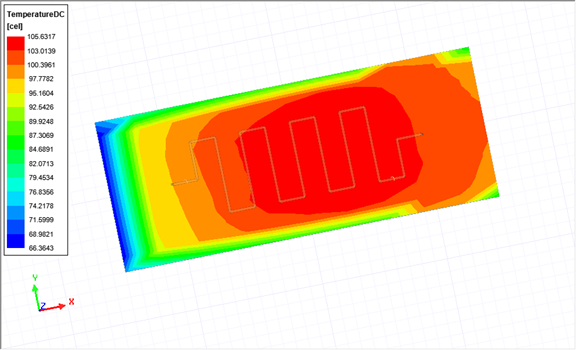
An example of the DC temperature fields overlay