
Setting Up Screening (Search Based) Optimizer
Following is the procedure for setting up an optimization analysis using the Screening Optimizer. Once you have created a setup, you can Copy and Paste it, and then make changes to the copy, rather than redoing the whole process for minor changes.
This is a non-iterative direct sampling method that uses a quasi-random number generator based on the Hammersley algorithm. You can start with Screening to locate the multiple tentative optima and then refine with NLPQL or MISQP to zoom in on the individual local maximum or minimum value. Usually Screening is used for preliminary design. Then, if you want to refine, these candidate points are used as starting points for gradient methods.
-
Set up the variables you want to optimize in the Design Properties dialog box. The variables must be swept in a Parametric setup.
-
Click
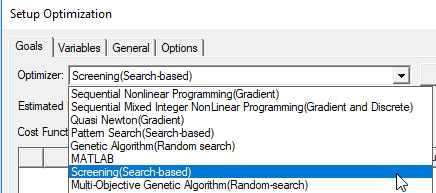
- Under the Goals tab, select the optimizer by selecting Screening (Search Based) from the Optimizer drop-down menu.
- Optionally, press the Setup button to open the Optimizer Options window to change the default number of samples from 100.
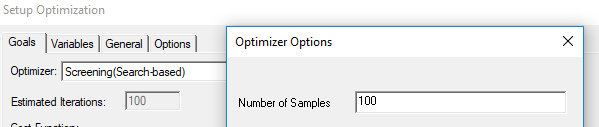
The number of samples must be greater than the number of enabled input parameters. The number of enabled input parameters is also the minimum number of samples required to generate the Sensitivities chart. You can enter a minimum of 2 and a maximum of 10,000. The default is 100 for a Direct Optimization system. - Add a cost function by selecting the Setup Calculations button to open the Add/Edit Calculation window.
- In the Optimization setup, in the drop-down menu for the Goal column, select either Edit as Expression or Edit as Numeric Value... This reopens the Add/Edit Calculation window.
- If you are satisfied with the expression or value displayed, click Done to close the window. This enters the expression/value to the Goal column.

- In the Optimization setup, if you want to select a Cost Function Norm Type:
- Check the Show Advanced Option check box.
- Select L1, L2, or Maximum.
- Optionally, set the Acceptable Cost and Cost Function Noise.
- Optionally, click the button for setting HPC and Analysis Options, which allows you to select or create an analysis configuration.
- In the Variables tab, specify the Min/Max values for variables included in the optimization.
- You may also override the variable starting values by clicking the Override check box and entering the desired value in the Starting Value field.
- Optionally, modify the values of fixed variables that are not being optimized.
- Optionally, set Linear constraints.
- Select the View all columns check box to see all columns, including hidden columns.
- In the General tab, specify whether Optimetrics should use the results of a previous Parametric analysis or perform one as part of the optimization process.
- Under the Options tab, if you want to save
the field solution data for every solved design variations in the optimization
analysis, select Save Fields And Mesh.
Note:
Do not select this option when requesting a large number of iterations as the data generated will be very large and the system may become slow due to the large I/O requirements.
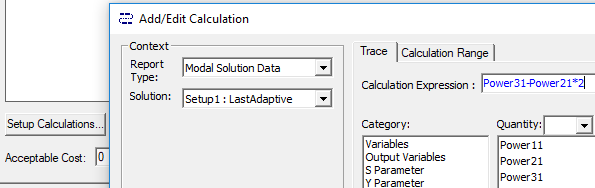
When you have created the calculation, click Add Calculation to add it to the Optimization setup, and Done to close the Add/EditCalculation window.
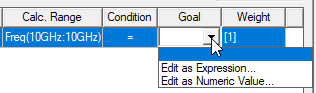
The Cost Function Norm Type drop-down list appears.
A norm is a function that assigns a positive value to the cost function.
For L1 norm the actual cost function uses the sum of absolute weighted values of the individual goal errors. For L2 norm (the default) the actual cost function uses the weighted sum of squared values of the individual goal error. For the Maximum norm the cost function uses the maximum among all the weighted goal errors, which means that it is always less than zero. (For further details, see Explanation of the L1, L2, and Max Norms in Optimization.)
The norm type doesn't impact goal setting that use as condition the "minimize" or "maximize" scenarios.
Enabling the Update design parameters' value after optimization check box will cause Optimetrics to modify the variable values in the nominal design to match the final values from the optimization analysis.
You may also select Copy geometrically equivalent meshes to reuse the mesh when geometry changes are not required, for example when optimizing on a material property or source excitation. This will provide some speed improvement in the overall optimization process.