
Edit Calculation Range
Functionality featured in the example(s) in this section applies to multiple design types.
In the Setup Optimization dialog box, you can enter the Calc. Range Sweep Min/Max by directly editing the Calc. Range field or by accessing an Edit Calculation Range dialog box.
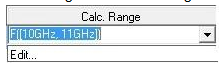
The edit field accepts the following forms of text:
- sweep that allows your to select different discrete values:
discrete values, for example, F(10GHz, 11GHz)
min/max range, for example, F([10GHz, 11GHz])
- editable sweep, which allows you to customize
values (that is a sweep that has an enabled "edited" radio button in
sweep selection dialog):
The min/max is used on top of selected values. For example, if you use the sweep dialog and choose "0 deg, 60 deg, 180 deg, 240 deg", then [60deg, 240deg] will select values "60 deg, 180 deg, 240 deg".
- sweep that uses a full range:
all values, for example, Time(All)
min/max range, for example, Time([1ms, 2ms]) HFSS/MAXWELL/TWINBUILDER
- You solve 1 to 20 GHz step .1 and specify F[10.381GHz, 11.381GHz], it is equivalent to selecting values between 10.4GHz and 11.3GHz.
- You can specify multiple sweep values by separating those with comma ","
For example, F(1GHz), cap(1pf, 1.2pf)
For example, Distance(All), Freq([1ghz,2ghz]), Phase(0 deg)
If you click Edit.. on the menu, you see the Edit Calculation Range dialog box. Click on the ellipsis [...] button to select radio buttons for Use all values, Select Values or Specify range.
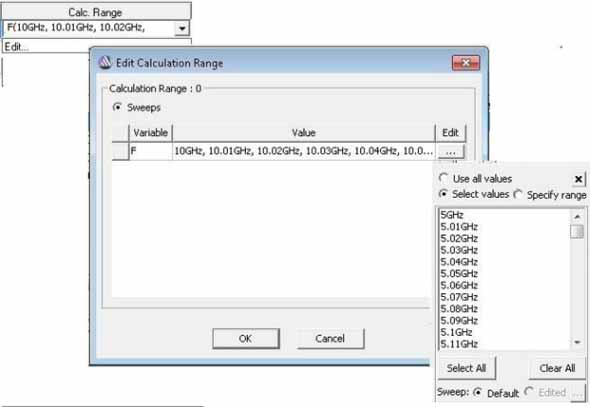
This example shows that when you specify a range, how the range appears in the Calc. Range field.
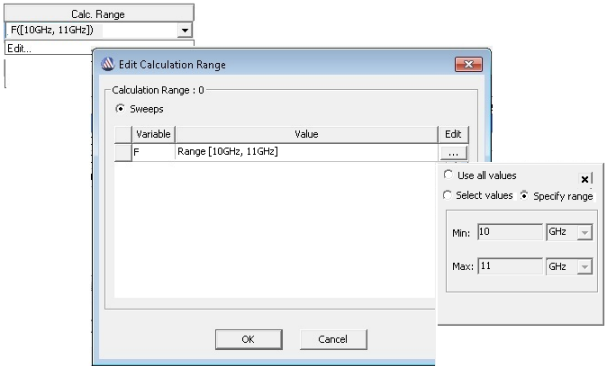
You could also enter the range directly in the Cal. Range field.