
Editing 3D Component Properties
You can change and manipulate 3D components in several ways:
- Edit component handle and target CS in the General tab of component instance properties. All CS that are included in the component are available to be used as the handle. All coordinate systems in the assembly design that are eligible for component placement are available as target CS. Note that the default handle is shown with an asterisk.
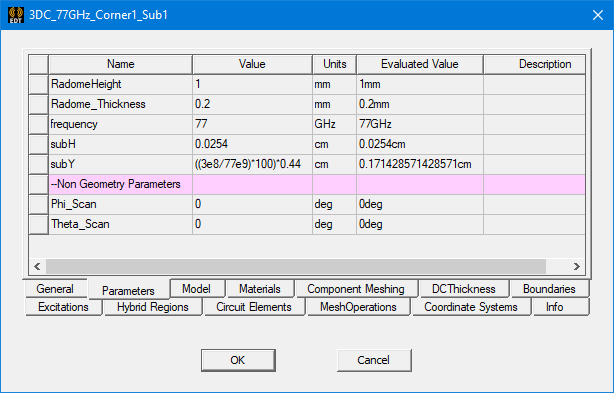
- Edit component parameters, if defined for that component. Editing the parameters of one component instance affects only that instance. If a component includes non-Geometry parameters, these are grouped separately on the Parameters tab.
- Copy/Paste component
- Delete component
- Arrange (Move, Rotate, Mirror) component
- Duplicate component (Along Line, Around Axis, or Mirror)
- Edit Attributes for Display Wire frame, Color, and Transparency.
- Use Edit > Select > Submodel to quickly select component
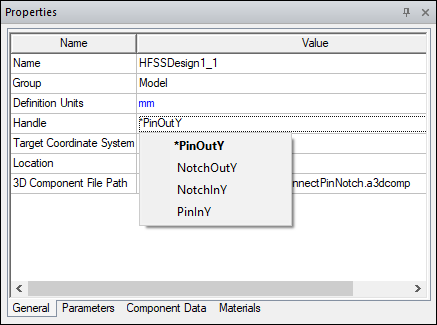
Watch the video that follows to see a demonstration of changing the handle and target coordinate system.
- Copy/Paste component
- Delete component
- Arrange component: Move, Rotate, and Mirror
- Duplicate component: Along Line, Around Axis, and Mirror
- Edit Attributes for Display Wire frame, Color, and Transparency
- Use Edit > Select > Submodel to quickly select component