Ansys Cloud Burst Support for HPC Job Management
Ansys Electromagnetics Desktop supports Ansys Cloud Burst Compute which allows a job to use resources in the cloud for analysis.
Uploads to and downloads from Ansys Cloud use archives to improve speed. The Project browser shows both .aedt and .aedtz (archive) files. If you submit an unarchived project, an archive will be automatically created for upload. When the job completes, the results are packaged into an archive. When the download is initiated, the repackaged archive file is transferred to the download folder along with the other job-related files, such as the log.
For single setups, you can use multi-step submission. This separates the resource specification and reporting as appropriate for each stage of the solve.
Prerequisites for Using Ansys Cloud Burst Compute with Ansys Electronics Desktop
To solve remotely in Ansys Cloud, your company must subscribe to an Ansys Cloud plan. Each plan includes a pool of cloud compute credits and provides cloud access to a limited number of users. Your company's Ansys administrator manages cloud user access in the Ansys Admin portal at https://admin.ansys.com/. For more information, refer to the Ansys Admin Guide.
To solve remotely in Ansys Cloud, your company must subscribe to an Ansys Cloud plan and provide you with access to the Ansys Cloud service. For details, see Requirements for Cloud Burst Computing in the Ansys Cloud Subscription User's Guide.
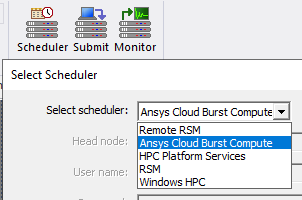
You can select Ansys Cloud Burst Compute through both the Simulation Ribbon (Scheduler button) and Tools > Job Management > Select Scheduler.
After you select Ansys Cloud Burst Compute from the Select Scheduler dialog, press Log in to open the default browser and prompt a login. After successfully logging in the Scheduler info box will contain a valid HPC Platform Services description.
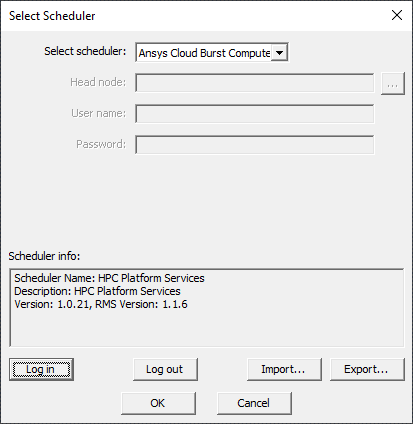
To log out press the Log out button from the Select Scheduler dialog.
Ansys Cloud Burst Compute-Specific Settings
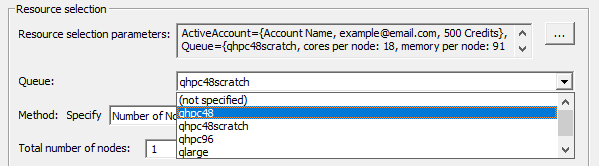
The Compute Resources tab allows you to select a Queue. The queue can also be left as (not specified) unless the submission method is automatic and Method is Number of Nodes and Cores. You can see information for the selected queue in the Resource selection parameters box. This includes cores per node and memory per node in GB.
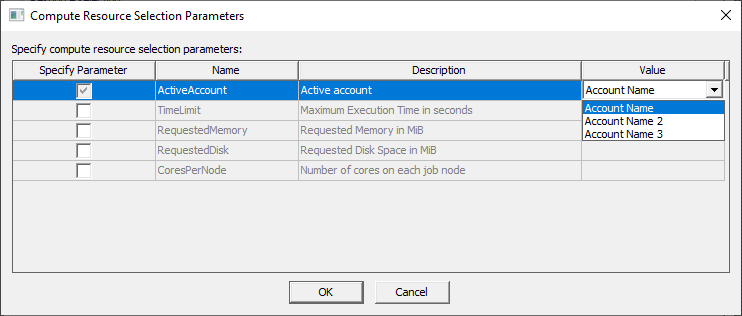
Ansys Cloud Burst Compute uses accounts for job submission, monitoring, and results download. When you submit a job to Ansys Cloud, cloud compute credits in your company's Ansys Cloud plan are consumed. Each credit corresponds to one unit of computation. The rate of credit consumption varies depending on the complexity of your simulation and the size of the model. Individual users can monitor their credit consumption via the Ansys Portal at https://portal.ansys.com.
On the Compute Resources tab, the Resource selection parameters box will display the currently selected account and its associated email, allocated core hours, and available core hours.
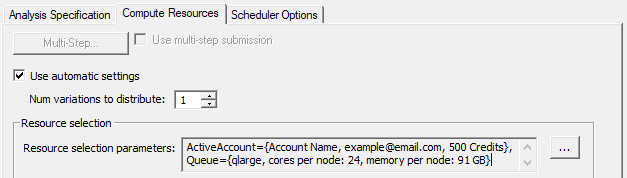
To select a different account, use the ellipsis […] button to the right of the Resource selection parameters box and select an account from the Value column of the row with ActiveAccount Name field.