
To print the layout that is in the active window:
- Select File > Print to open
the Print window:
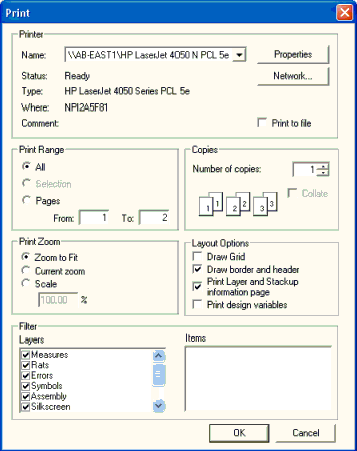
- Use the Print Range, Copies, and Print Zoom controls to specify how much to print and how you wish the print to appear. From the Layout Options area, you can specify whether or not to draw the grid, border/header, the layer and stackup information, and design variables. From the Filter area, you can toggle the printing of any layer and selected items.
- Click OK to print the layout and close the Print window.
Setting up the Page Layout
To set up the page layout before printing:
- Select Page Setup on the File menu to open the Page Setup window.
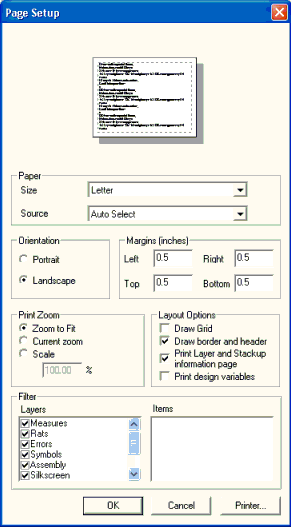
- Use the Paper, Orientation, Margins, and Print Zoom controls to specify how you wish the print to appear. From the Layout Options area, you can specify whether or not to draw the grid, border/header, layer and stackup information, and design variables. From the Filter area, you can toggle the printing of any layer and selected items.
- Click OK to close the Page Setup window with your settings.
- Select Print Preview on the File menu to see a preview of the print.