
Intersecting 3D components (e.g., 3D structures that partially or completely overlap) can cause a validation check to fail. If the validation check fails, an error message will appear in the Message Manager window. The error message may provide detailed feedback about which objects are intersecting. The error message varies, depending on whether the components are unencrypted, encrypted but visible, or encrypted and hidden. If appropriate, users can deactivate the intersection check conducted during validation (continue to Deactivating the Intersection Check).
Complete these steps to attempt validation with intersecting components, then view the error message and details (if any).
-
If users have not already done so, they can add a setup to the design and analyze the setup (refer to HFSS 3D Layout Getting Started Guides).
-
To open the Validation Check window, do one of the following:
-
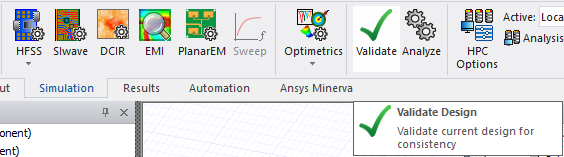
Navigate to the Simulation tab and select Validate from the Simulation ribbon.
-
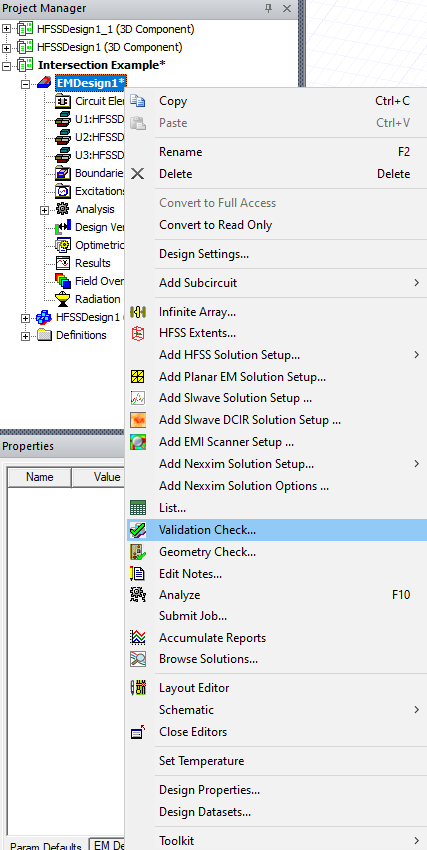
From the Project Manager window, expand the Project Tree > [active design folder]. Then right-click the active design (e.g., EMDesign1) and select Validation Check.
-
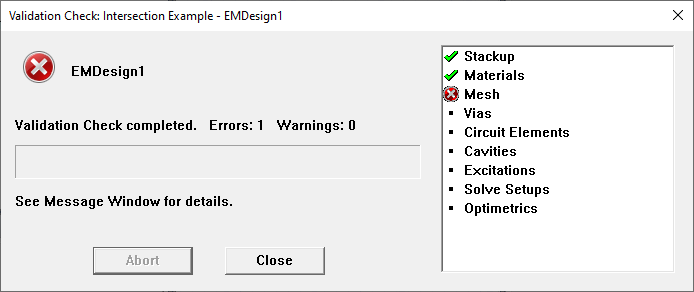
The Validation Check window will display errors/warnings as they occur. If the design includes intersecting objects, the window will display a mesh error. Click OK to close the Validation Check window.
-
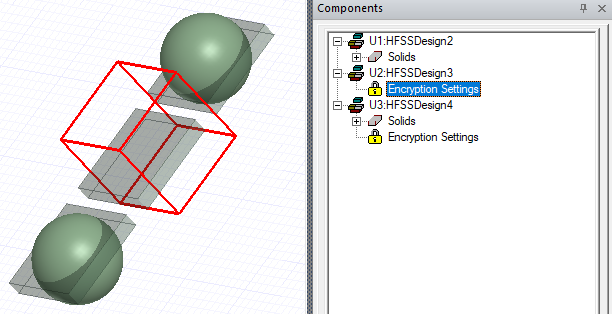
Navigate to the Message Manager window and identify the mesh error message. Depending on the level of encryption (e.g., unencrypted, encrypted but visible, and/or encrypted and hidden), the specific mesh error(s) will vary.
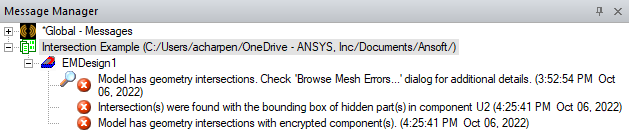
Encrypted, unencrypted, and hidden encrypted components can potentially exist within the same design. Refer to Encrypted Components for more information.
-
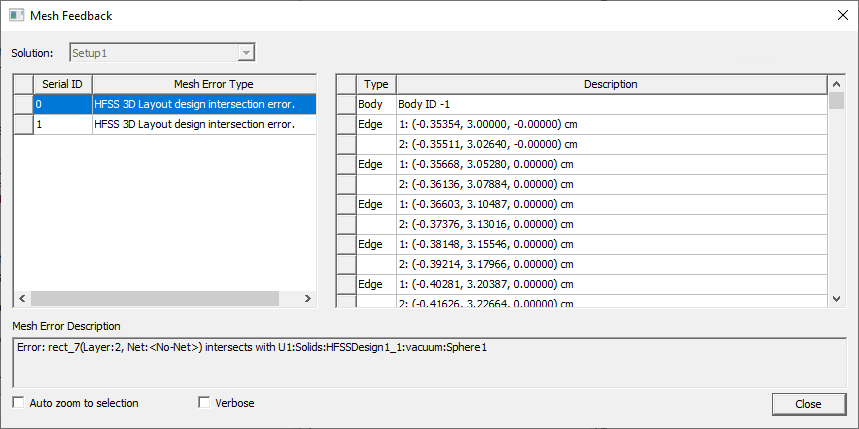
Click the mesh error(s) for unencrypted or encrypted but visible components to view a detailed list of the intersection points, click the error message to open the Mesh Feedback window.
Creating a Mesh Region to Validate Encrypted Designs
If Electronic Desktop identifies an intersection with an encrypted and hidden component, it is impossible to ascertain the exact coordinates of the intersection or whether the intersection invalidates the design since the exact parameters of the hidden component are unknown (i.e., only its bounding box is calculated).
Ansys suggests creating a mesh region around the component. Mesh generation will automatically cease if the generator encounters an intersection. If mesh generation is successful, then the intersection is valid. Refer to Meshing In HFSS 3D Layout for more information.
Deactivating the Intersection Check
If the components in the design are all unencrypted, users can deactivate the intersection check altogether. Deactivating the check has no impact when validating a design that includes an encrypted component. Complete these steps to deactivate the intersection check.
-
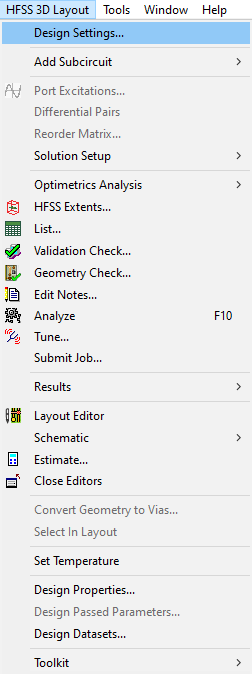
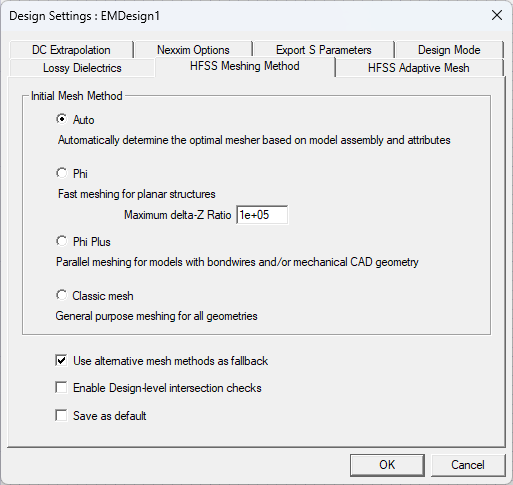
From HFSS 3D Layout, select Design Settings to open the Design Settings window.
-
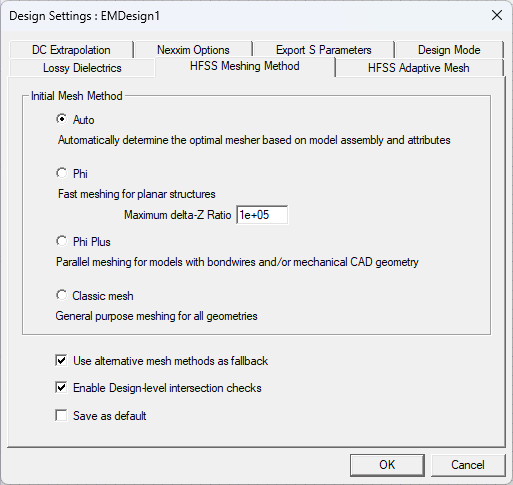
Navigate to the HFSS Meshing Method tab.
-
Remove the check from the Enable Design-level intersection checks box.
-
Click OK to close the Design Settings window.
Next Steps
Typically, the intersection should be corrected before proceeding. Users can change the shape of objects, or remove a component to reach this goal.