
GDSII files are imported into IC mode through the GDSII import window. This window lists layers in the design, allowing users to designate a control file (e.g., a technology file), select from several options, and/or import information from an XML control file, layer mapping file, or a layer filter. Once GDSII files (*.gds, *.sf, or *.strm) are imported into the Ansys Electronics Desktop (AEDT)TM electronics systems design platform, they can be edited in the Layout Editor (IC mode). IC mode reconfigures the Layout tab with new commands which allow users to import, simplify, and convert large GDSII files into EDB (i.e., Electronic Database) files.
Compare to Importing GDSII Files in ECAD Xplorer.
Importing a GDSII file
The GDSII Import window provides a basic layer mapping which is numerically ordered based on the first layers provided in the GDSII file. To improve the mapping, add a control or technology file, and a layer map file. These files map layers in the GDSII file to layers in the imported stackup. Each set of geometries in the GDSII file only appear on a single layer, so multiple file layers can map to an import layer but file layers cannot map to multiple import layers.
Layers can be renamed during the import process, but the information contained in the control file is exported on the Layer Stackup window and is not directly usable by the translator. When a design is imported, layer mapping is not maintained internally. To re-translate a design with renamed layers, use the same layer names specified in the GDSII file. It is also possible to combine the records for renaming layers with the control file exported on the stackup window. See Control File Usage with Renaming.
A new OASIS translator (i.e., Open Artwork System Interchange Standard) has been introduced as a beta feature in Anstranslator. To use this functionality, enter -i=oasis at the command prompt while running a command. All arguments that are valid for GDSII files should work with OASIS (*.oasis) files. The GDSII Import window in AEDT and Ansys ECAD Xplorer now supports importing OASIS files.
If all conductive layers have thickness, the three-dimensional connectivity of the design is used to generate nets. Complete these steps to import a GDSII file with AEDT.
- From the File menu, select File > Import > GDSII to open an explorer window.
- Navigate to the chosen GDSII (*.gds) file in the explorer window. Then double-click the file or select the file and click Open to open the GDSII Import window, on the Layers tab.
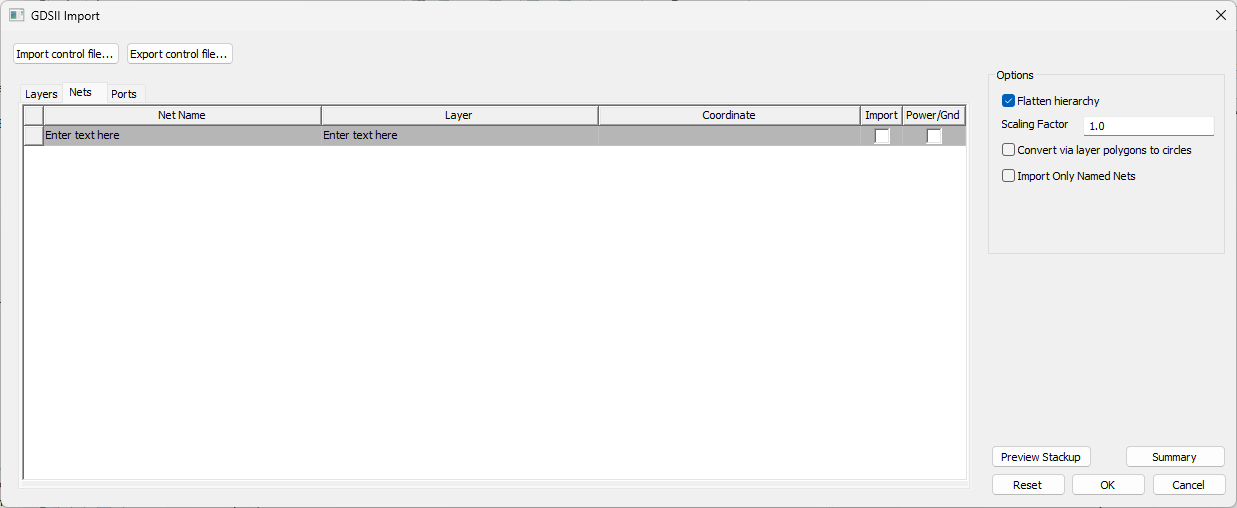
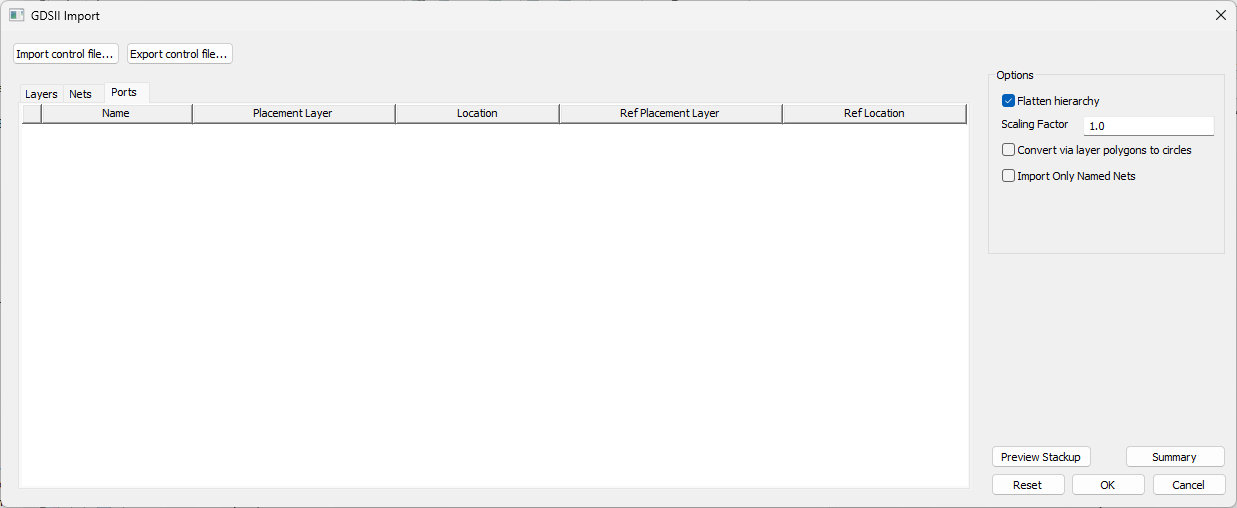
This window contains three tabs: Layers, Nets, and Ports.
- Layers – displays layer import options, layer parameters, and editable geometry options (i.e., Solve Inside, Union Primitives, Convert Polygon To Circle, and Reconstruct Arcs).
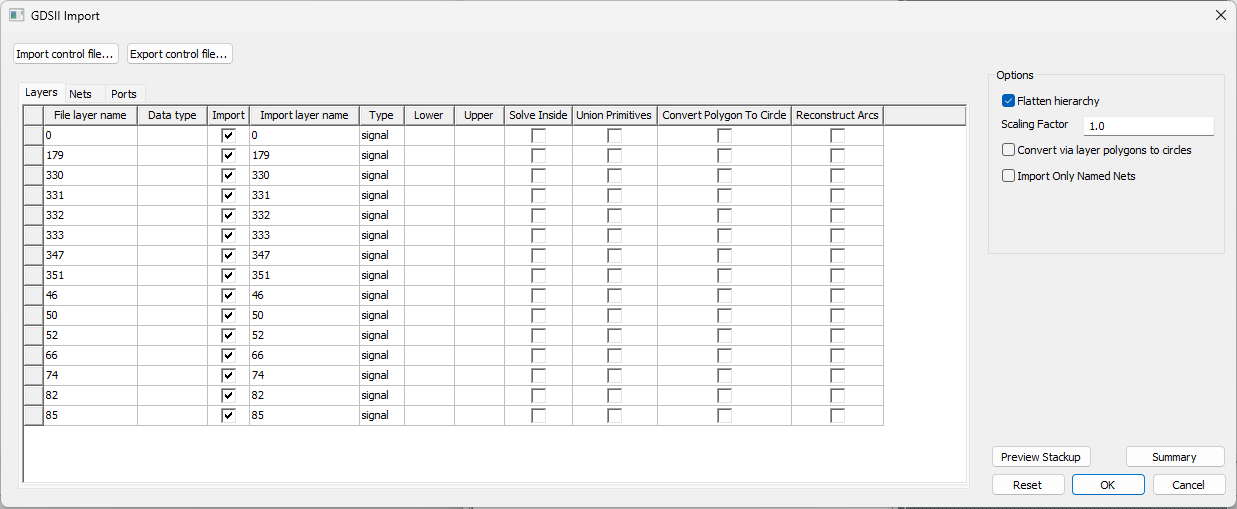
- Nets – allows users to select nets by Net Name, Layer, or Coordinate for Import and designate Power/Gnd nets.
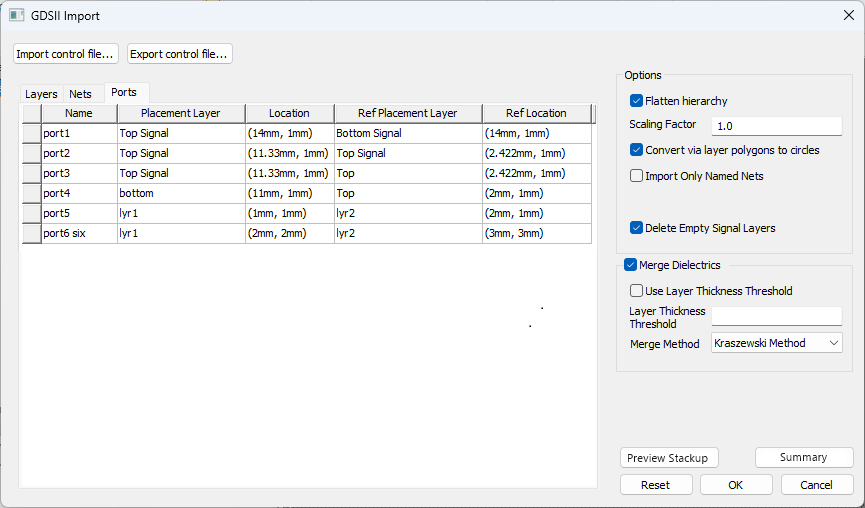
- Ports – provides a list of ports and a method of adding ports via .csv file. Refer to Add Ports From a .CSV File.
- Layers – displays layer import options, layer parameters, and editable geometry options (i.e., Solve Inside, Union Primitives, Convert Polygon To Circle, and Reconstruct Arcs).
- Use an XML control file to change import settings. To import a control file or technology file, perform the following substeps:
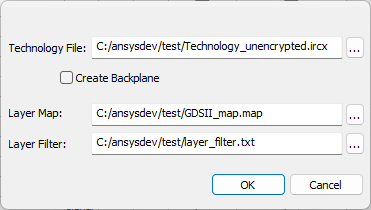
- From the GDSII Import window, click Import control file to open a window with three fields (i.e., Technology File, Layer Map, and Layer Filter).
 Note:
Note:A Technology File and Layer Map are required. All selected files must reference compatible (i.e., in sync) data or errors will result.
- Click the [...] button next to the Technology File field to open an explorer window.Note:
To change the root directory that opens when clicking the Technology File [...] button, create the environment variable ANSYS_GDS_TECHFILE_ROOT with the value of the appropriate directory path (e.g., C:\TechFiles\TestFolder).
- Navigate to the chosen technology file or control file. Then double-click the file or select the file and click Open to close the explorer window and return to the previous window.
- From the GDSII Import window, click Import control file to open a window with three fields (i.e., Technology File, Layer Map, and Layer Filter).
A technology file can have an .xml, .layermap, .ircx, .vlc.tech, or .itf extension.
- If a technology file is imported, at user discretion, check the Create Backplane box.
- If a technology file is imported, click the [...] button next to the Layer Map field to open an explorer window.
- Navigate to the chosen .map file. Then double-click the file or select the file and click Open to close the explorer window and return to the previous window.
- If appropriate, click the [...] button next to the Layer Filter field to open an explorer window. A technology file must either contain references to the same number of signal/via layers in a design's stackup or a layer filter can be used to specify which layers from the technology file to redefine within the stackup. Refer to Adding a Technology File to a Design.
- Navigate to the chosen .txt file. Then double-click the file or select the file and click Open to close the explorer window and return to the previous window.
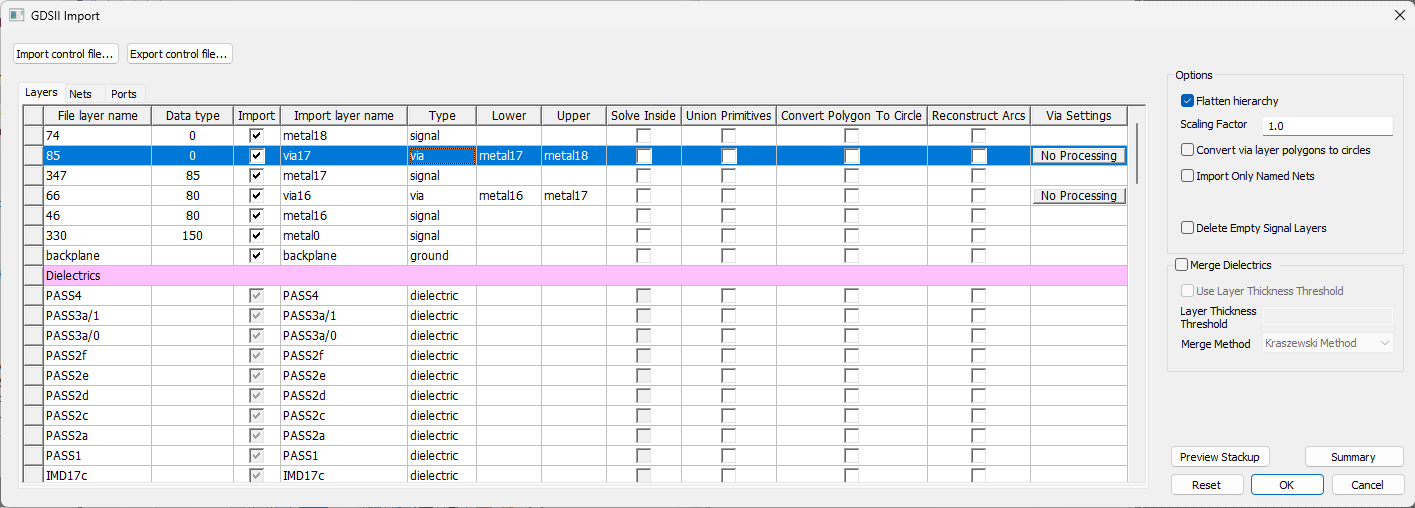
- Click OK to close the window and import the technology file and/or the map file. When an imported control file contains dielectric layers, the layers are separated in the Layers tab, and an additional Merge Dielectrics area appears beneath the Options area.
-
If appropriate, check the Merge Dielectrics area box, and the Use Layer Thickness Thresholdcheck box. If the Use Layer Thickness Threshold box is checked, enter a value in the Layer Thickness Threshold field and select a Merge Method from the drop-down menu. Refer to Dielectric Simplification (Merging).
-
If appropriate, select Delete Empty Signal Layers.
- From the Layers table:
- Check the boxes in the Import column to choose which layers to import (all layers checked by default).
- Rename any layer on the text fields in the Import layer name column.
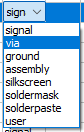
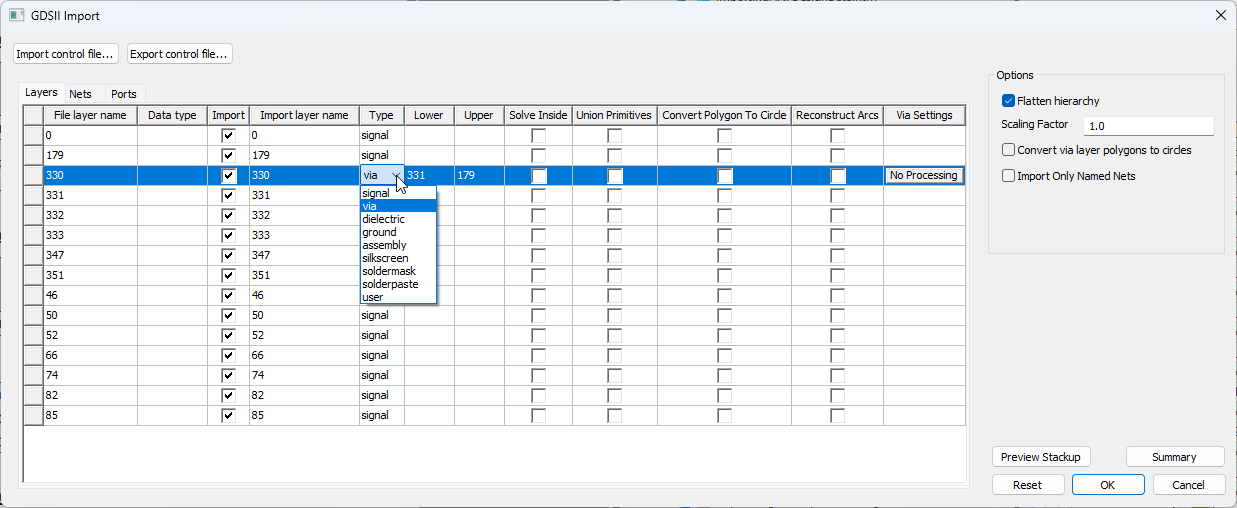
- Set the type of each layer on the drop-down menus in the Type column.
 Note:
Note:If a layer's type is set to via, the Via Settings column appears in the Layers tab and the GDSII Import window automatically resizes to fit. The geometry on the via layer is converted to a padstack instance between the signal layer above (Upper) and the signal layer below (Lower). Values for Upper and Lower are filled automatically.
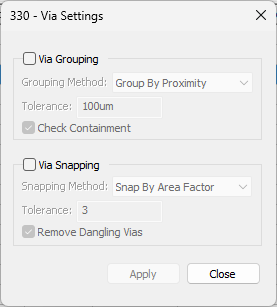
For on-chip structures, click No Processing in the Via Settings column to open the Via Settings window. Then, at user discretion, check the Via Grouping or Via Snapping boxes, select Grouping/Snapping Methods from the drop-down menus, enter Tolerance thresholds, and make additional changes, as appropriate (i.e., check the Check Containment or Remove Dangling Vias boxes). Finally, click Apply.
- If appropriate, use the check boxes for each layer to enable any/all of the following geometry options:
- Solve Inside – completes simulation calculations within the specified layer.
- Union Primitives – unites overlapping primitives on the same layer.
- Convert Polygons to Circles – converts polygons within a minimum threshold into circles.
- Reconstruct Arcs – smooths and reconnects segmented arcs within a minimum threshold.
- If appropriate, enable other options in the area:
- Flatten hierarchy – flattens hierarchies in a design after the design is modified in ECAD Xplorer.
- Scaling Factor – scales the XY coordinates of all geometries. It does not apply to layer thickness (default is 1.0, which represents no change). The scaling factor t can be any real number greater than 0.
- Convert via layer polygons to circles – changes any polygons on via layers to circles.
- Import Only Named Nets – only imports geometry that is assigned to a named net.
- To create a new control file that includes any changes made in this window, click Export control file..
- Click OK to open the file in the Layout Editor.
The procedure is complete.
The Preview Stackup Window
Click Preview Stackup to open the Preview Layers window, which displays the stackup data table and visual representation of the stackup.
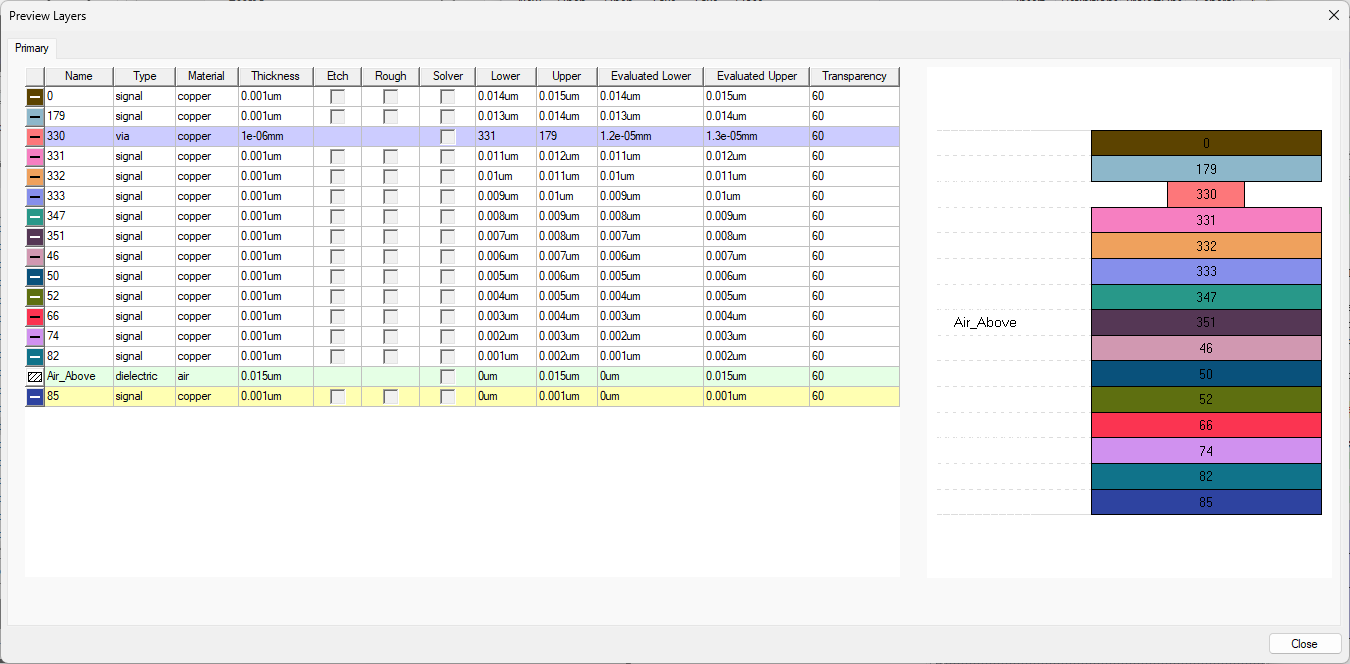
The default Thickness of imported layers is 1e-6m (i.e., 0.001um). Elevation is calculated dynamically according to the entered thickness of all layers.
The Cell Summary Window
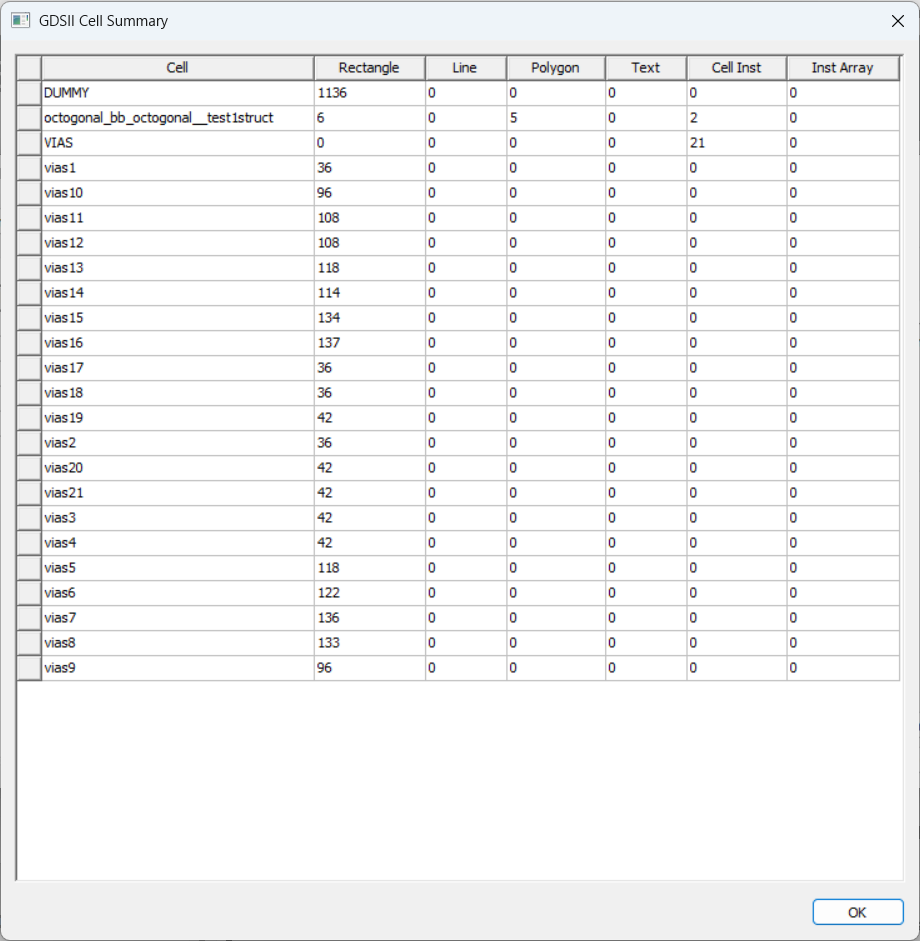
Click Summary to open the GDSII Cell Summary window, which lists the number of rectangles, lines, polygons, texts, cell instances, and instance arrays for each cell.
Reset
Click Reset to undo all changes made since importing the GDSII file.
Adding Ports From a .CSV File
Import ports from a .csv file by following these steps.
-
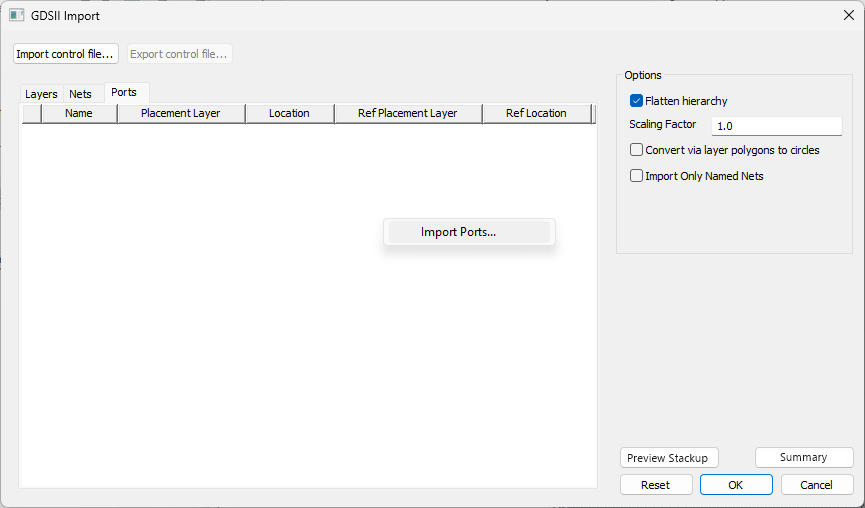
From the Ports tab, right-click in the port grid and select Import Ports to open an explorer window.
-
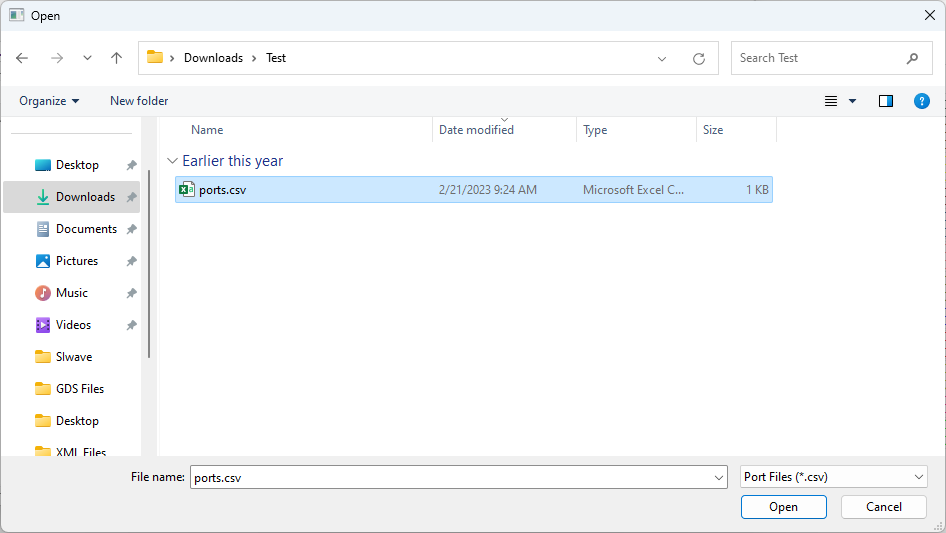
Navigate to the chosen .csv file. Then double-click the file or select the file and click Open to close the explorer window and return to the GDSII Import window.
-
The ports grid is now populated with the data on the .csv file.
-
Click OK to save changes and import the GSII file.
The procedure is complete.