
Converting Polygons to Circles in ECAD Xplorer
Compare to Converting Polygons to Circles in IC Mode.
To convert polygons into circles, follow these steps.
Before beginning, it may be appropriate to modify settings in the Modify the Minimum Area Ratio Field in the Geometry Simplification Settings Window window.
-
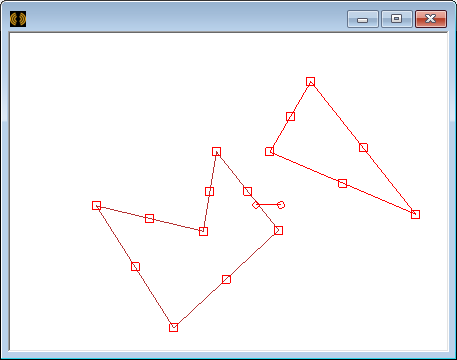
Select the chosen polygon(s).
-
Do one of the following:
-
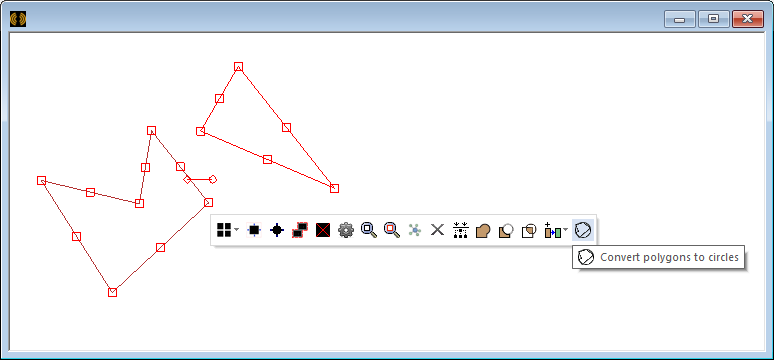
Right-click in the Layout Editor and select Convert polygons to circles.
-
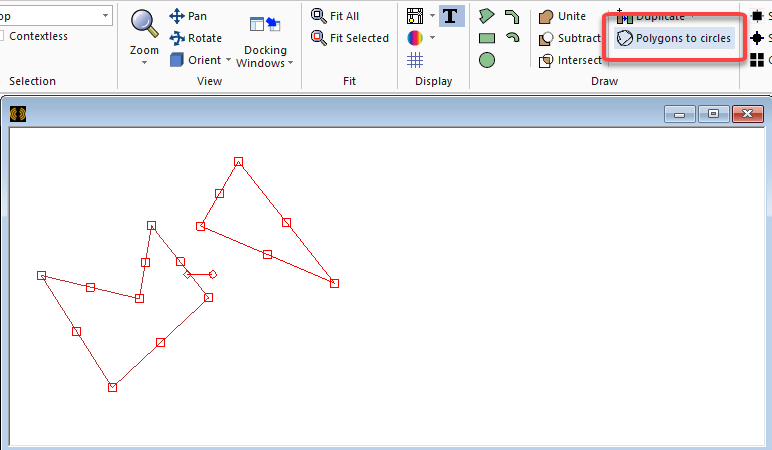
From the Draw ribbon, select Polygons to circles.
-
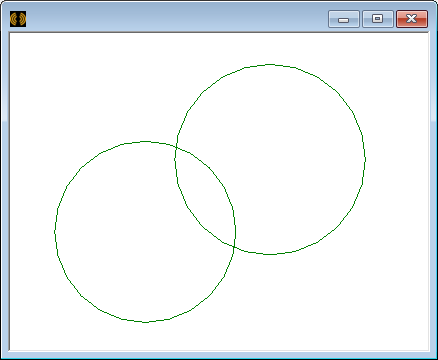
The procedure is complete.
Modify the Minimum Area Ratio Field in the Geometry Simplification Settings Window
If the "convert polygons to circle" function has no effect on the selected polygon(s), follow these steps to modify the Minimum Area Ratio field in the Geometry Simplification Settings window.
-
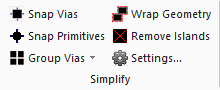
From the Simplify ribbon, select Settings to open the Geometry Simplification Settings window.
-
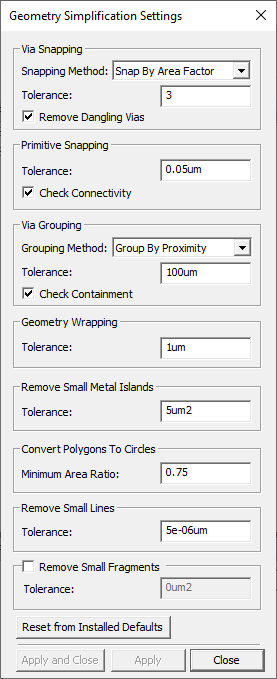
Locate the Minimum Area Ratio field in the Convert Polygons To Circles area.
-
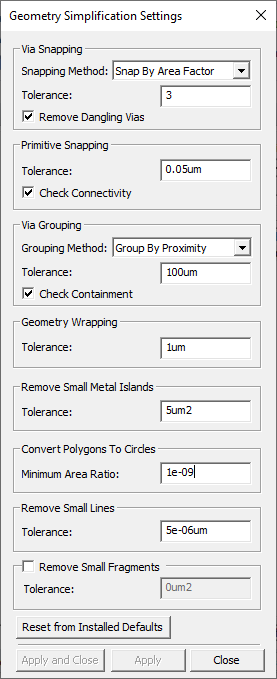
Replace the number in the Minimum Area Ratio field (e.g., 0.75) with 1e-09.
-
Click Apply.
-
Click Close.
The procedure is complete. Return to Step 1 of Converting Polygons to Circles in ECAD Xplorer .