Configuring Ports
Using the following shortcut menu port commands, you can configure ports in the Layout Editor.
Right-click within the Layout Editor and navigate to Port to view the following options.
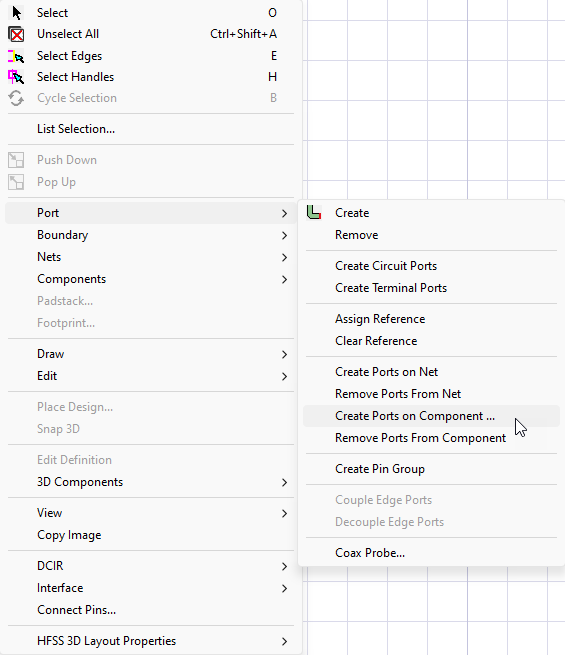
All Port options require the user to select one or more objects in the Layout Editor. These instructions assume no object has been selected and the shortcut menu is not open.
Create an Edge Port
-
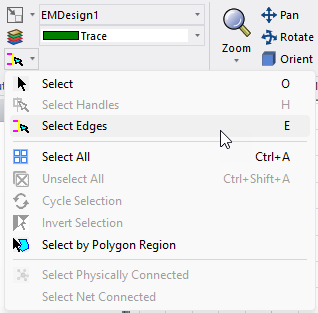
Do either of the following to enter edge selection mode:
-
From the Layout Ribbon, choose the Select Edges cursor.
-
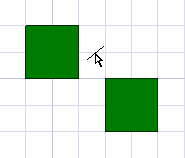
Enter E in the Layout Editor and wait for the cursor to transform.
-
-
Select the edge of a primitive.
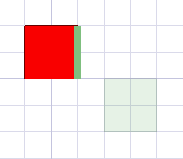
-
Right-click in the Layout Editor and select Port > Create to create an edge port.
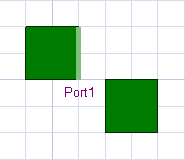
Refer to Ports for Transmission Lines.
Remove an Edge Port
Right-click on an edge port and select Port > Remove.
Create Circuit Ports
To transform an edge port into a circuit port, right-click on an edge port and select Port > Create Circuit Ports.
To create a circuit port:
-
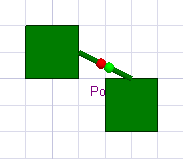
Right-click in the Layout Editor and select Port > Create Circuit Ports.
-
Click the edges of two primitives to select the positive (i.e., first selection) and negative (i.e., second selection) terminal locations.
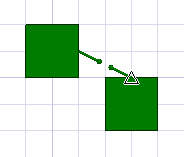
The Circuit Port window opens.
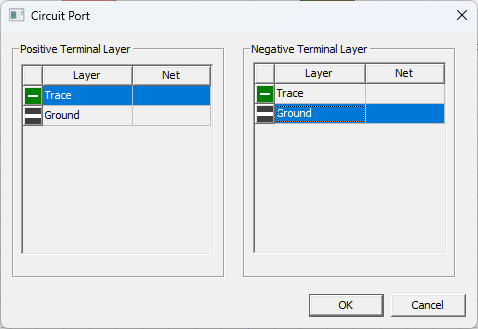
-
Select a Positive Terminal Layer and a Negative Terminal Layer.
-
Click OK.
Create Terminal Ports
-
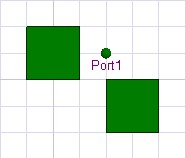
Right-click in the Layout Editor and select Port > Create Terminal Ports.
-
Click anywhere in the Layout Editor to create a terminal port. The port automatically seeks out a reference.
Assign Reference
-
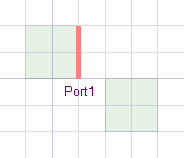
Select a port.
-
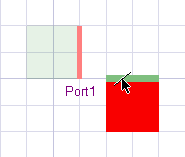
Enter edge selection mode and click the edge of an appropriate primitive.
-
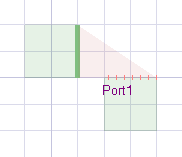
Right-click in the Layout Editor and select Port > Assign Reference to use the primitive is used as a reference.
Clear Reference
-
Select a port or visible reference.
-
Right-click in the Layout Editor and select Port> Clear Reference.
Refer to Assigning Reference Ports in the Layout Editor.
Create Ports on Net
-
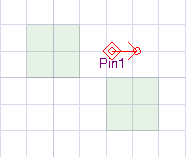
Select a pin assigned to a net.
-
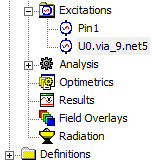
Right-click in the Layout Editor and select Port> Create Ports on Net. The new edge port is added to the Excitation folder in the Project Manager window.
Remove Ports From Net
Right-click in the Layout Editor and select Port > Remove Ports From Net. The new edge port is deleted from the Excitation folder, along with the pin, and the pin is deleted from the Layout Editor.
Create Ports on Component
-
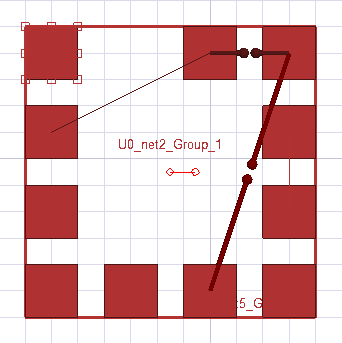
Highlight a component.
-
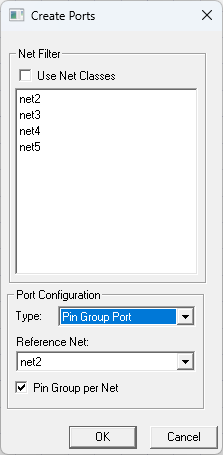
Right-click in the Layout Editor and select Port > Create Ports on Component to open the Create Ports window.
-
From the Create Ports window, do the following:
-
From the Net Filter area, check the Use Net Classes box, if appropriate.
-
Select a net from the list.
-
From the Port Configuration area, select a Type of port from the drop-down menu (i.e., Gap Coax Port, Circuit Port, or Pin Group Port).
-
If Pin Group Port or Circuit Port is selected from the Type drop-down menu, the Reference Net drop-down menu appears. Select a Reference Net from the drop-down menu.
-
If Pin Group Port is selected from the Type drop-down menu, the Pin Group per Net check box appears. Check the Pin Group per Net box, if appropriate.
-
-
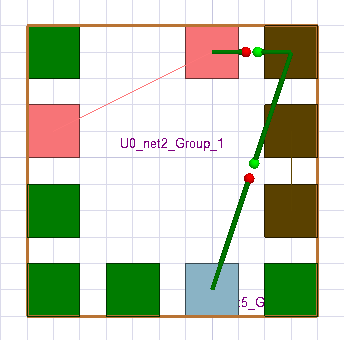
Click OK and the new ports appear on the component.
Remove Ports From Component
Right-click the appropriate component in the Layout Editor and select Port > Remove Ports From Component.
Create Pin Group
-
Select two or more pins.
-
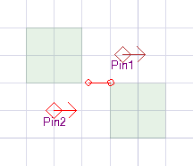
Right-click in the Layout Editor and select Port > Create Pin Group and a line is drawn between the pins on the Layout Editor, a visual representation of the new group.
-
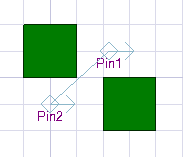
Select the line to view the group's details in the Properties window.
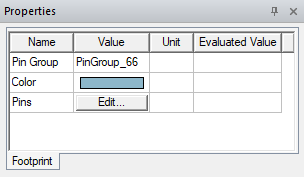
Refer to Creating a Pin Group.
Couple Edge Ports
-
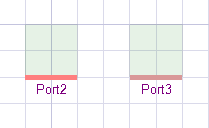
Select two parallel edge ports.
-
Right-click in the Layout Editor and select Port > Couple Edge Ports and a line is drawn under the pins on the Layout Editor, a visual representation of the new group.. The coupled ports retain the name given to the first selected port, which becomes Terminal 1. The second selected port becomes Terminal 2.
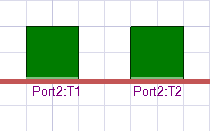
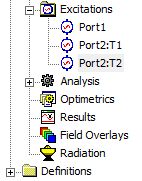
The coupled ports appear in the Project Manager window > Excitation folder with their newly coupled names (e.g., Port2:T1 and Port2:T2).
Decouple Edge Ports
Right-click the coupled edge port line in the Layout Editor and select Port > Decouple Edge Ports.
Coax Probe
-
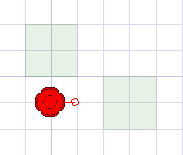
Select a via.
-
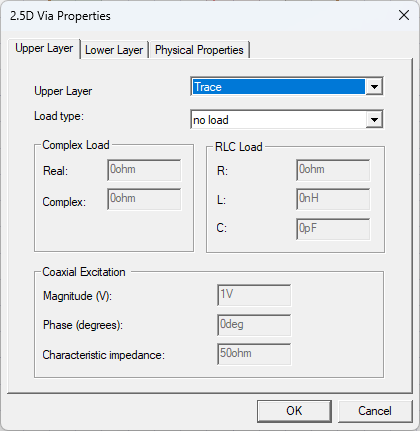
Right-click in the Layout Editor and select Port > Coax Probe to open the 2.5D Via Properties window. Refer to Creating a Probe Port to configure the new probe port.
-
Click OK and the new probe port appears in the Layout Editor.